

Save and manage clients
Last updated · InvoiceStamp 1.1.0 for iPhone and Android
InvoiceStamp saves every client you add, so the next document for them takes one tap. Add a client from the editor's client card or from Profile → Saved Clients, fill in at least the name, and tap Save client. You can fill the form from your phone's contacts, and edit, archive or delete a client later.
How do I add a client?
You can start from any of these:
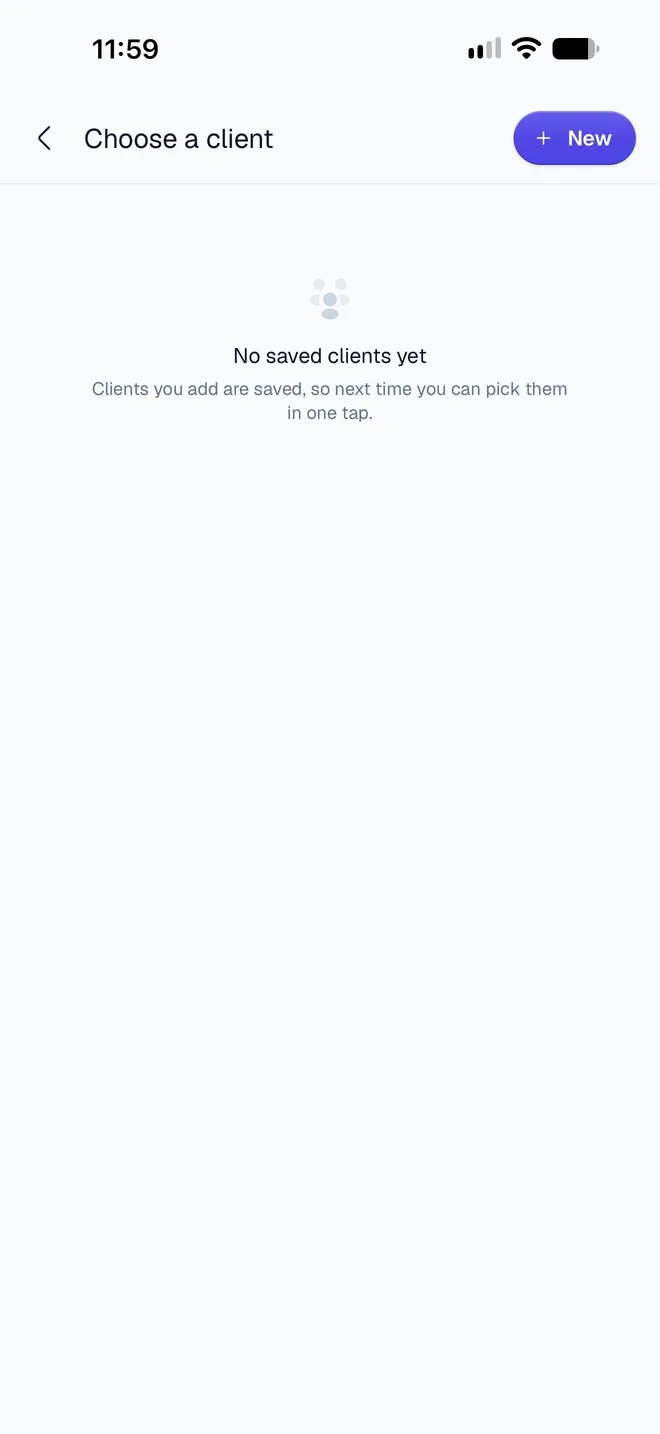
- In the editor: tap the client card (Your Client), then New on Choose a client. The new client is then on the document you're making.
- Profile → Saved Clients → New.
- The + button → Client, or New Client on the Home screen.
Type the client's Name. It's the only required field.
Add their Email, Phone and Address, and choose their Country. Fill in what you want printed on your documents.
Under Tax & Legal, add their if your invoices need it.
Tap Save client. If the name is empty, the button explains: "Add a name to save this client."
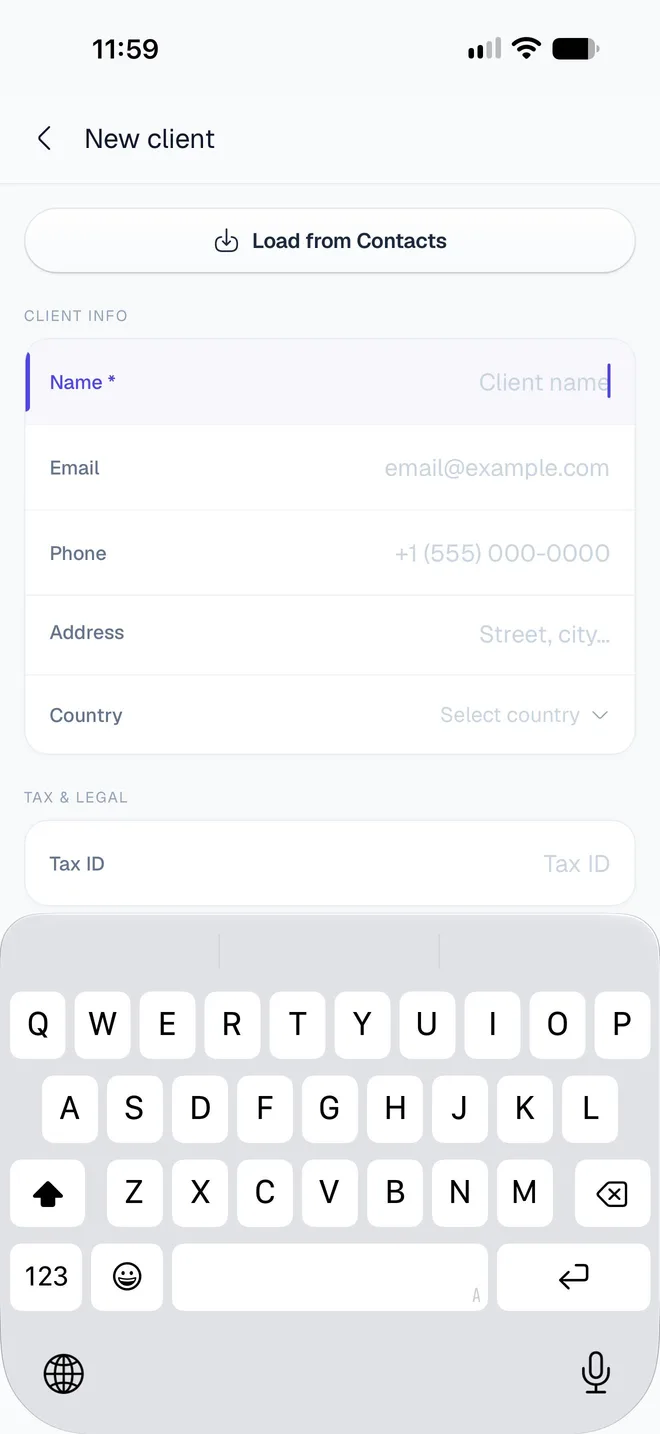
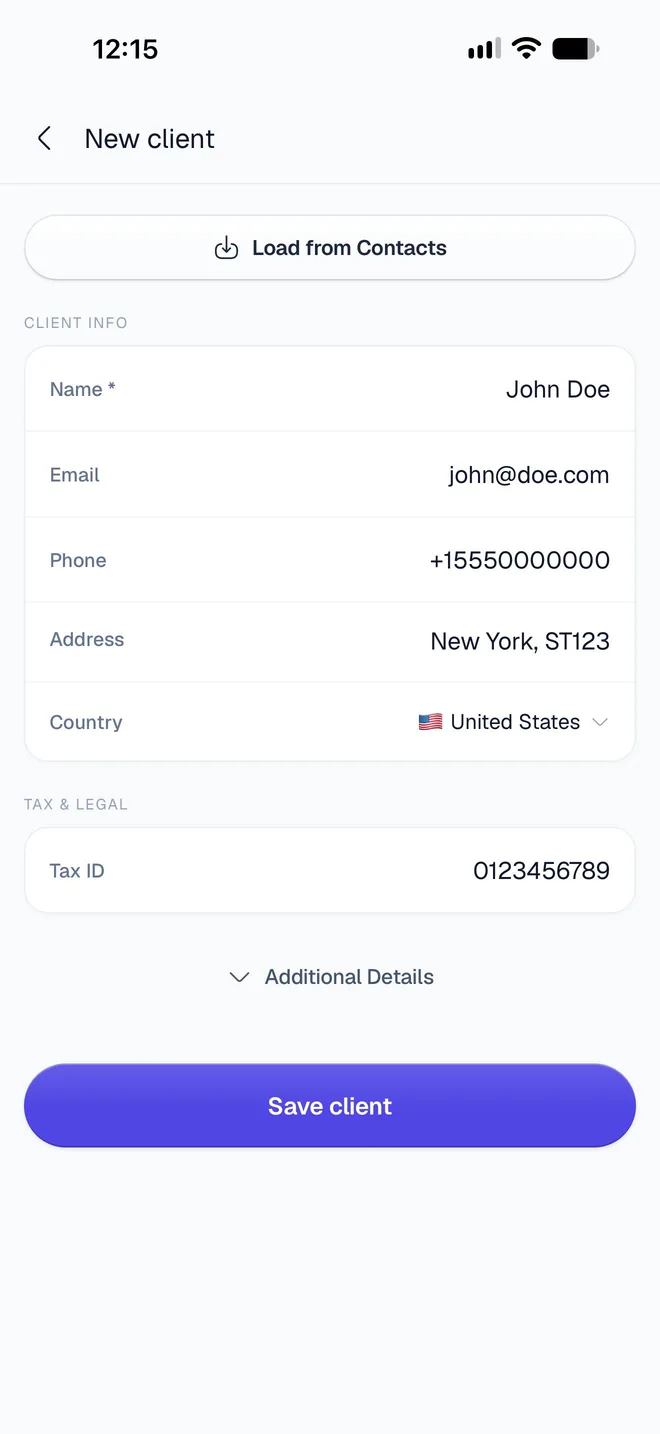
If you go back with changes you haven't saved, the app asks Discard changes?: tap Discard to drop them or Keep editing to stay.
How do I load a client from my contacts?
On the new client form, tap Load from Contacts.
The first time, your phone asks whether InvoiceStamp can access your contacts. On iPhone, you can allow all of them or only the ones you pick.
Choose the contact. InvoiceStamp fills in their name and their first email, phone number and postal address, replacing what you typed in those fields.
Check the form, add anything missing, such as the country or tax ID, and tap Save client.
If you said no to contacts before, the app shows "Contacts permission denied". To change that, open your phone's Settings, find InvoiceStamp under Apps, and allow Contacts (on Android, under Permissions).
How do I add a client's legal identifiers?
Some countries expect more than one company number on an invoice, such as a VAT number and a registration number.
At the bottom of the client form, tap Additional Details.
Under , tap Add Legal Identifier and choose the type.
Type the number. Add as many types as you need; each can be added once, and the ✕ next to one removes it.
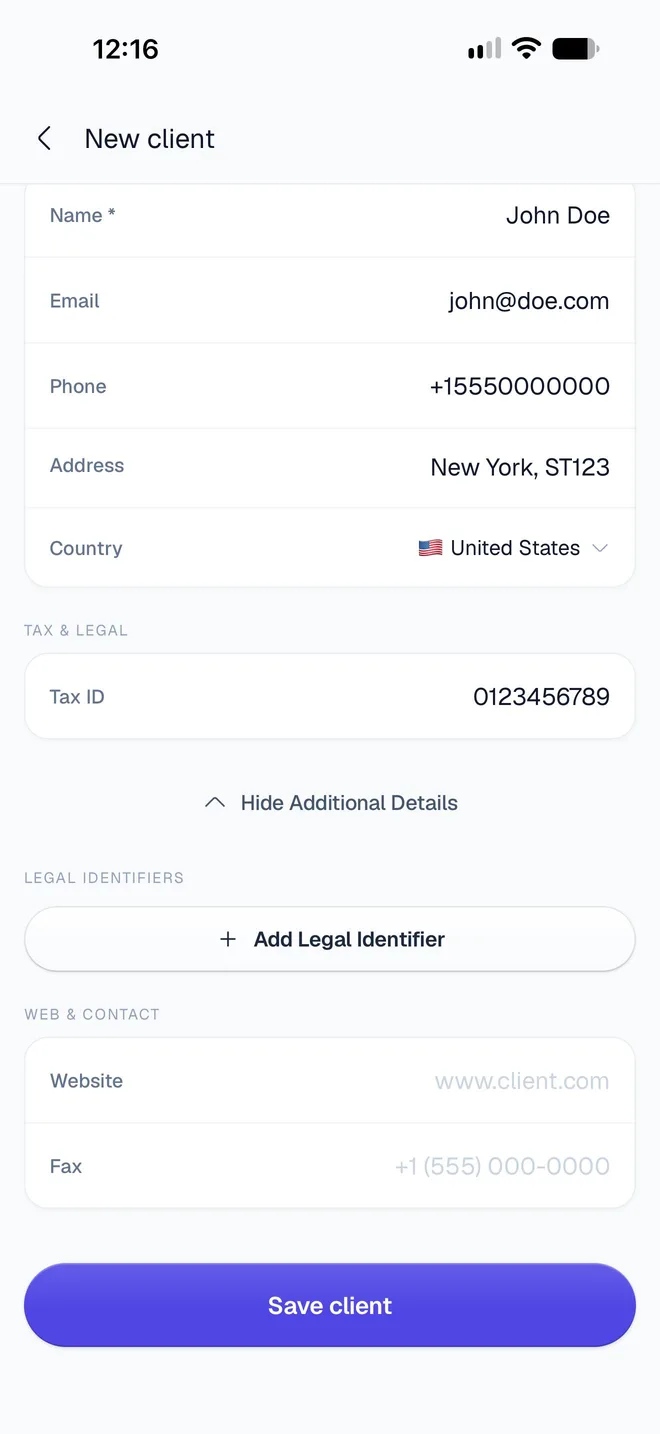
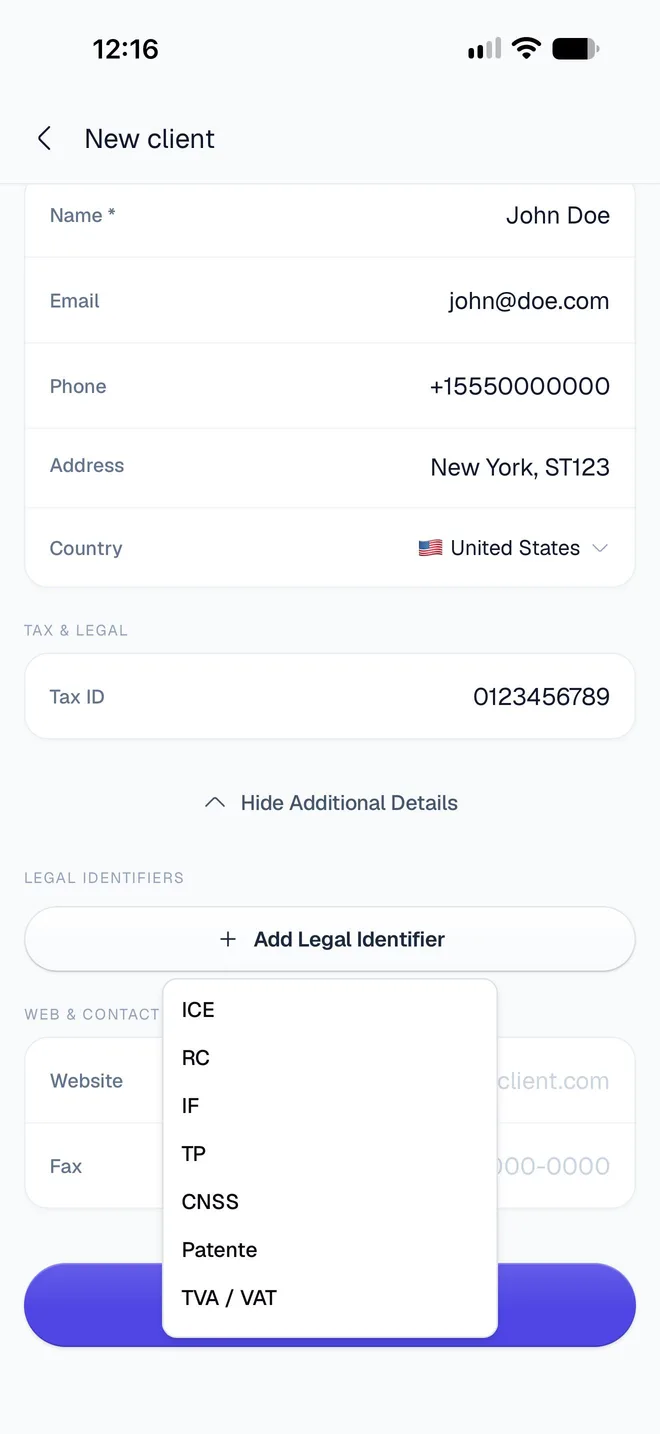
The types are ICE, RC, IF, TP, CNSS, Patente, TVA / VAT, SIREN, SIRET, NIF, EIN, EORI, SSN, ABN, GST, RUT, RFC, CNPJ, CPF and UID. The list is the same whatever the client's country. Additional Details also has the client's Website and Fax. See Show your tax IDs on invoices for how they print.
How do I find a saved client?
Go to Profile → Saved Clients. The list shows each client's name with their email and phone, or "No contact details". Search with Search name, email, phone or tax ID: it also matches addresses and legal identifiers, and part of a word is enough.
In the editor, Choose a client lists your Saved clients with their own search. Tap a client to put them on the document.
How do I change a client?
In Saved Clients, swipe the client's row or tap More actions (…), then Edit. Change the details and tap Save changes.
Changes reach documents you already made
Documents show your client's saved details. When you edit a client, every document for them shows the new details the next time its PDF is made, including invoices you sent before.
In the editor, the client card leads to the client on that document: Edit changes the saved client, Change client picks another one, and Remove from invoice takes them off this document only.
How do I archive or delete a client?
Swipe the client's row or tap More actions:
- Archive takes the client out of your list and the editor's picker. Documents that use them keep their details. Find them in the Archived tab, and tap Restore to bring them back.
- Delete removes the client from your library. The app asks Delete Client? first.
A client on any of your documents can't be deleted. The app shows Can't delete this client, with how many documents use them, and offers Archive instead or Keep it.
Do I need a connection to add clients?
Yes. Adding and changing clients saves them to your account, so the app needs to be online. See Troubleshooting if you see the offline screen.
Related guides
Was this page helpful?
Clients and products
Save the clients you bill and the products and services you sell in InvoiceStamp, then add them to any invoice, quotation or sale order in a single tap.
Save products and services
Save what you sell in InvoiceStamp with its price, unit, default tax and discount and a picture, add it to documents in a tap, and edit, archive or delete it.