

Save products and services
Last updated · InvoiceStamp 1.1.0 for iPhone and Android
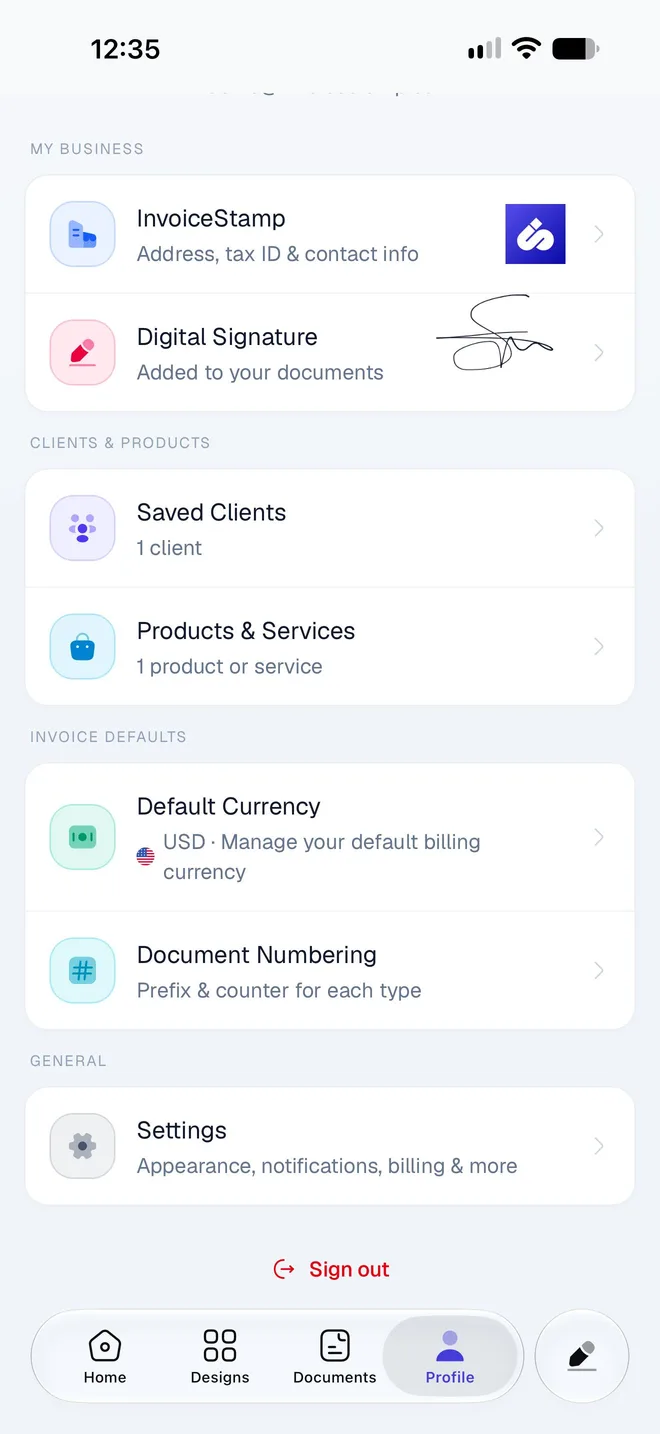
Save each product or service you sell once, with its price, unit and usual tax, and add it to any document in a tap. Go to Profile → Products & Services and tap New, or create one from the editor's Add products screen. Changing a saved product later doesn't change documents that already use it.
How do I add a product or service?
You can start from any of these:
- Profile → Products & Services → New.
- The + button → Product, or New Product on the Home screen.
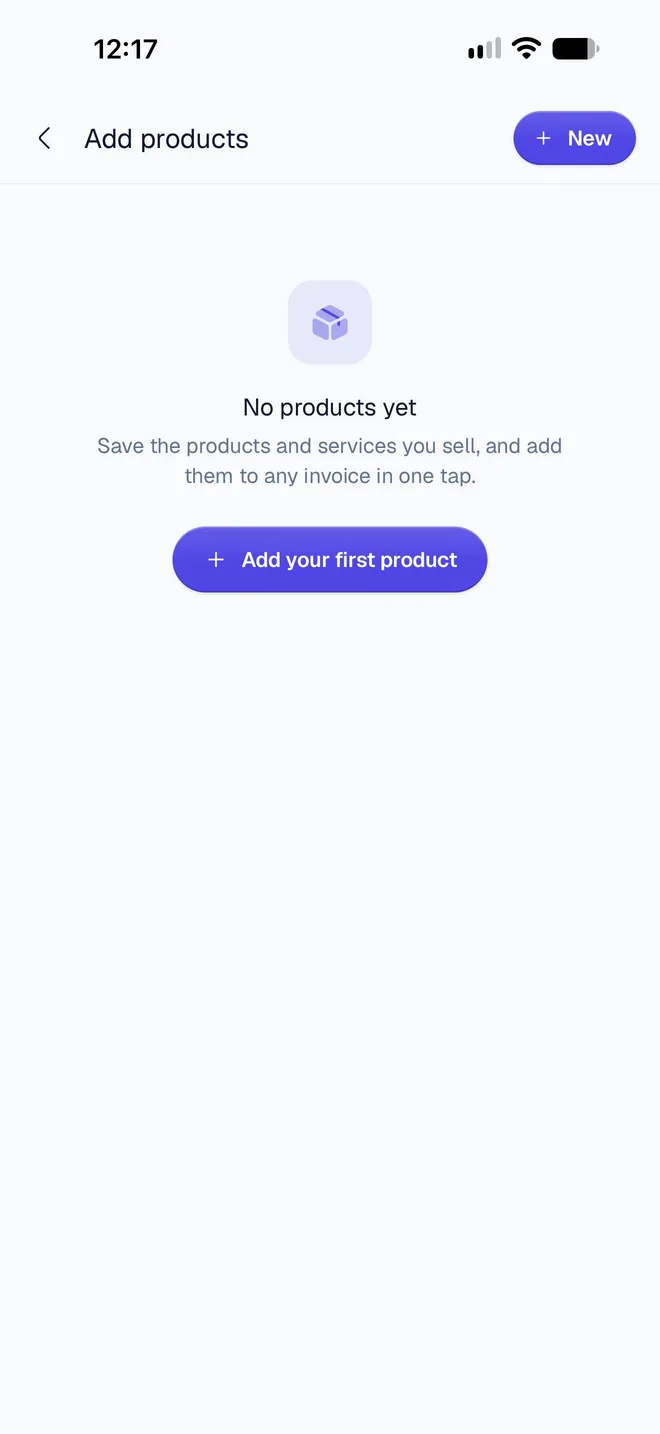
- In the editor: Products & Services → Add product (or + Product) → New. A product you create here is ready to add to the document.
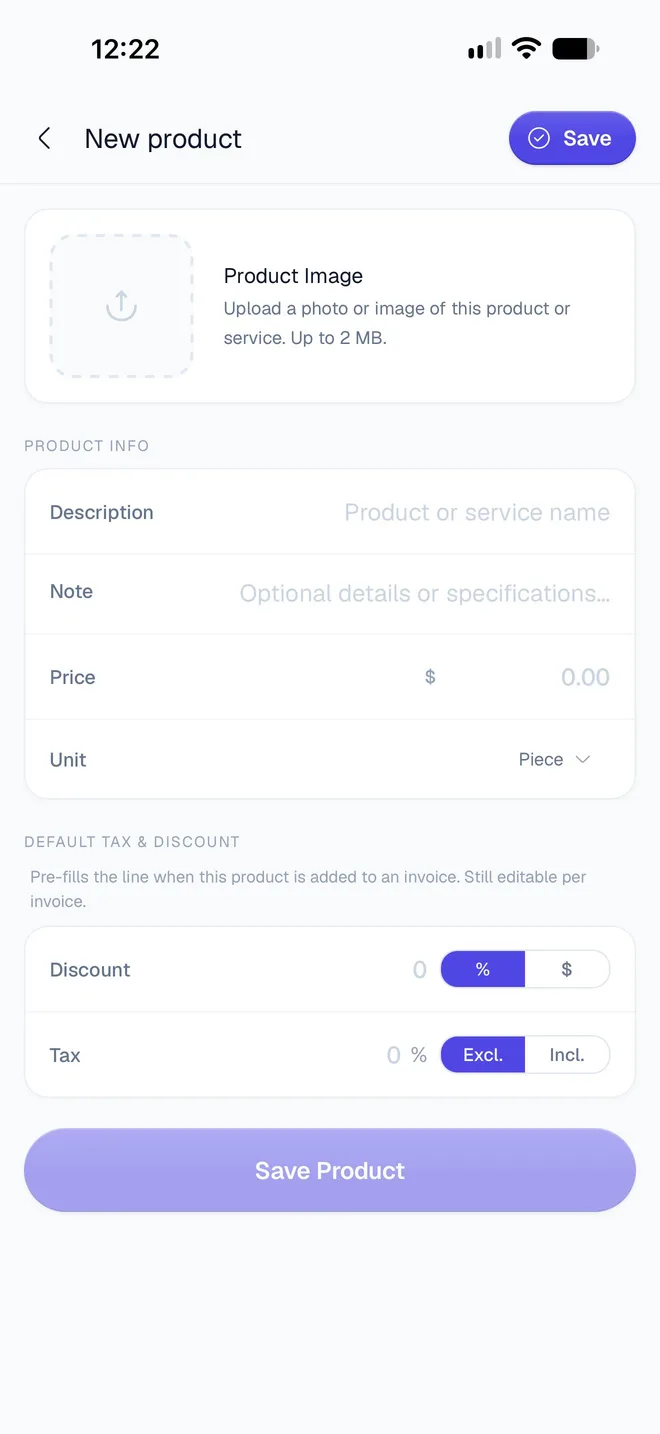
Under Product Image, add a photo or picture if you want: JPEG, PNG or WebP, up to 2 MB. Bigger pictures are shrunk for you. It shows on the designs that print item pictures.
Under Product Info, type the Description: the product's name as it appears on your documents. This is the only required field. Add a Note for details printed under the name, such as what's included.
Enter the Price and choose the , such as Piece, Hour or Day. The price is in the currency of the document open in the editor.
Under Default Tax & Discount, set what this product usually carries. Discount is a percentage (%) or an amount (the currency symbol). Tax is a percentage, either (added on top of the price) or Incl. (already in the price).
Tap Save Product.
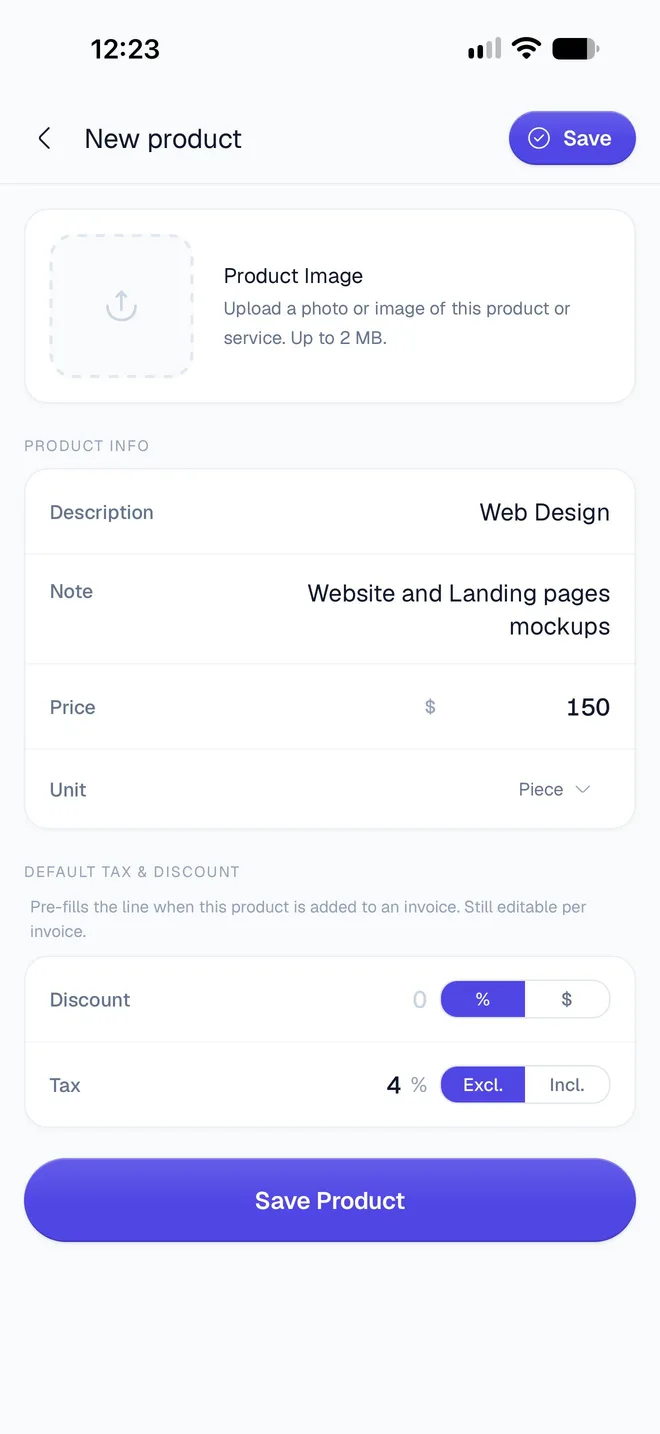
The default tax and discount fill in the line each time you add the product. You can still change them on any document. See Add tax and discounts.
Which units can I choose?
| Kind | Units |
|---|---|
| Count | Piece, Unit, Box, Pack, Set |
| Time | Hour, Day, Month, Year |
| Weight | Kilogram, Gram, Tonne |
| Volume | Litre, Millilitre, Cubic Metre |
| Length and area | Metre, Centimetre, Kilometre, Square Metre |
| Work | Service, Session, Visit, Intervention, Project, Licence |
Tap Custom… to type your own, up to 32 characters. Units you've typed before are listed under Your units. With no unit chosen, the product uses Piece. On documents, most units print as a short symbol, such as pc for Piece or h for Hour.
How do I add a saved product to a document?
In the editor, tap Products & Services, then Add product (or + Product once the document has lines).
Add products lists your Saved products. Search with Search products or notes, and set each quantity with − and +.
Tap Add … item at the bottom. It shows the number of units and their total.
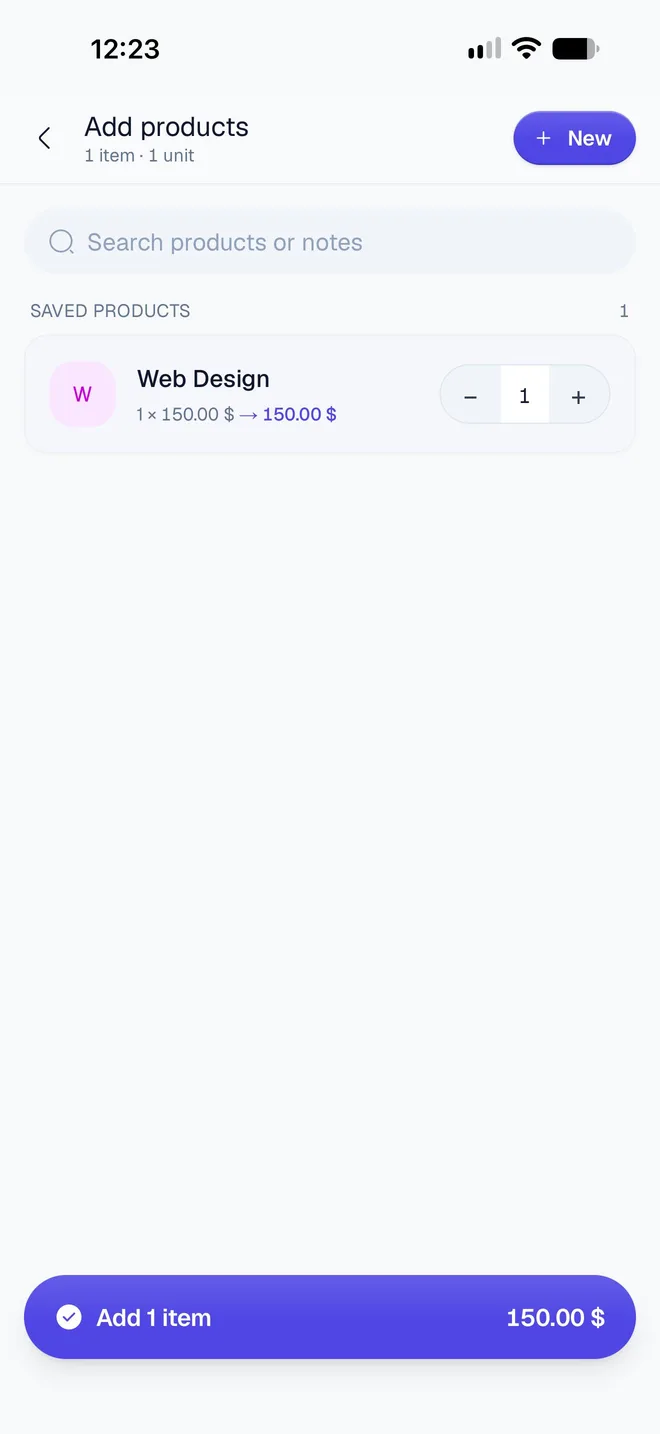
Each product brings its unit, note, picture, and default tax and discount to the line. Going back without tapping the button adds nothing. See Add line items for what you can do with the lines.
How do I change, duplicate or remove a product?
Go to Profile → Products & Services. Search with Search products or notes, then use a product's menu:
- Edit: change the details and tap Update Product. Documents that already have the product keep the details they were made with: each line keeps its own copy.
- Duplicate: makes a copy named "name (copy)", handy for a variation of the same service.
- Archive: takes the product out of your list and the editor's picker. Find it in the Archived tab and tap Restore to bring it back.
- Delete: removes it after Delete Product?. A product used on any document line can't be deleted; archive it instead.
Related guides
Was this page helpful?
Save and manage clients
Add clients to InvoiceStamp by hand or from your phone's contacts, with their tax ID and legal identifiers, then find, edit, archive or delete them later.
Your business & designs
Set up what every InvoiceStamp document says about you and how it looks, from your business details, logo, tax IDs and signature to designs and numbering.