

Add line items to a document
Last updated · InvoiceStamp 1.1.0 for iPhone and Android
Tap Products & Services in the editor to open the items screen. + Product adds items from your saved products, Custom adds a one-off line, and adds a heading that groups the lines under it. Tap any line to change its quantity, unit, price, discount or tax, and touch and hold a line to move it.
How do I add a saved product?
In the editor, tap Products & Services. On an empty document, tap Add product; once there are items, tap + Product.
Add products lists your saved products. Search them by name or note, and set how many of each you want with − and +. To save a new product, tap New: once saved, it's already selected.
Tap Add 1 item at the bottom. The button counts units and shows their total, so 3 hours of one service reads Add 3 items.
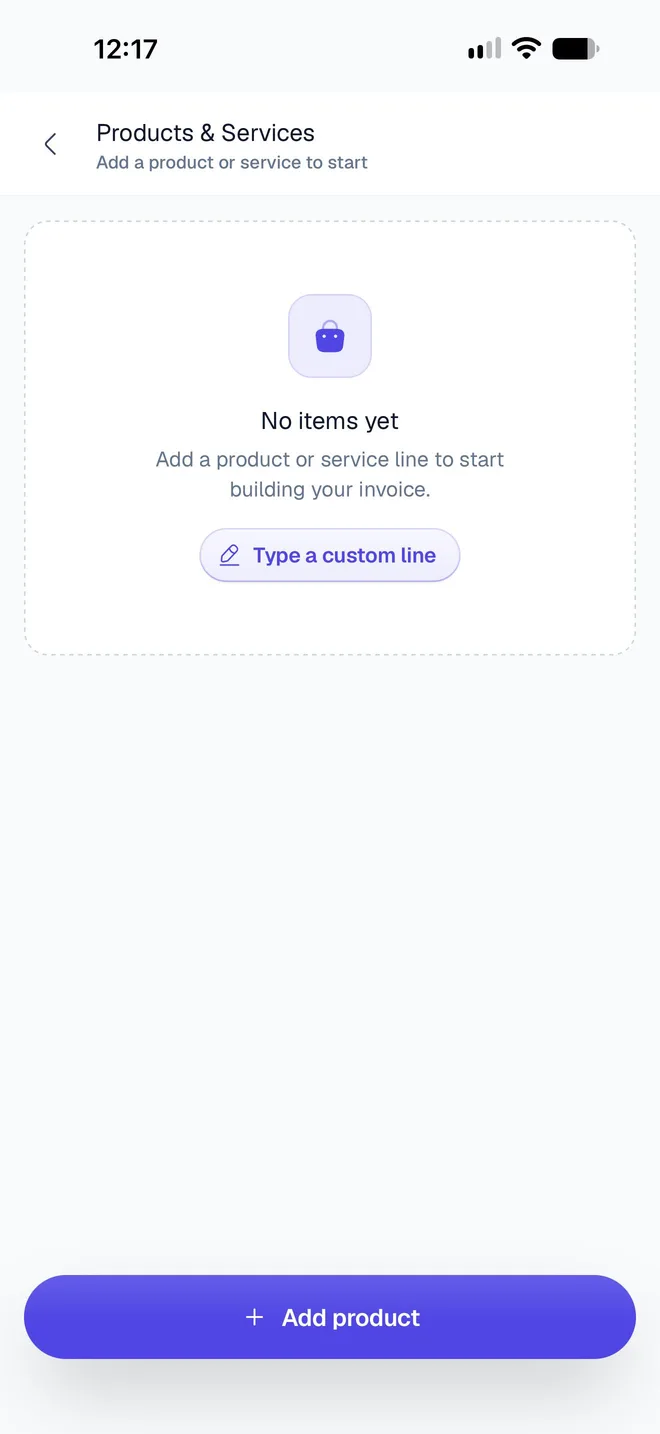
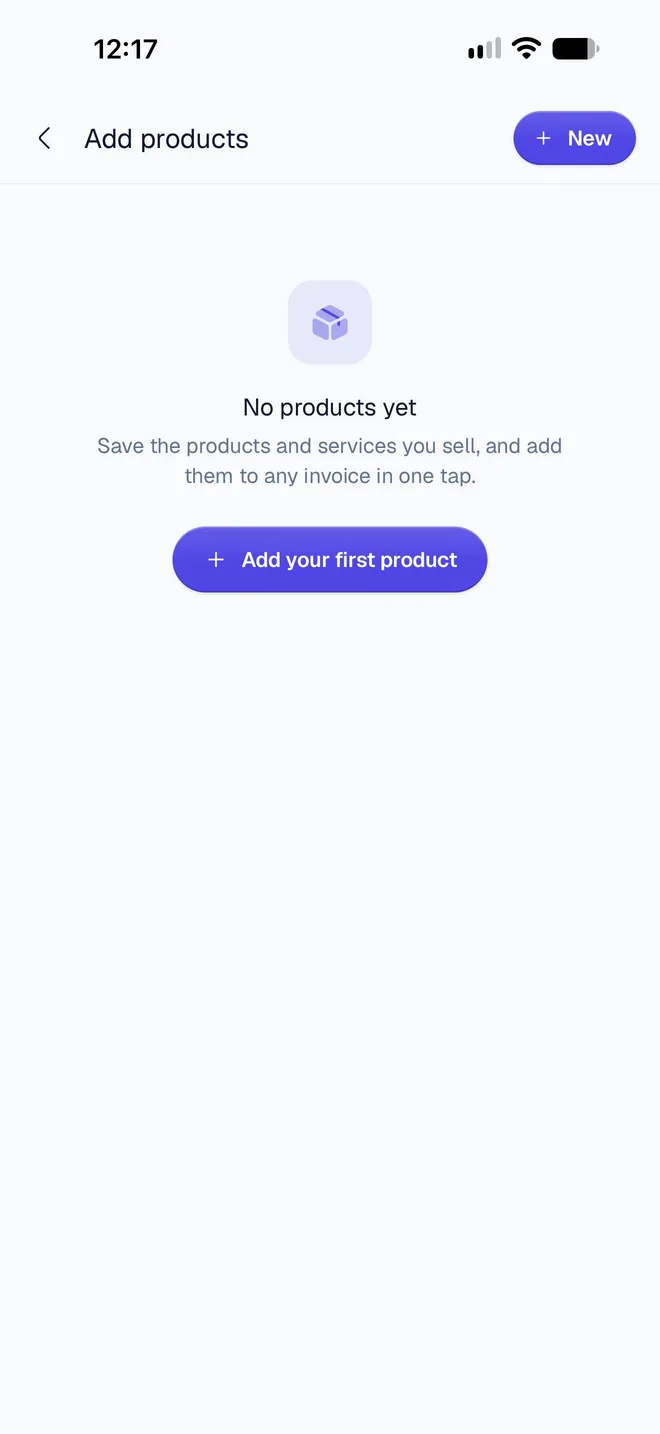
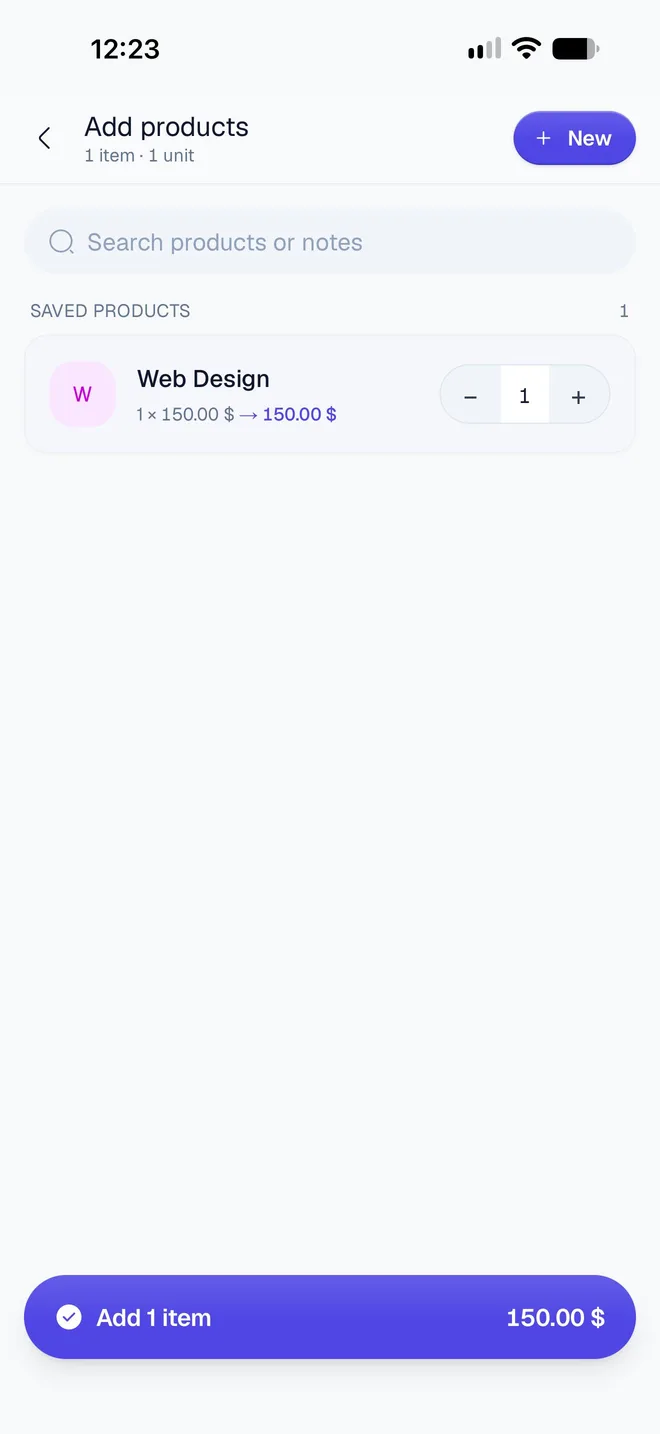
Each product brings its unit, note, image and default tax and discount onto the line. Back leaves Add products without adding anything.
When you open + Product again, the products already on the document show their quantities. Change a quantity to update that line, keeping anything else you edited on it; bring a product back to zero to take its line off. See Save products and services.
How do I add a one-off line?
Tap Custom, or Type a custom line on an empty document. The line's sheet opens straight away: give it a Name and a , and any other detail you need. A custom line belongs to this document only and isn't added to your saved products.
If you close the sheet without typing anything, the empty line is removed.
How do I group lines under a heading?
Tap Section. A heading row appears with the placeholder SECTION HEADER…: type a title, such as Design or Development, and drag it above the lines it groups. A section has no price and isn't counted as an item. On the PDF, it's printed as a heading between your lines. Tap its trash icon to delete it.
What can I change on a line?
Tap a line to open its sheet. The top shows the line's total, and the trash icon deletes it.
| Field | What it does |
|---|---|
| Item Image | A picture of the item, up to 2 MB. It "appears in templates that support item images". |
| Name | The line's title on the PDF, such as Logo Design. |
| Description | Optional details, printed under the name. |
| Quantity | Use − and +, or type it. Decimals work, such as 1.5 hours. |
| Piece, Hour, Day, Kilogram and more: see below. | |
| Unit Price | The price of one unit. |
| Discount | Tap Add Discount to take something off this line. |
| Tax (%) | Tap Add Tax to set this line's tax rate. |
Breakdown at the bottom shows the line's , discount and tax. Changing a line only changes this document, not the saved product it came from. For how tax and discounts work, see Add tax and discounts.
Which units can I use?
The Unit list has 25 units: Piece, Unit, Hour, Day, Month, Year, Kilogram, Gram, Tonne, Litre, Millilitre, Metre, Centimetre, Kilometre, Square Metre, Cubic Metre, Box, Pack, Set, Service, Session, Visit, Intervention, Project and Licence.
Under them, Your units lists units you've typed on your products, and Custom… lets you type your own, up to 32 characters. The PDF prints most units as a short symbol, such as pc, h or m².
How do I reorder, select and delete lines?
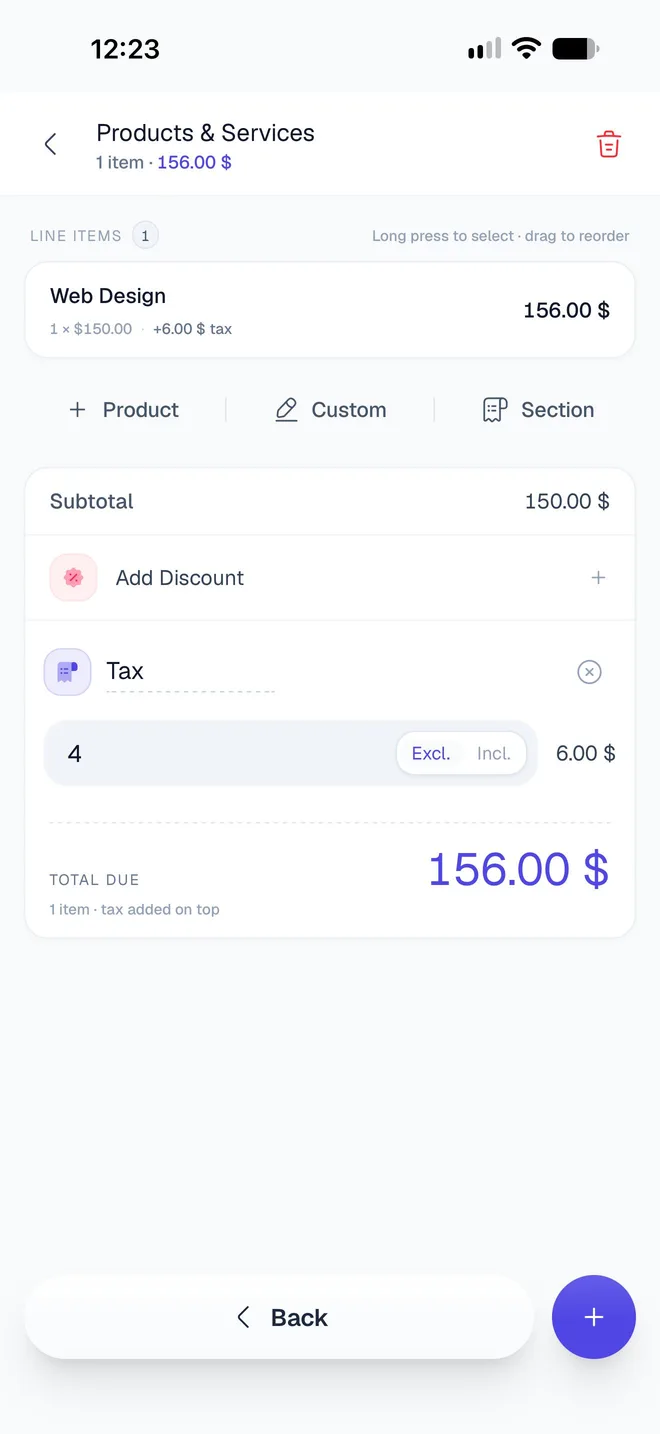
- Move a line: touch and hold it, then drag it up or down.
- Delete one line: open it and tap the trash icon. Item deleted appears with Undo, which puts it back where it was.
- Delete several: touch and hold a line without moving it to start selecting, then tap the others. Tap Delete 2 items and confirm. This can't be undone, but you can add products again from + Product. Tap Done to stop selecting.
- Delete them all: tap the trash icon at the top of the screen, then Clear All. This can't be undone.
When you're done, tap Back to return to the editor.
Related guides
Was this page helpful?
Fill in a document, section by section
Every part of the InvoiceStamp editor, top to bottom. Number and reference, dates, your business, the client, items, design and extras, then saving your work.
Add tax and discounts
Add tax on top of your prices or include it in them, and take a percentage or an amount off, on every line or one at a time. How the total is worked out.