

Find and manage your documents
Last updated · InvoiceStamp 1.1.0 for iPhone and Android
Every document you save is in the Documents tab. Switch between All, Quotation, Sale Order and Invoice, or search by client name or document number. Tap a document to edit it, share or download its PDF, record a payment on an invoice, or delete it. Swipe one to the left for Pay and Share.
What does the Documents list show?
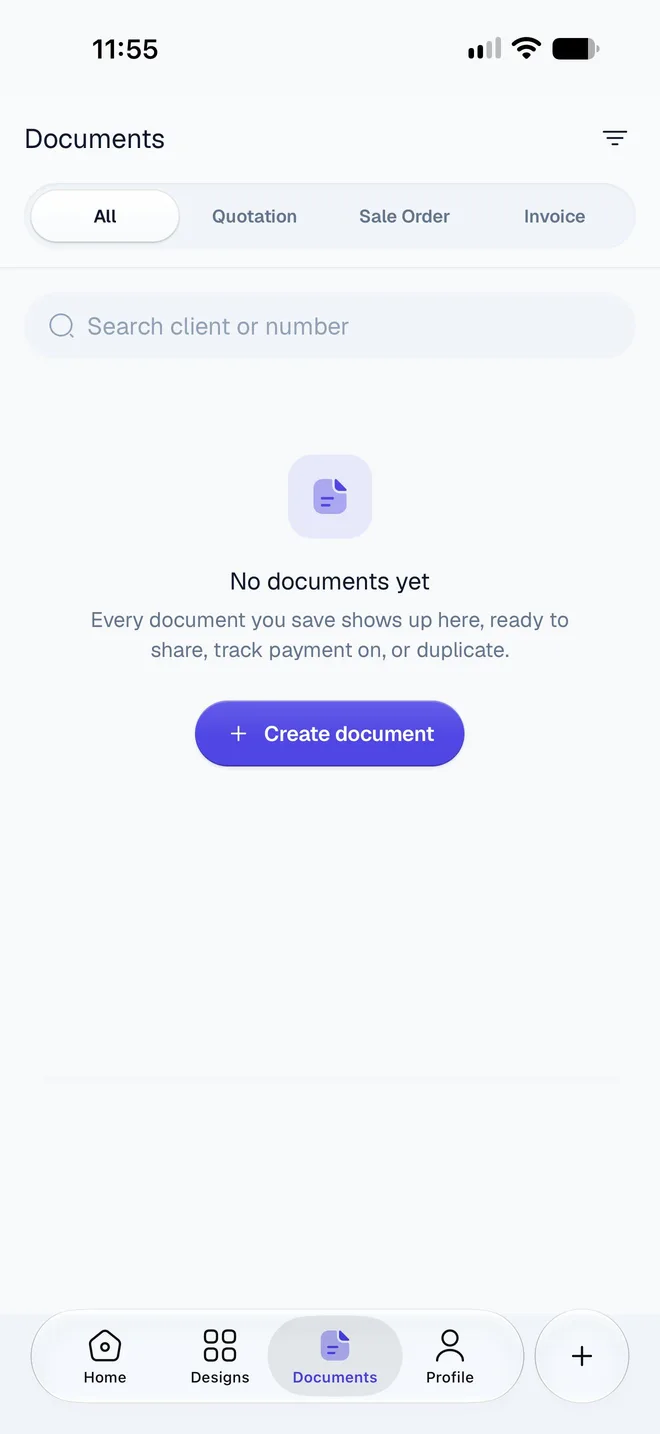
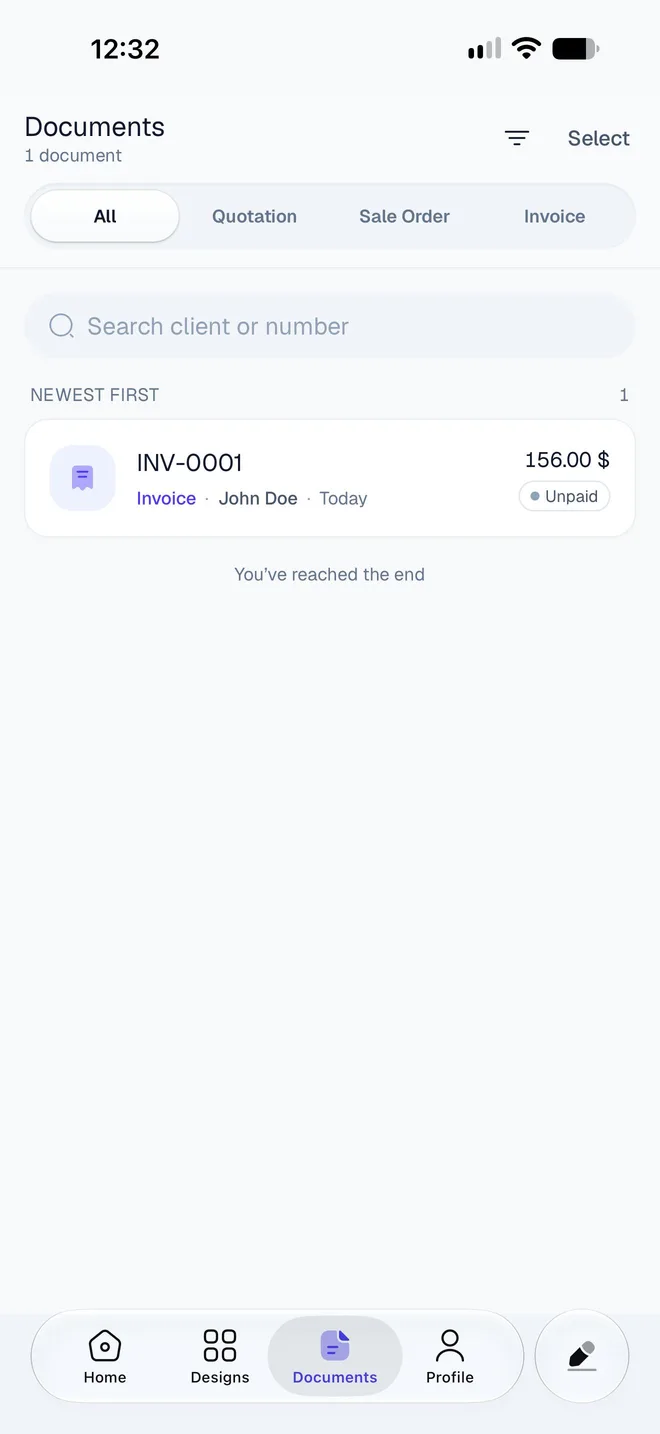
Each row shows the document's number, its type, the client, when it's dated (Today, Yesterday, 3d ago or the date) and its total. Invoices also show their payment status: Unpaid, the amount still due when partly paid, Paid, or once the has passed. See Record a full or partial payment.
More documents load as you scroll, down to "You've reached the end". Pull the list down to refresh it.
How do I find a document?
- By type: tap Quotation, Sale Order or Invoice at the top. All shows everything.
- By search: type in Search client or number. It matches part of the document number, or the client's name, email or . Your last searches appear as chips under Recent when you tap the empty search box; they're kept on this phone only.
- By payment: on Invoice, tap Unpaid, Partial or Paid to list only those. All shows every invoice again.
If nothing matches, the app says so: tap Clear search or Clear filter.
How do I sort the list?
Tap the sort icon next to Select and choose:
- Newest first: the documents you saved most recently at the top. It's the default. It goes by when you saved, so an invoice you back-dated today is at the top.
- Highest amount: the largest totals first.
The heading above the list shows the order you chose, such as NEWEST FIRST.
What can I do with a document?
Tap it to open its sheet:
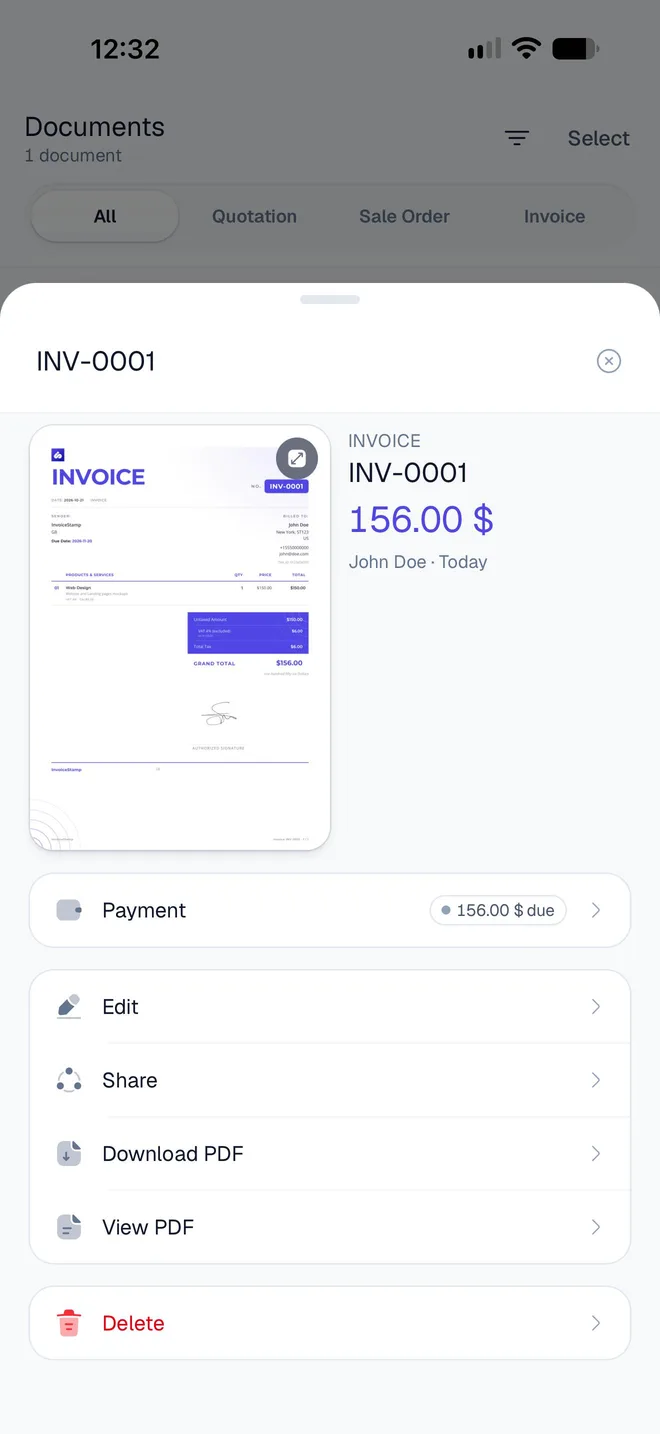
| Action | What it does |
|---|---|
| The thumbnail | Shows the document full screen. |
| Payment (invoices only) | Records a full or . It shows what's due, or Paid. |
| Edit | Opens the document in the editor. Save to update it: it keeps its number. |
| Share | Makes the PDF and opens the share sheet. See Share an invoice PDF. |
| Download PDF | Saves the PDF to your phone. |
| View PDF | Opens the PDF with its details, Share PDF and a download button. |
| Delete | Deletes the document, after asking. |
If the editor holds another document with changes you haven't saved, Edit asks first: Clear and open discards those changes, Keep editing takes you back to them.
Swiping a row to the left gives two shortcuts: Pay, for an invoice that isn't fully paid, and Share.
How do I delete documents?
To delete one, tap it, then Delete. The app asks, for example, Delete invoice? with the document's number: tap Delete.
To delete several:
Tap Select at the top, or touch and hold a document.
Tap each document to delete, or Select all.
Tap Delete and confirm.
Deleting can't be undone
A deleted document can't be restored from the app, and its number isn't given to another document, so your numbering keeps a gap. Download the PDF first if you need a copy.
Can I copy a document or turn a quotation into an invoice?
Not in this version: there's no duplicate or convert button. To make a similar document, start a new one. The editor keeps your design, currency, notes and from the last document, and your saved client and products take a tap each to add back. See Quotation, sale order or invoice: which to send.
What do Draft, Queued and Failed mean on a row?
They're about saving, not about your client:
- Draft shows for a moment on a document you've just saved, until your account confirms it.
- Queued, Generating and Failed show on a save that was cut off by a lost connection. It finishes on its own when you're back online. See Fix common problems in InvoiceStamp.
Related guides
Was this page helpful?
Share an invoice PDF
Send an InvoiceStamp invoice, quotation or sale order as a PDF through WhatsApp, Mail or any app on your phone, or download it to keep a copy on the phone.
Payments and totals
Mark InvoiceStamp invoices as paid in full or in part, undo a payment, and read the totals on the Home screen by document type, period and currency.