

Add a signature, QR code, bank details and notes
Last updated · InvoiceStamp 1.1.0 for iPhone and Android
At the bottom of the editor, Additional Options adds four extras to a document: your Signature, a payment QR Code, your Bank Info and Notes & Terms. Tap + Add next to one and fill it in. Once added, each has a switch, so you can hide it on one document without deleting it.
Where are the Additional Options?
Scroll the editor down past the Design card. Additional Options opens by itself while none of the four is set up; tap its header to open or close it. Its subtitle counts what you've added, such as 2 of 4 added.
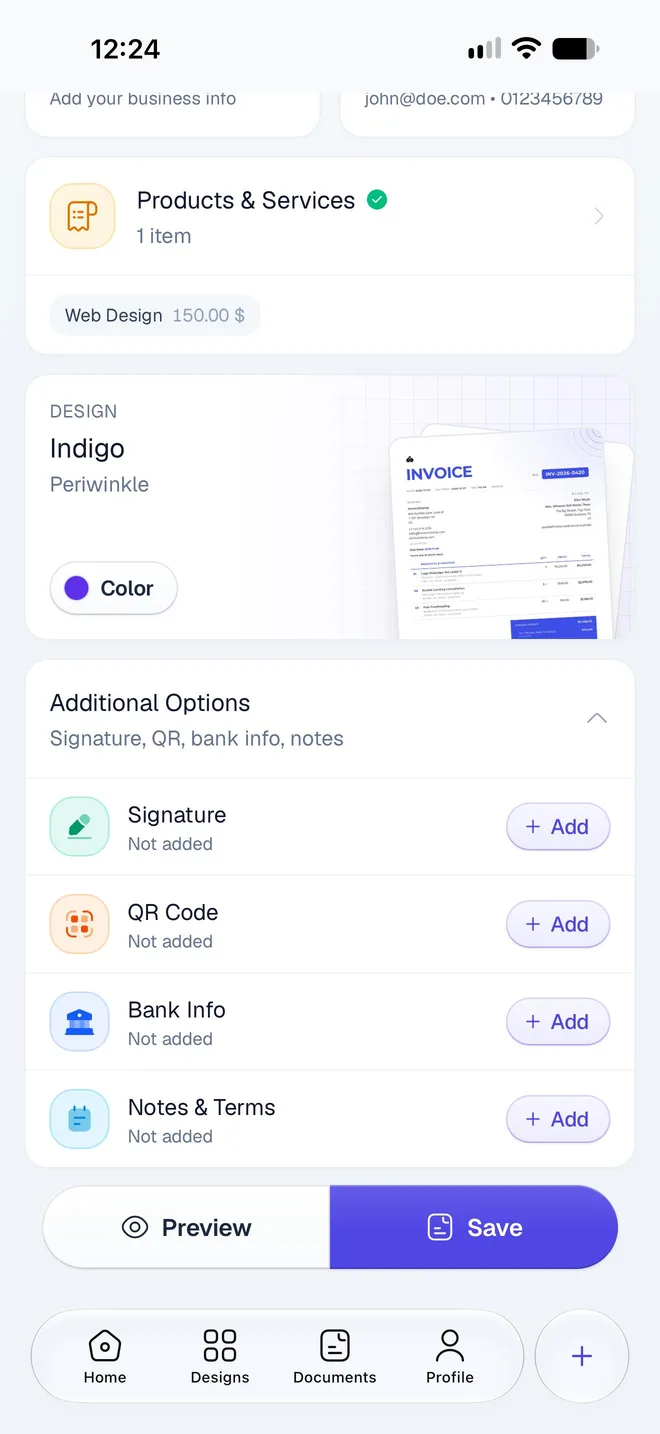
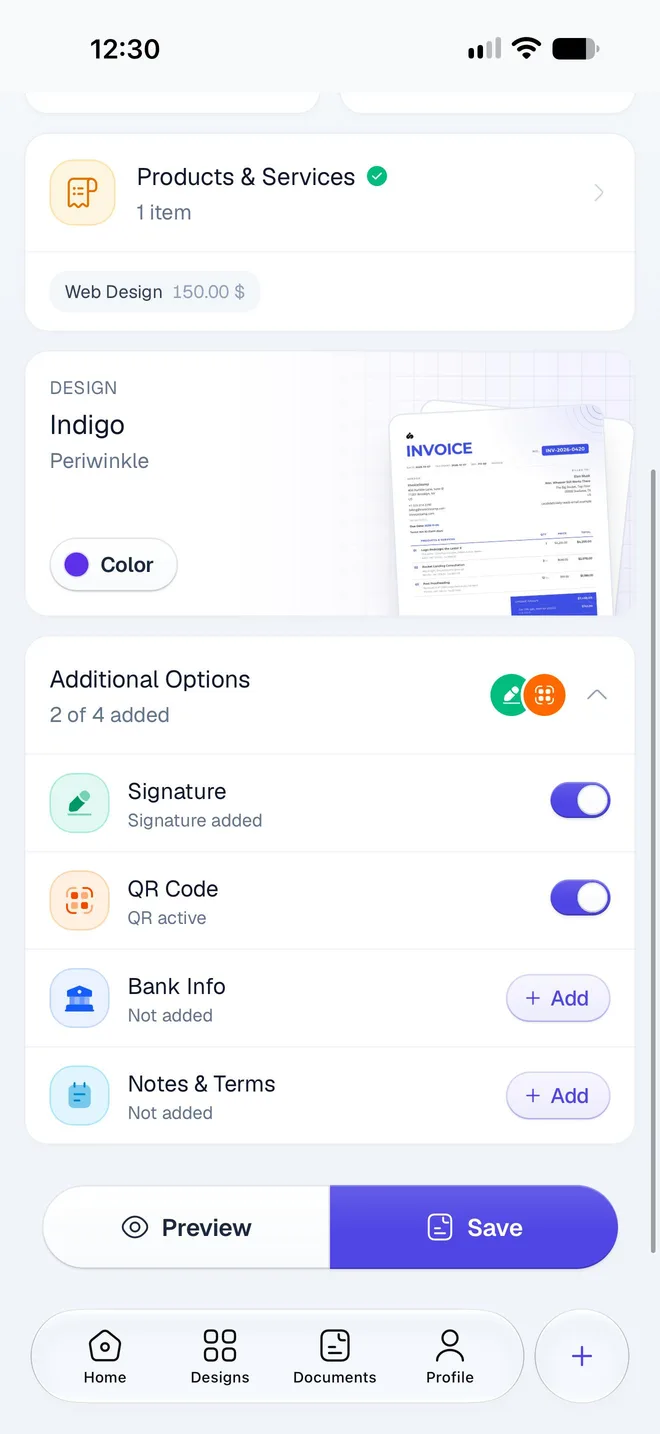
| Row | Shows once added | Saved for |
|---|---|---|
| Signature | Signature added | Every document: it's part of your business profile |
| QR Code | QR active | This document, and new documents start with it |
| Bank Info | Details added | Every document: it's part of your business profile |
| Notes & Terms | Instructions added | This document, and new documents start with them |
How do I add my signature?
Tap + Add next to Signature.
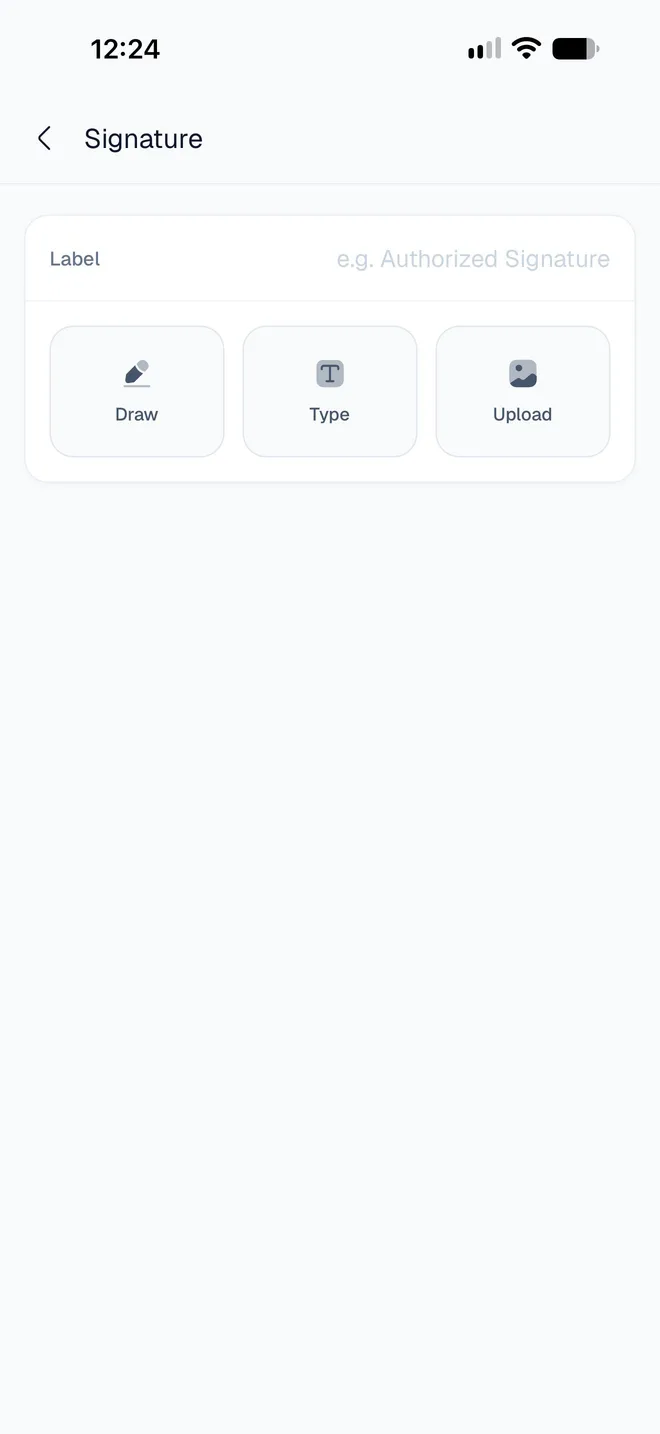
Optionally type a Label to print under it, such as Managing Director. Without one, the PDF prints Authorized Signature. The label belongs to this document only.
Choose how to make the signature:
- Draw: sign with your finger on Draw your signature, then tap Save. Clear starts again.
- Type: type your name, and the app writes it in a handwriting font.
- Upload: pick a picture of your signature, up to 1 MB.
Go back to the editor. The Signature row shows Signature added, with its switch on.
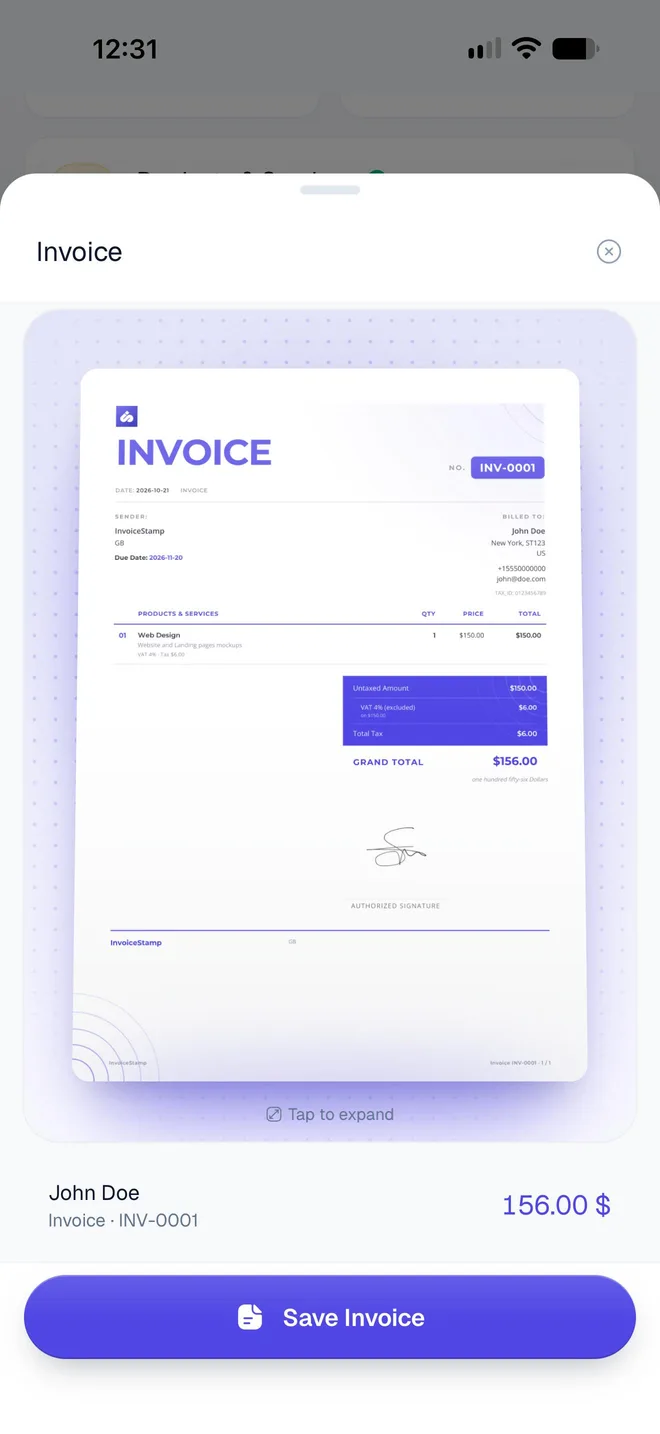
Your signature is saved to your business profile, so it's ready on every document: you only add it once. To change or remove it, use Profile → Digital Signature. Remove signature takes it off every document. See Add your logo, brand color and signature.
How do I add a payment QR code?
A QR code lets your client pay by scanning the invoice with their phone's camera.
Tap + Add next to QR Code. Payment QR Code opens.
In Link, message or IBAN, type what the code should hold. A payment link works best, such as your PayPal.me address or a payment link from your bank or card provider.
Check the code under Preview, then go back. The row shows QR active.
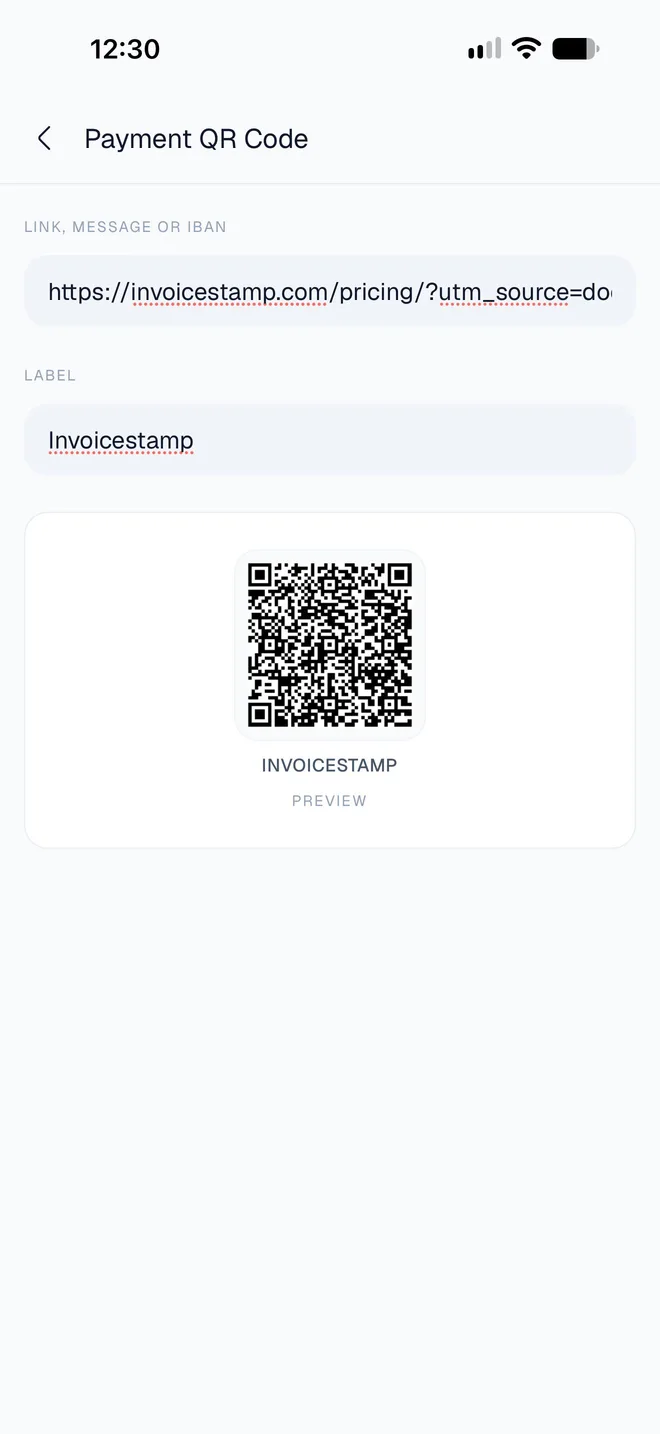
The code holds exactly what you type. When scanned, a link opens in the client's browser, while an IBAN or a message shows as text for them to copy. The Label field appears with the preview in the app; the PDF prints the code itself.
New documents start with the same QR code, so set it once.
How do I add my bank details?
Tap + Add next to Bank Info. Bank Account opens.
Under Account Details, fill in what your client needs to pay you: Bank Name, Holder, , and, if your bank gives you one, your (the account reference used in Morocco and France).
Go back to the editor. The row shows Details added once Bank Name is filled in.
Your bank details are saved to your business profile and print as payment details on every document where the switch is on. Where they appear on the page depends on the design. Activate PayPal under Online Payments is marked Coming Soon: it isn't available yet.
How do I add notes or payment terms?
Tap + Add next to Notes & Terms.
Type a message for your client in Additional Notes, such as Thank you for your business!, and your conditions in , such as Please pay within 15 days.
Go back to the editor. The row shows Instructions added.
They print under Notes and Terms on the PDF. New documents start with the same text, which you can change on each one. The is set separately, in the editor's dates: see Fill in a document, section by section.
How do I hide one of them on a document?
Turn its switch off in Additional Options. The row reads Hidden on invoice, and the PDF of this document leaves it out. Nothing is deleted: turn the switch back on to show it again. The switch only affects the document you're editing.
Related guides
Was this page helpful?
Invoice a client in another currency
Bill a client in their own currency with InvoiceStamp. Pick any of 152 currencies for one document. What changes on the PDF, and why amounts aren't converted.
Share an invoice PDF
Send an InvoiceStamp invoice, quotation or sale order as a PDF through WhatsApp, Mail or any app on your phone, or download it to keep a copy on the phone.