

Add your logo, brand color and signature
Last updated · InvoiceStamp 1.1.0 for iPhone and Android
Add your logo in Profile → your business → Your Logo: it prints on every document. Set the color from the editor's Design card with Color, or pick an accent in the design sheet. Add your signature in Profile → Digital Signature, by drawing it, typing your name or uploading an image.
How do I add my logo?
Tap Profile, then the business row under My Business.
Under Your Logo, add an image: PNG, JPG or SVG, up to 2 MB. A transparent background works best.
Tap the back arrow to save. To change it later, tap Replace; to take it off your documents, tap Remove.
InvoiceStamp tidies the image for you: a large photo is shrunk to fit, a PNG or JPG is scaled to at most 1,024 pixels, and a plain white background is removed so the logo sits cleanly on any design. An SVG is kept as it is.
| Message | What to do |
|---|---|
| That image is over 2 MB. Choose a smaller one. | Export a smaller file and try again. |
| That file type isn't supported. Choose a PNG or JPG. | Save the logo as a PNG or JPG first. |
How do I set my brand color?
In the editor, find the Design card and tap Color.
Brand Color opens. Tap one of the swatches, tap the rainbow swatch to choose any color with your phone's color picker, or type a hex code in the # field: it applies once all six characters are in.
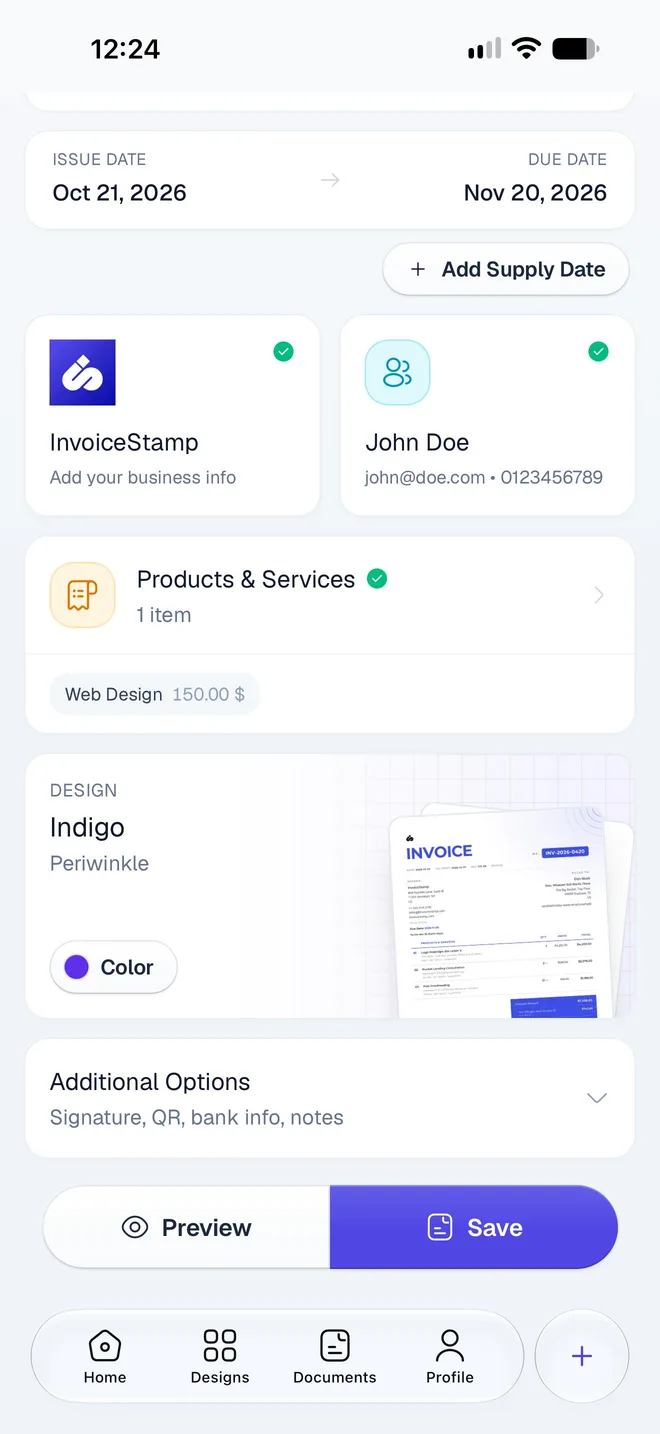
The color applies to the document open in the editor and stays for the new documents you make after it. The setup picks your first color from your logo, or InvoiceStamp's indigo if you skipped the logo.
How do I go back to a design's own colors?
Tap the Design card itself (not Color) to open the design sheet. Under :
- The first, half-and-half swatch is the design's own colors, as its designer made them.
- The next swatches come from the design's palette. When your logo has colors, a Template / Your logo switch offers colors taken from your logo instead.
- The last swatch opens the color picker for any other color.
Tap Done to keep your choice. See Choose a design and color.
How do I add my signature?
Tap Profile → Digital Signature (it reads Add your official signature while there's none).
Choose how to make it:
- Draw: sign with your finger in Draw your signature, then tap Save (or Clear to start over).
- Type: type your name in Type your name; InvoiceStamp writes it in a handwriting style.
- Upload: pick an image of your signature, up to 1 MB.
Tap the back arrow. The row now reads Added to your documents.
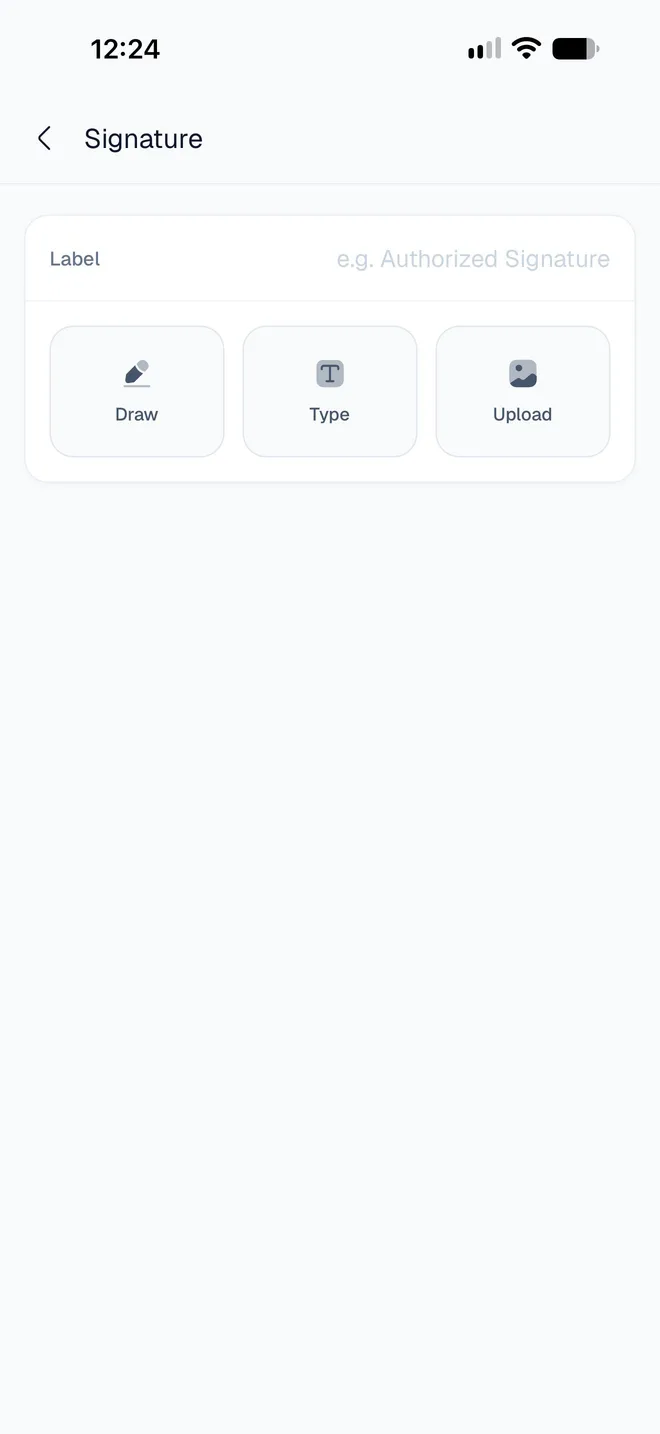
The Label field sets the line printed under the signature on the document you're editing. Left empty, it prints Authorized Signature.
Can I leave the signature off one document?
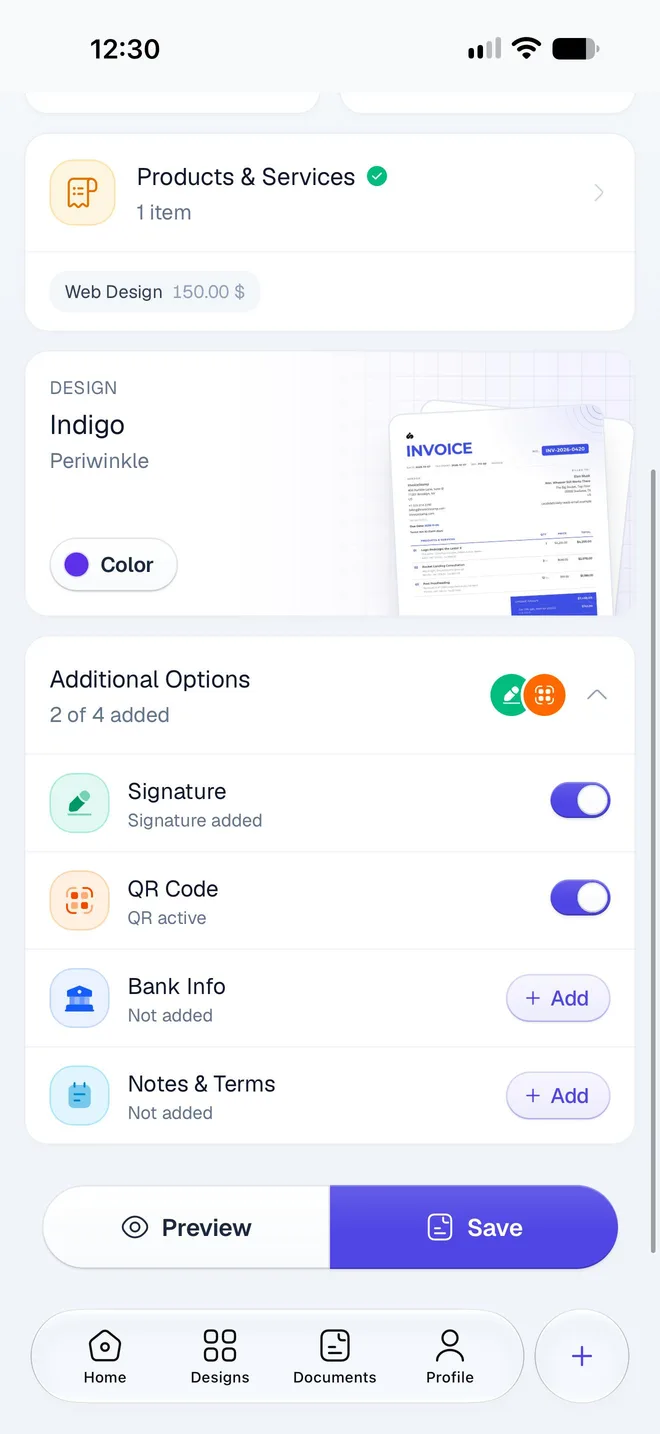
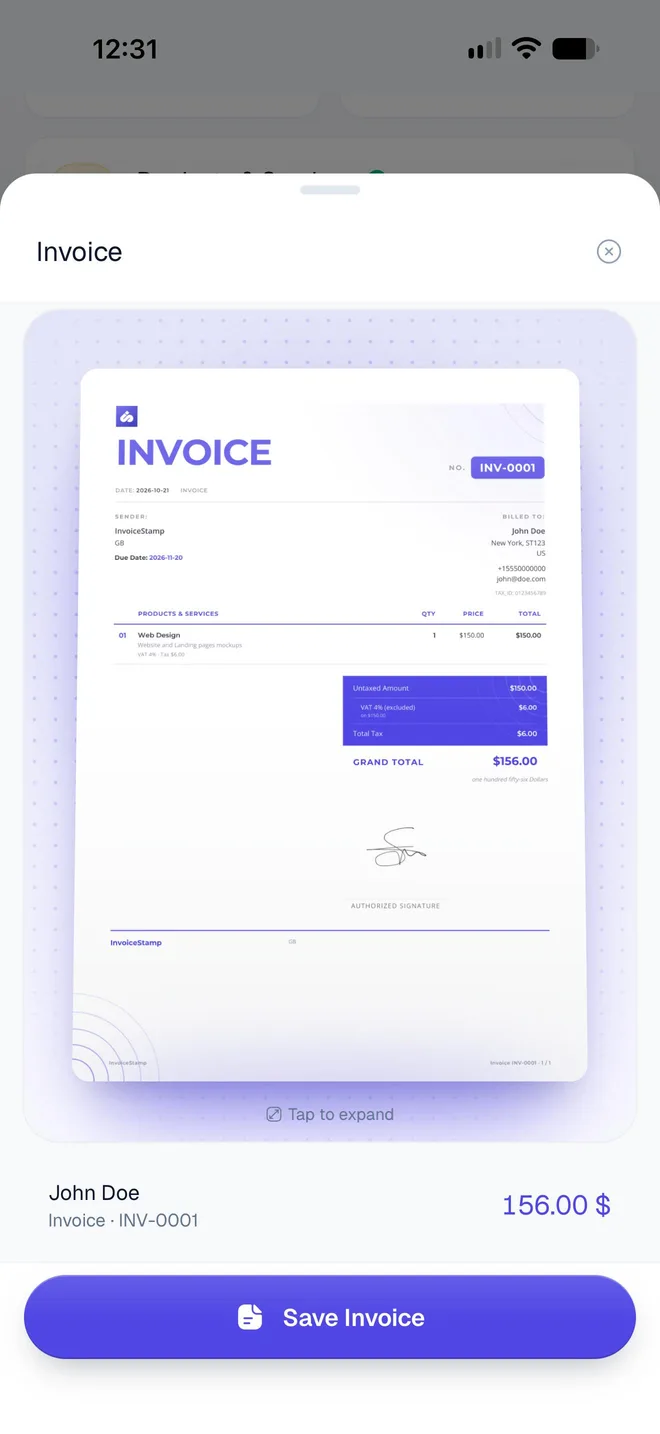
Yes. In the editor, open Additional Options: the Signature row has a switch. Turn it off and that document prints without the signature (the row reads Hidden on invoice); your other documents keep it. New documents start with the switch on. See Add a signature, QR code, bank details and notes.
How do I remove my signature?
Open Profile → Digital Signature and tap Remove signature, then Remove. The signature is taken off your business profile, so it no longer appears on any of your documents. You can add a new one anytime.
Related guides
Was this page helpful?
Edit your business profile
Add your business name, logo, address, email, phone, country and tax ID in InvoiceStamp, and see how these details print on every document you make.
Show your tax IDs on invoices
Print your tax ID, VAT, ICE, SIRET, EIN, ABN and other legal identifiers on InvoiceStamp documents, along with your client's, and see where each one appears.