

Add tax and discounts
Last updated · InvoiceStamp 1.1.0 for iPhone and Android
On the items screen, tap Add Tax to set a tax rate and Add Discount to take a percentage or an amount off. Both apply to every line on the document; open a line to give it its own rate or discount. adds the tax on top of your prices, and Incl. means your prices already include it.
How do I add tax?
In the editor, tap Products & Services, then Add Tax under the .
Type the rate, such as 20 for 20%.
Choose Excl. to add the tax on top of your prices, or Incl. if your prices already include it. The tax amount shows on the right, and updates.
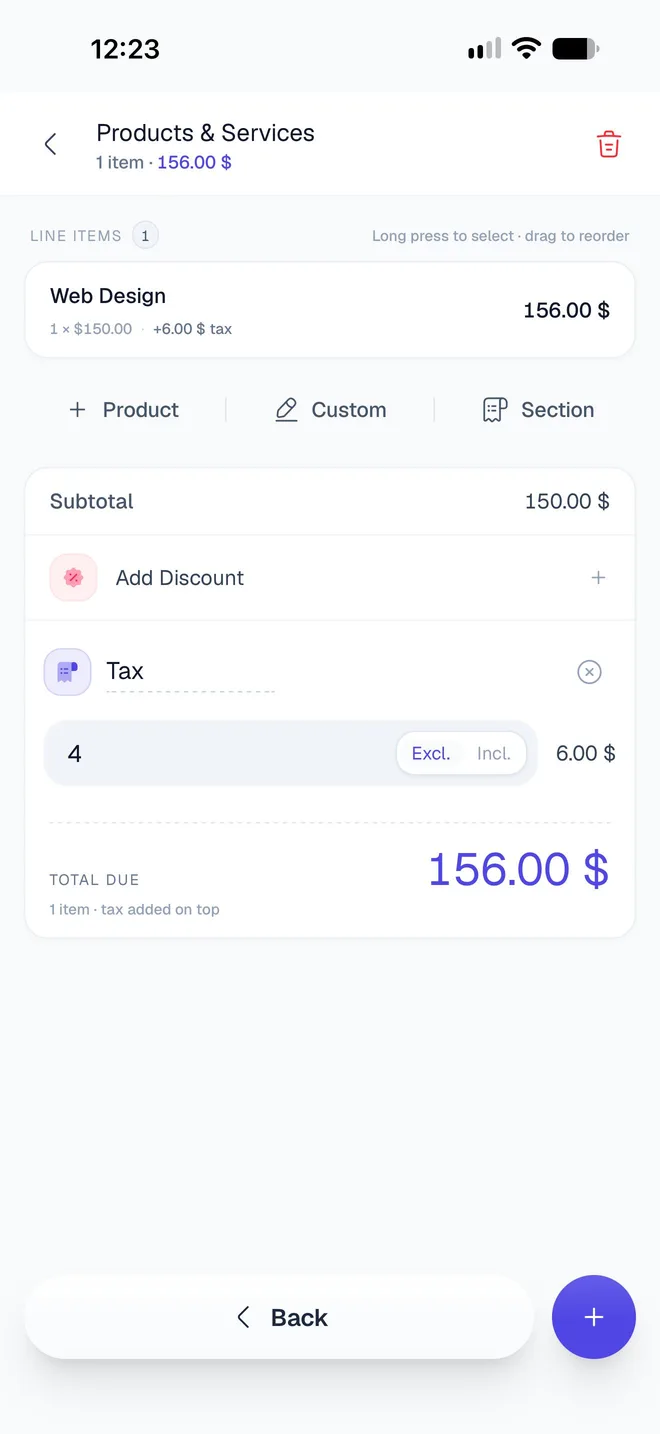
The rate and the Excl./Incl. choice go on every line. To take the tax off, tap ✕ on the tax row.
What's the difference between Excl. and Incl.?
For a line priced at $100 with 20% tax:
| Excl. (tax added on top) | Incl. (prices include tax) | |
|---|---|---|
| Line amount | $100.00 | $100.00 |
| Tax | +$20.00 | $16.67, inside the $100 |
| Total due | $120.00 | $100.00 |
| Under Total due | "tax added on top" | "prices include tax" |
New custom lines start on Incl., while saved products start on Excl. unless you set them otherwise, so check the switch when you add tax.
How do I give one line a different tax rate?
Tap the line to open its sheet, and change Tax (%). The tax row on the items screen then reads Mixed, because your lines no longer share one rate. Typing a rate in the tax row again puts it back on every line.
Excl. and Incl. always follow the tax row: a document can't mix the two.
How do I add a discount?
On the items screen, tap Add Discount.
Type the discount, and choose % for a percentage or the currency symbol ($) for an amount.
- A percentage comes off every line: 10% off takes 10% off each one.
- An amount is shared out across the lines by their value. $30 off a $200 line and a $100 line takes $20 off the first and $10 off the second.
To discount a single line, open it and tap Add Discount in its sheet. Discounts come off before tax is worked out. Tap ✕ on the discount row to remove the discount from every line.
How is the total worked out?
- Each line is its quantity times its , less its discount (never below zero).
- With Excl., each line's tax is added on top. With Incl., the tax is already inside the line's amount.
- Total due is the lines added together, plus any tax added on top.
Subtotal is the amount before discounts, without tax. The editor's header shows the same split, such as 150.00 $ net • +6.00 $ tax.
How does tax look on the PDF?
Each line shows its rate, and the totals show the tax amount. The PDF calls the tax VAT with its rate, such as VAT 4% (excluded), whatever name you type on the tax row.
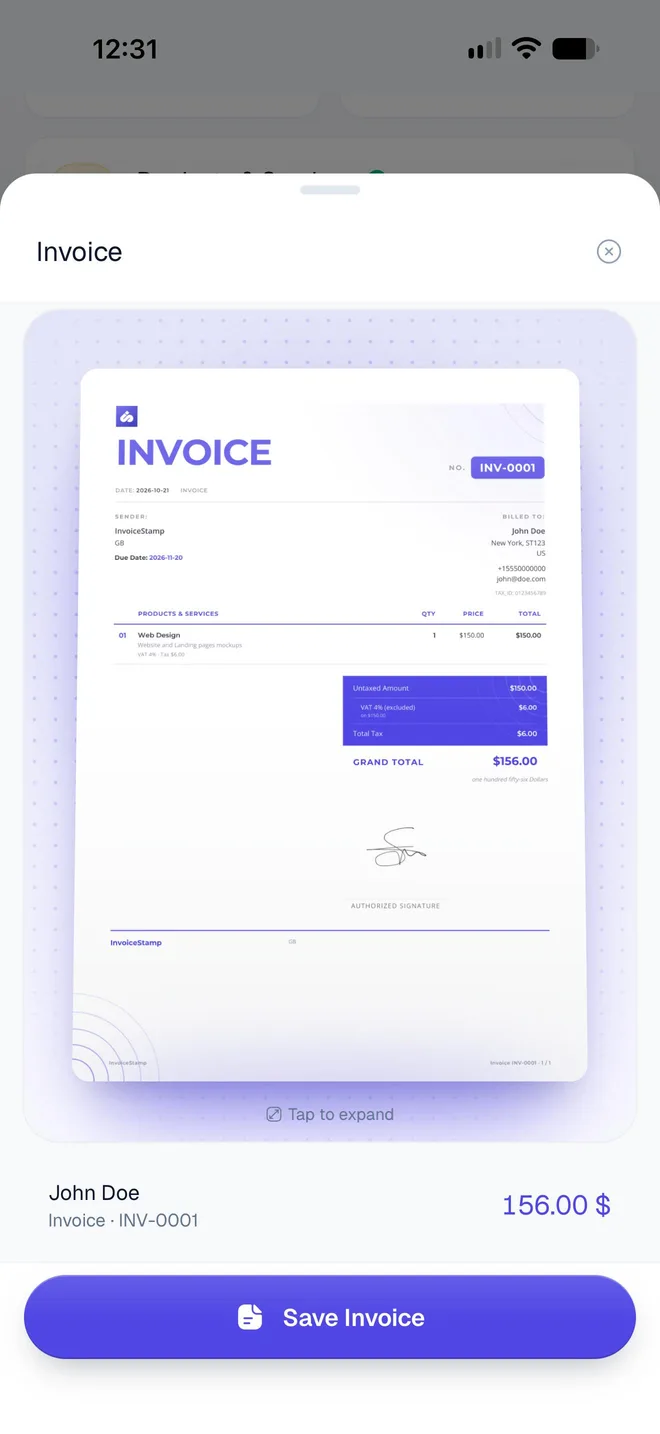
Designs that show the print it in English, from the whole amount and the currency's name, such as one hundred fifty-six Dollars. Cents aren't written out.
Can a product carry its own tax and discount?
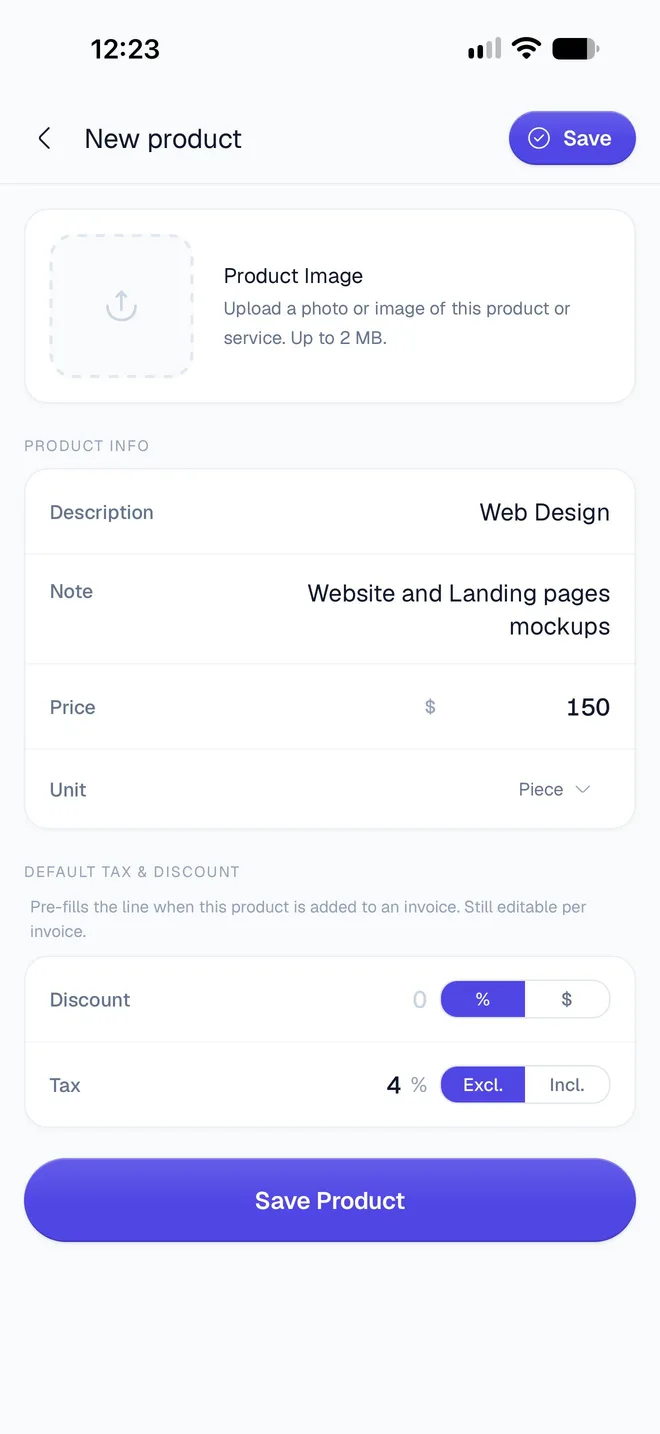
Yes. Under Default tax & discount on a saved product, set the discount and tax it usually carries: they're filled in whenever you add the product to a document, and you can still change them there. Adding a product with a tax or discount turns that row on for the document. See Save products and services.
Related guides
Was this page helpful?
Add line items to a document
Add saved products, one-off custom lines and section headings to an InvoiceStamp document, then edit, reorder, select and delete them on the items screen.
Invoice a client in another currency
Bill a client in their own currency with InvoiceStamp. Pick any of 152 currencies for one document. What changes on the PDF, and why amounts aren't converted.