

Share an invoice PDF
Last updated · InvoiceStamp 1.1.0 for iPhone and Android
To send a document, save it, then tap Share in the editor: InvoiceStamp makes the PDF and opens your phone's share sheet, where you pick WhatsApp, Mail, Messages or any other app. From the Documents tab, tap the document and choose Share, or Download PDF to save a copy on your phone.
How do I share a document from the editor?
Tap Save. Once the document is saved, the button reads Share. If you change anything afterwards, it reads Save again.
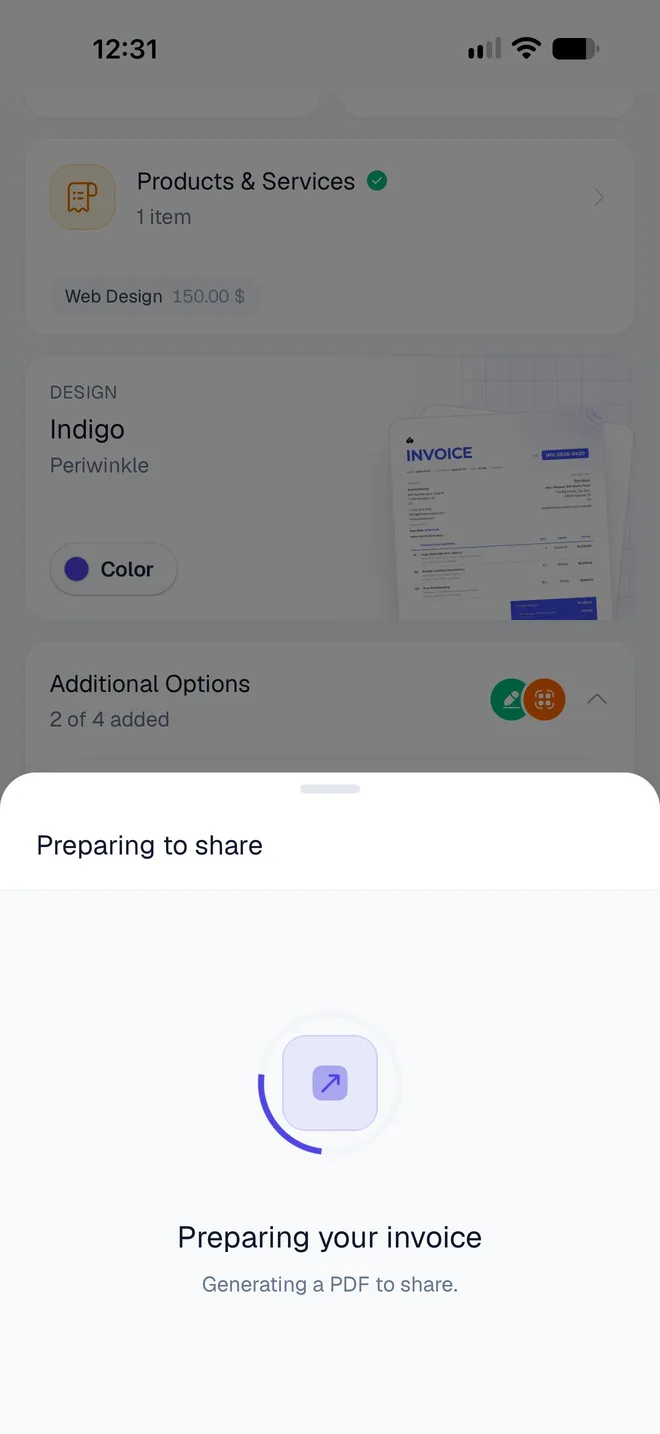
Tap Share. Preparing to share opens while InvoiceStamp makes the PDF, usually for a few seconds. If it takes longer, the message changes to "Still rendering your PDF — this can take a moment…", and Cancel stops waiting.
Your phone's share sheet opens with the PDF. Choose an app, such as WhatsApp, Mail or Messages, and send it as you would any file. To keep a copy instead, choose Save to Files on iPhone, or your files app on Android.
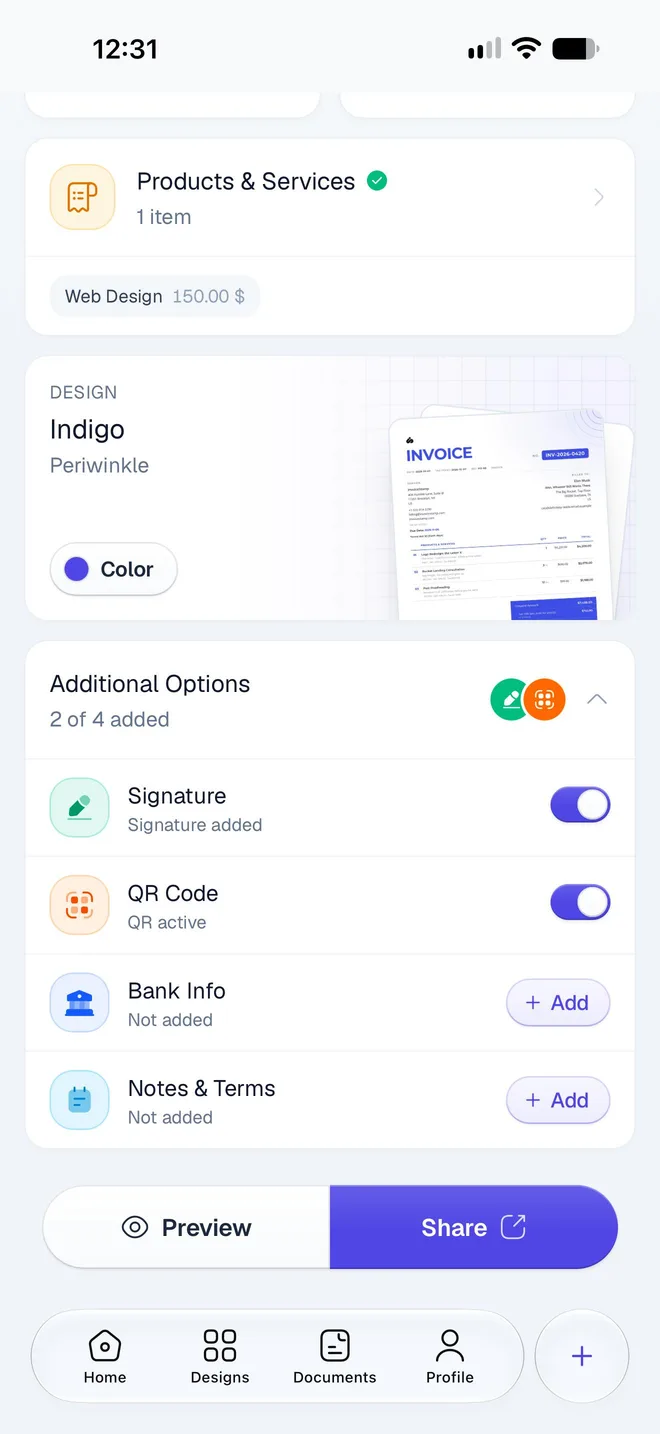
You can also share from Preview: once the document is saved, its button reads Share to and your client's name.
What does my client receive?
A PDF named after the document's number, such as InvoiceStamp-INV-0001.pdf. Apps that send a message with the file add a line such as Invoice INV-0001 - Total: 156.00 $.
The PDF goes out from the app you chose, under your own account: your WhatsApp, your email address. InvoiceStamp doesn't email your clients, and documents have no web link to send.
How do I share a document I saved earlier?
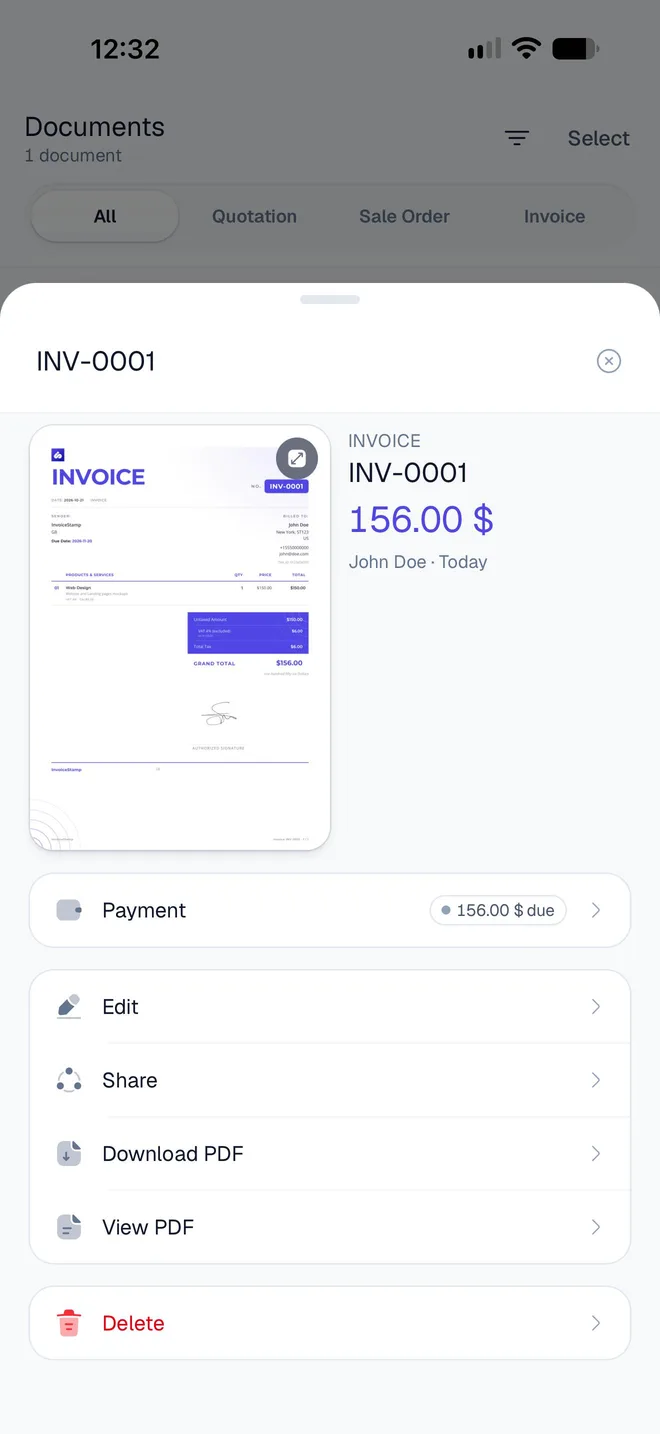
Open the Documents tab and tap the document.
Tap Share. The PDF is prepared and the share sheet opens, as from the editor.
Faster: in the Documents list, swipe a document to the left and tap Share.
How do I save a PDF to my phone?
In Documents, tap the document, then Download PDF. Preparing to download shows while the PDF is made.
When it's saved, the app shows where, such as Saved to Documents, with the file's name. Tap Open to look at it.
Downloads go to the default folder unless you chose another one in Settings → Save Location. On iPhone, that's InvoiceStamp's folder in the Files app (On My iPhone → InvoiceStamp). On Android, it's the phone's Documents folder, which your files app shows. A new download never replaces an older one: a second copy is saved as InvoiceStamp-INV-0001 (1).pdf. See Change InvoiceStamp's settings.
Sharing doesn't use that folder: it always sends a temporary copy.
How do I look at the PDF without sending it?
In Documents, tap the document, then View PDF. The screen shows the document's details (type, number, client, total, issue and due dates) above the PDF, with Share PDF and a download button. If the document has no PDF yet, tap Generate PDF.
Before you save, Preview in the editor shows the document as your client will see it.
Does the PDF change when I edit my business or client?
Yes. Each PDF is made from your current business details and your client's current details. If you change your address, or correct a client's name, the next PDF of any document shows the change, including documents you've sent before. Send the PDF again if your client needs the new version.
What if the PDF won't share?
| Message | What to do |
|---|---|
| The PDF is taking too long to render. Your document is saved — try sharing again in a moment. | Wait a moment, then tap Share again. |
| We couldn't render this PDF. Try again, or switch to another design. | Tap Share again. If it fails again, choose another design on the Design card. |
| Couldn't share the document. Try again. | Check your connection, then tap Share again. |
| Save folder is no longer accessible | The folder you chose for downloads was moved or deleted. The PDF went to InvoiceStamp's own folder; pick a new one in Settings → Save Location. |
See Fix common problems in InvoiceStamp for more.
Related guides
Was this page helpful?
Add a signature, QR code, bank details and notes
Use the editor's Additional Options to add your signature, a payment QR code, bank details and notes to a document, and switch each one off per document.
Find and manage your documents
Use the InvoiceStamp Documents tab to find a quotation, sale order or invoice by client or number, sort and filter the list, then edit, share or delete it.