

Change InvoiceStamp's settings
Last updated · InvoiceStamp 1.1.0 for iPhone and Android
Open Profile and tap Settings (Appearance, notifications, billing & more). There you set the theme to Light, Dark or Auto, choose your notifications, pick the folder Download PDF saves to, manage your subscription, and delete your account. Sign out is at the bottom of the Profile tab.
What's in Settings?
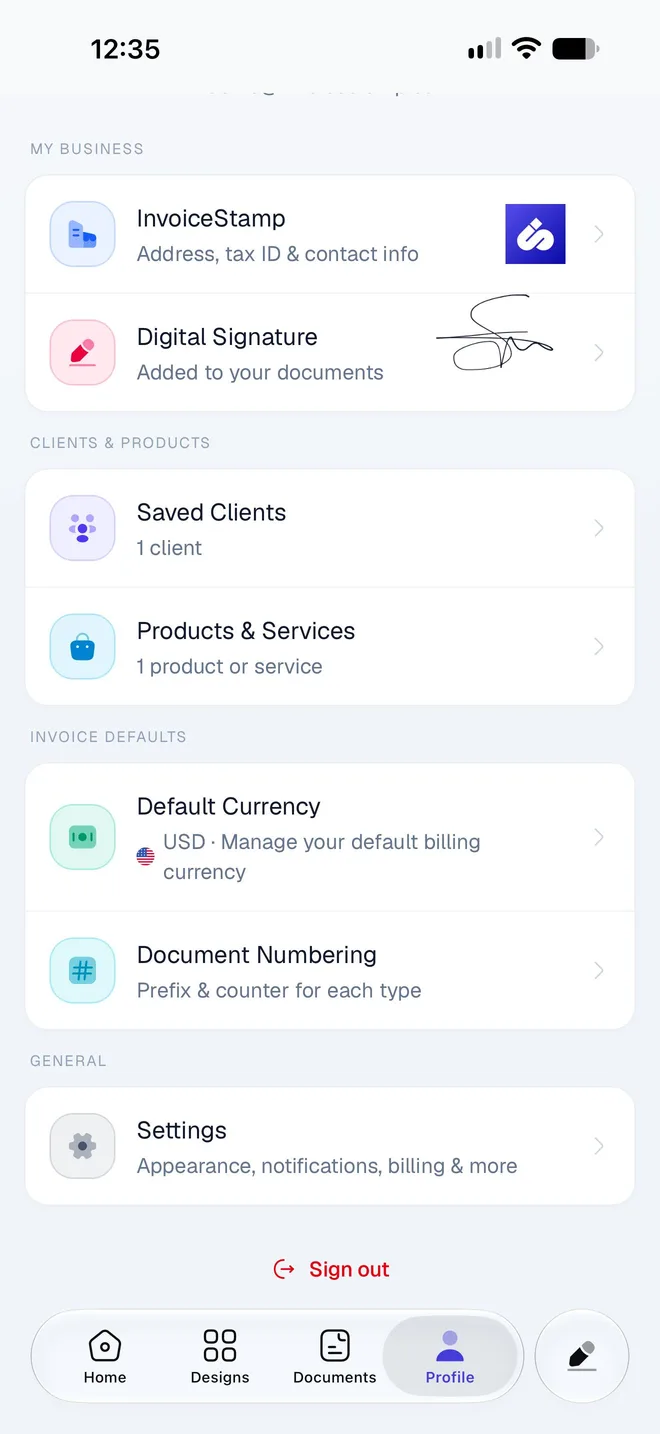
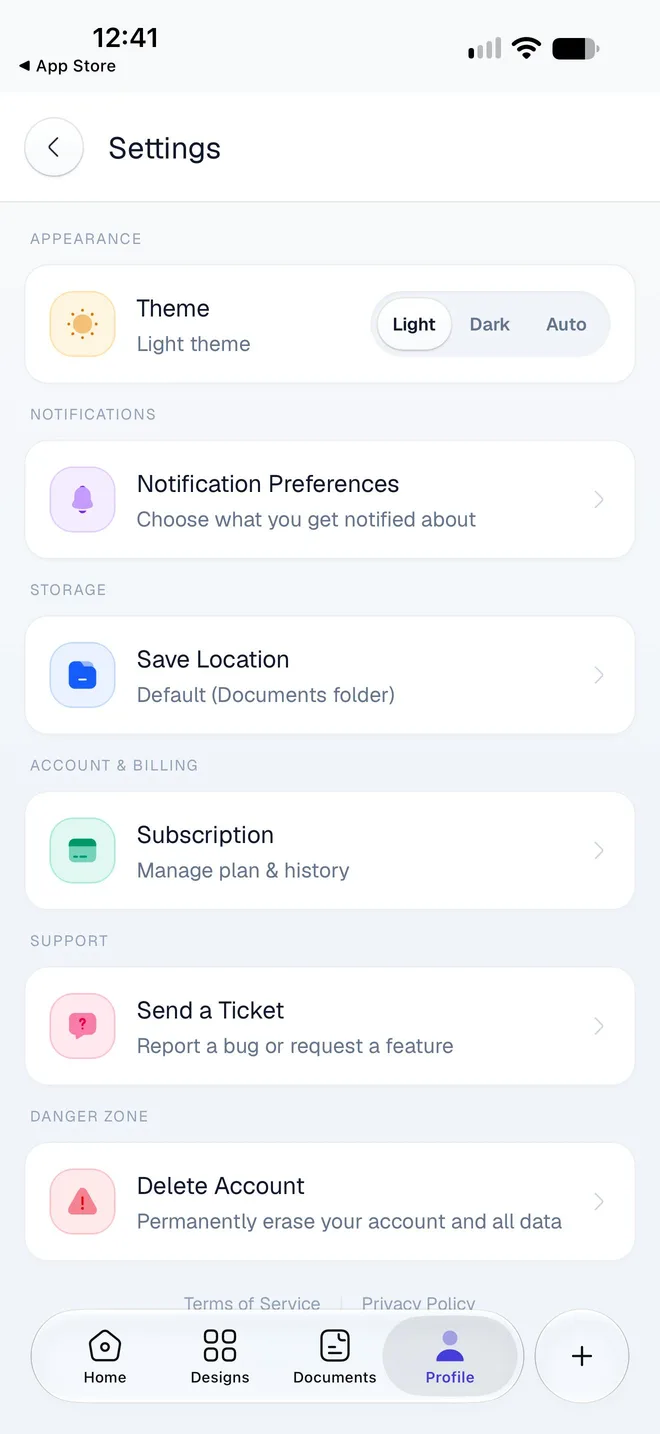
| Section | Setting | See |
|---|---|---|
| Appearance | Theme | below |
| Notifications | Notification Preferences | Notifications and emails |
| Storage | Save Location | below |
| Account & Billing | Subscription | Your subscription |
| Support | Send a Ticket | Get help |
| Danger Zone | Delete Account | Delete your account |
At the bottom, Terms of Service and Privacy Policy open on invoicestamp.com, and the last line shows your app version, such as InvoiceStamp v1.1.0: include it when you contact support.
How do I switch to dark mode?
Under Appearance, tap Dark next to Theme. Auto follows your phone's own light or dark setting, and Light keeps the app light. The app starts on Light.
The theme changes the app only: your documents and their PDFs look the same either way.
Where are downloaded PDFs saved?
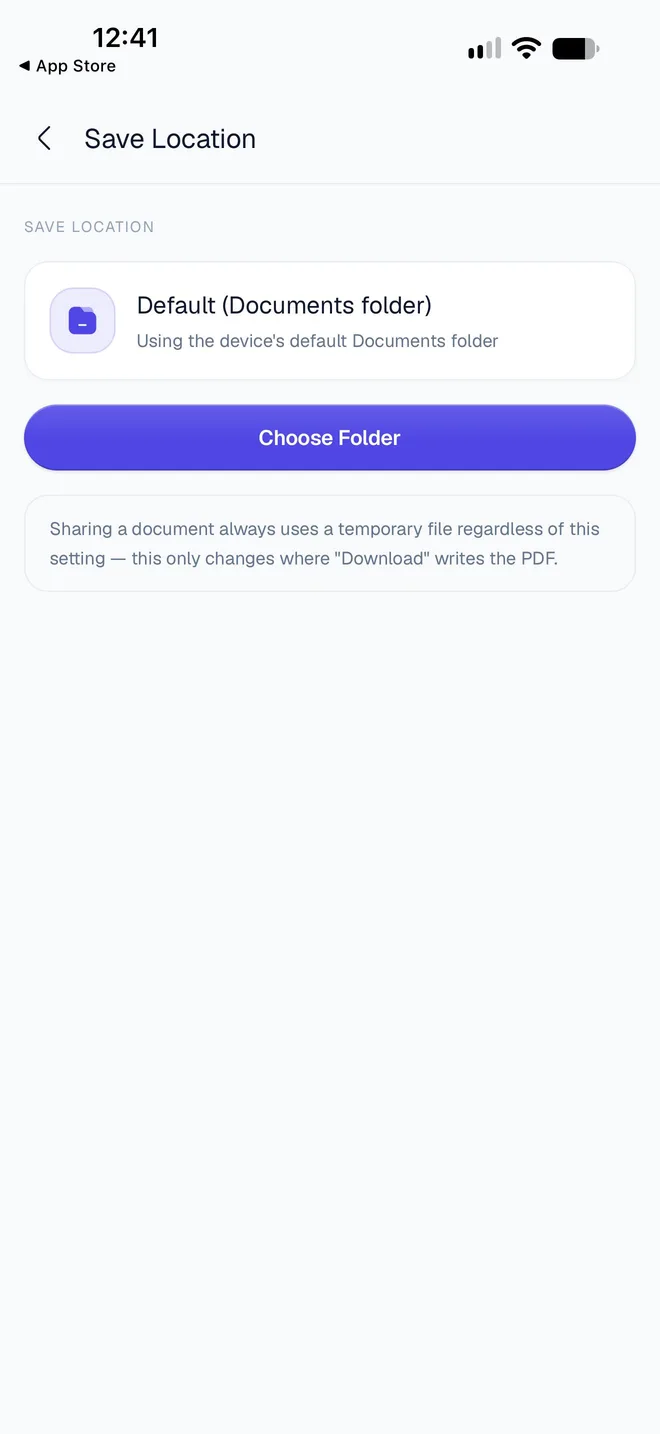
When you tap Download PDF on a document, InvoiceStamp saves it to the folder set in Save Location. The default is Default (Documents folder): on iPhone, it's On My iPhone › InvoiceStamp in the Files app; on Android, the phone's Documents folder.
Tap Profile → Settings → Save Location.
Tap Choose Folder and pick a folder: in Files on iPhone, such as one in iCloud Drive, or with Android's folder picker. The app confirms: Documents will now save to that folder.
To go back to the default, tap Reset to Default.
Files are named after the document, such as InvoiceStamp-INV-0001.pdf. Downloading again never overwrites a file: the new one gets (1), (2) and so on.
Good to know:
- Share doesn't use this folder: sharing always makes a temporary file. Save Location only changes where Download PDF writes.
- If the folder you picked is moved or deleted, the app saves to the default folder instead and tells you: "Save folder is no longer accessible". Choose a new folder to fix it.
- Save Location is set for each phone, and signing out resets it to the default.
What does signing out clear?
To sign out, tap Sign out at the bottom of the Profile tab, then Sign Out. Your documents, clients and products stay in your account, ready when you sign back in.
Signing out does clear what's kept on this phone only:
- the document open in the editor, if you hadn't saved it;
- changes made offline that haven't synced yet;
- your Save Location folder;
- your default currency, which goes back to US dollars.
Save your work and reconnect before you sign out, and set your default currency again after you sign back in.
Related guides
Was this page helpful?
Notifications and emails from InvoiceStamp
What InvoiceStamp notifies you about on your phone, how to read and clear the Notifications screen, which emails it sends, and how to choose what you get.
Contact InvoiceStamp support
Reach the InvoiceStamp team by email or through the contact form, what to include so we can help quickly, and the current state of Send a Ticket in the app.