

Fill in a document, section by section
Last updated · InvoiceStamp 1.1.0 for iPhone and Android
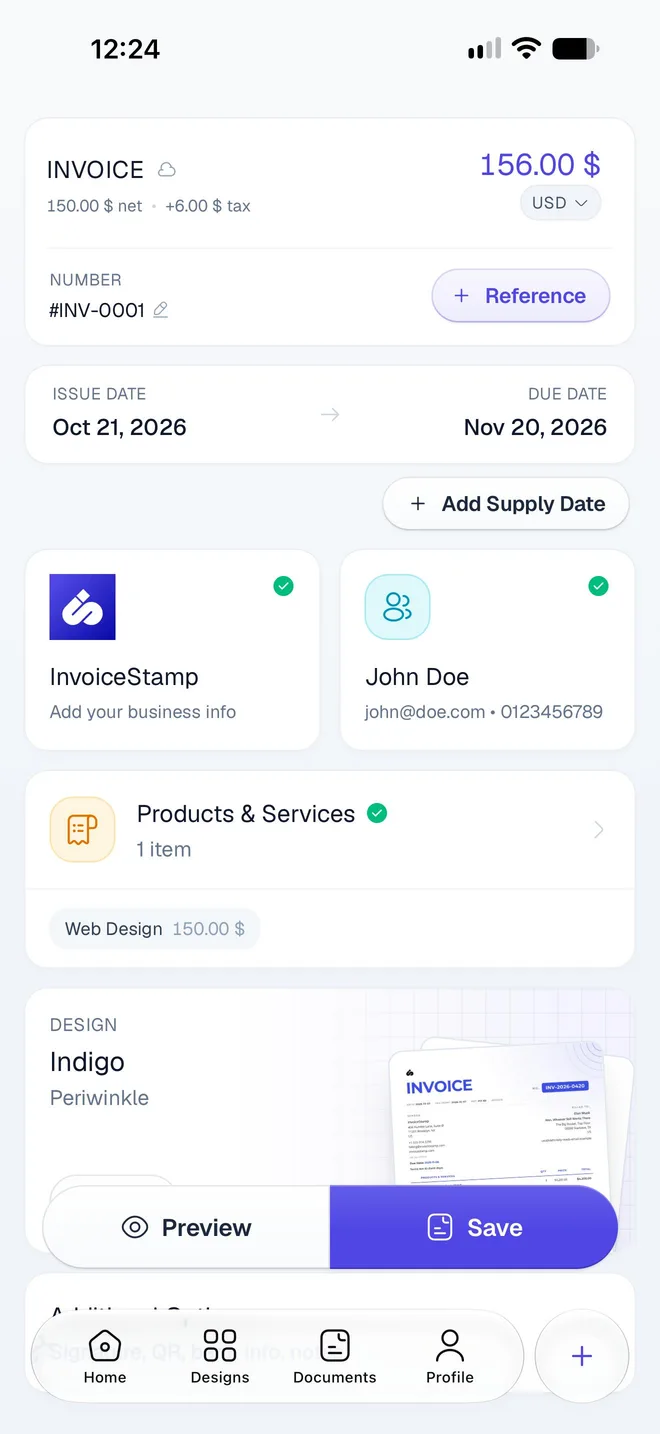
The editor fills in from top to bottom: the number and dates, your business, the client, the , the design and four optional extras. Your business name, a client and at least one item with a price are required; the rest is optional. Tap Save when you're done: until then, the draft stays on your phone.
What's at the top of the editor?
The header card shows the document's type and total, with the amount before tax and the tax under it (150.00 $ net • +6.00 $ tax). The cloud icon beside the type shows whether the document is saved to your account yet.
- Currency: the pill under the total, such as USD. Tap it to choose this document's currency: see Invoice a client in another currency.
- Number: the document's number, such as #INV-0001. Tap the pencil to open Document Numbering, where you set the prefix, the next number, a suffix and the number's length for this type. There's no field to type a one-off number.
- Reference: tap to add a purchase order, contract or job number (for example PO-9988). It's printed on the PDF. Tap ✕ to remove it.
If the document isn't saved yet, new numbering settings renumber it straight away. Once it's saved, the sheet tells you the change applies to the next one. See Document numbering.
How do I set the issue and due dates?
A new document is dated today, with a 30 days later. To change either one:
Tap or Due date. A calendar opens.
Pick a day, or use a shortcut. For the issue date: Today, Tomorrow, +7 Days, +14 Days and +30 Days. For the due date: Same day, Net 7, Net 14, Net 30 and Net 60, counted from the issue date.
Tap Confirm. To leave a document without a due date, tap Clear instead.
If you move the issue date past the due date, the card warns Due date is before the issue date. Tap Due on receipt to set the due date to the issue date, or pick another day.
From the day after its due date, an invoice that isn't fully paid is flagged in your lists: when nothing is paid, or the amount still due in red when it's partly paid.
What is the supply date?
The is the day you delivered the goods or did the work, which some tax authorities call the tax point. You only need it when it differs from the issue date. Tap + Add Supply Date: a Supply date row appears, set to the issue date, and you can change it like the others. Tap ✕ to remove it.
How do I add my business details?
The first card is your business: your logo and name, with your email and once you've added them. It shows Required until your business has a name.
Tap it to open Business Details: your logo, , Email, Phone, Address, Country and Tax ID, and under Additional Details your , website and fax. There's no Save button: your changes are saved when you go back.
These details are your business profile, shared by every document. Change them, and documents you've already saved show the new details the next time their PDF is made. See Your business profile.
How do I choose the client?
Tap Your Client (Add "Bill to" info). Choose a client lists your saved clients; search them by name, email or phone.
Tap a client to put them on the document. For someone new, tap New, fill in at least the Name, and tap Save client: they're added to the document and to your saved clients.
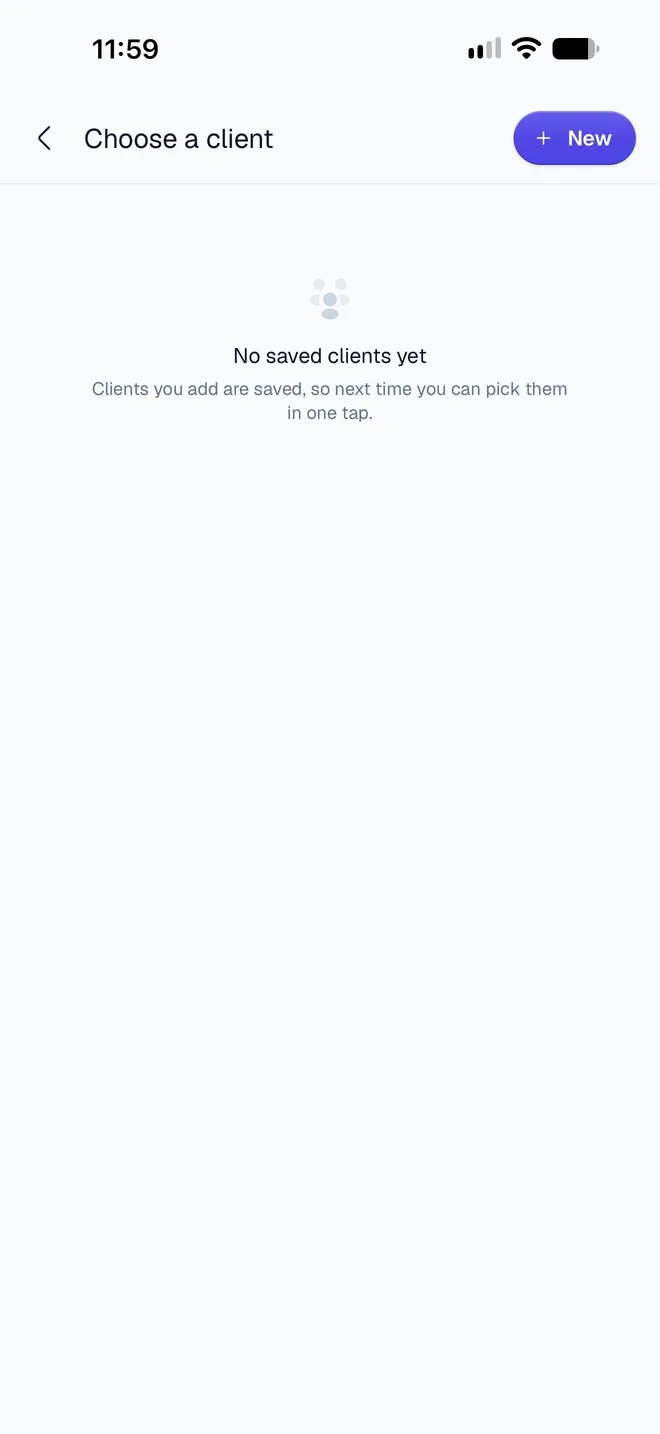
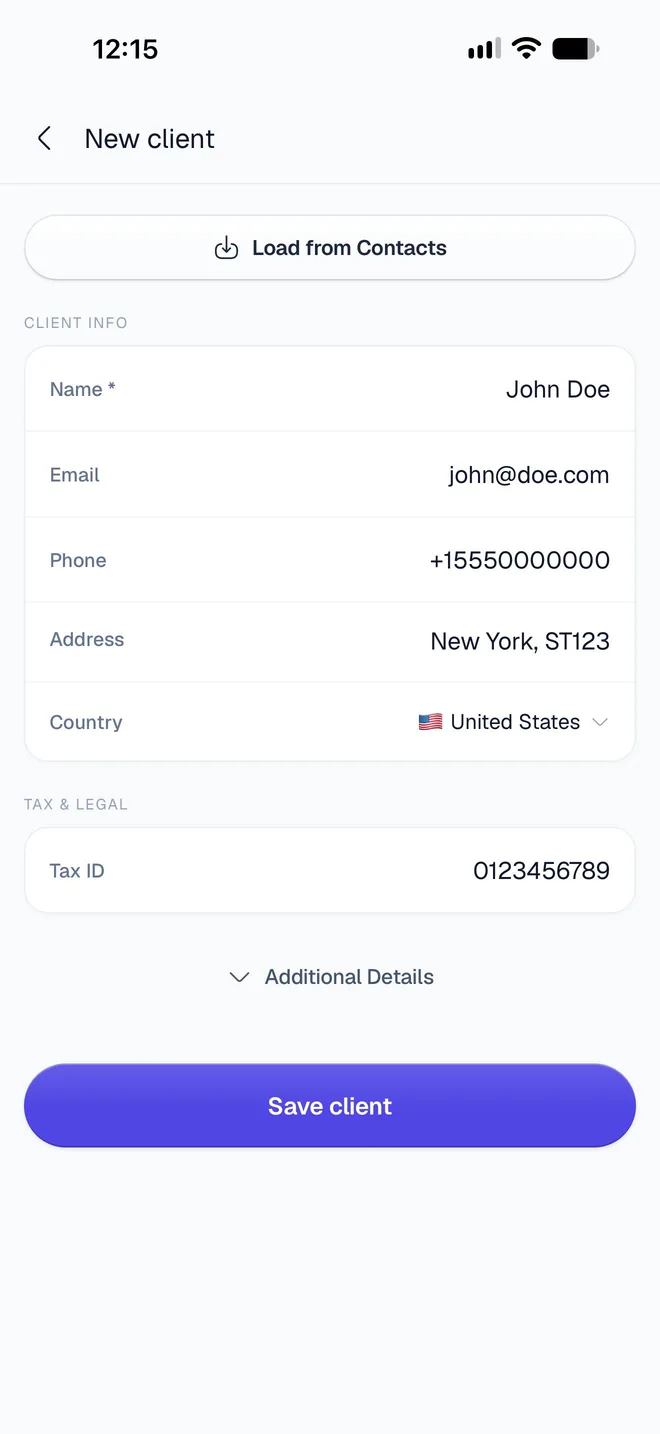
Once a client is chosen, tap the card again to Edit their details, Change client, or Remove from invoice. Editing a saved client updates every document they're on, the next time its PDF is made. See Save and manage clients.
How do I add what I'm charging for?
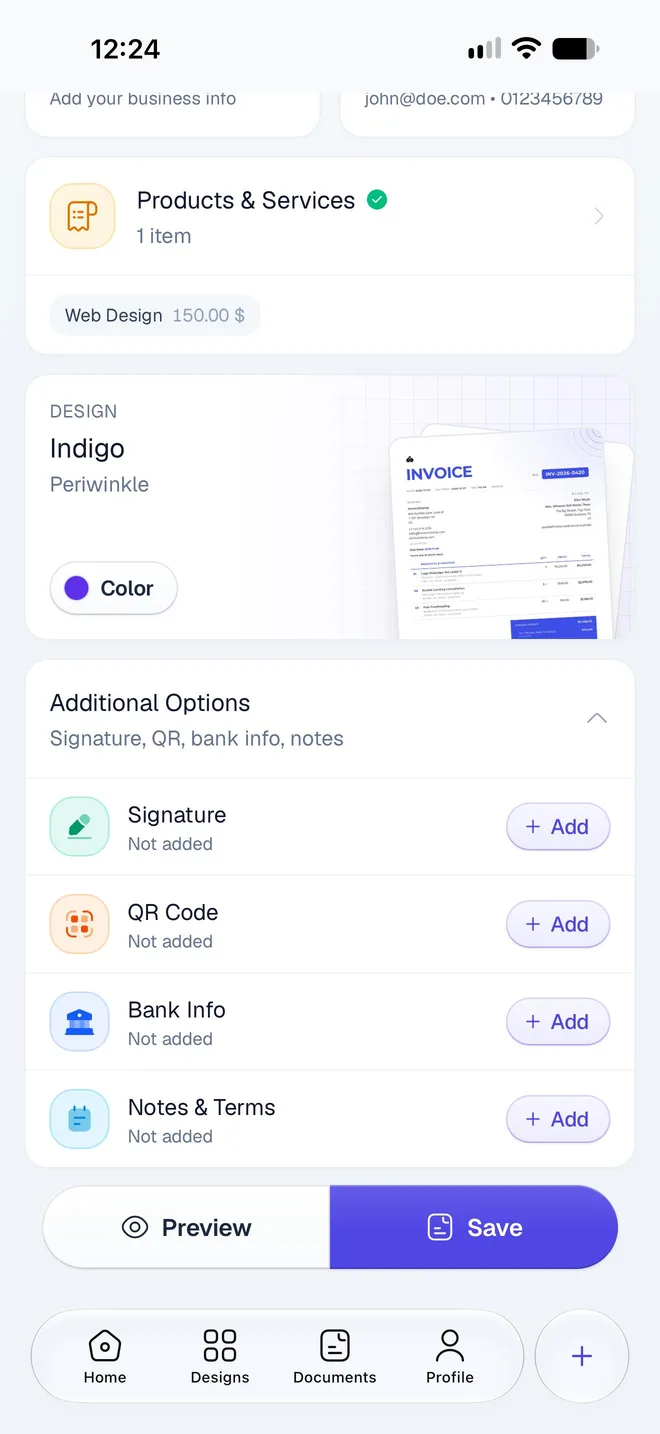
Tap Products & Services. The card reads 0 items and Required until you add one; afterwards it lists your items with their prices. See Add line items and Add tax and discounts.
How do I change the design and color?
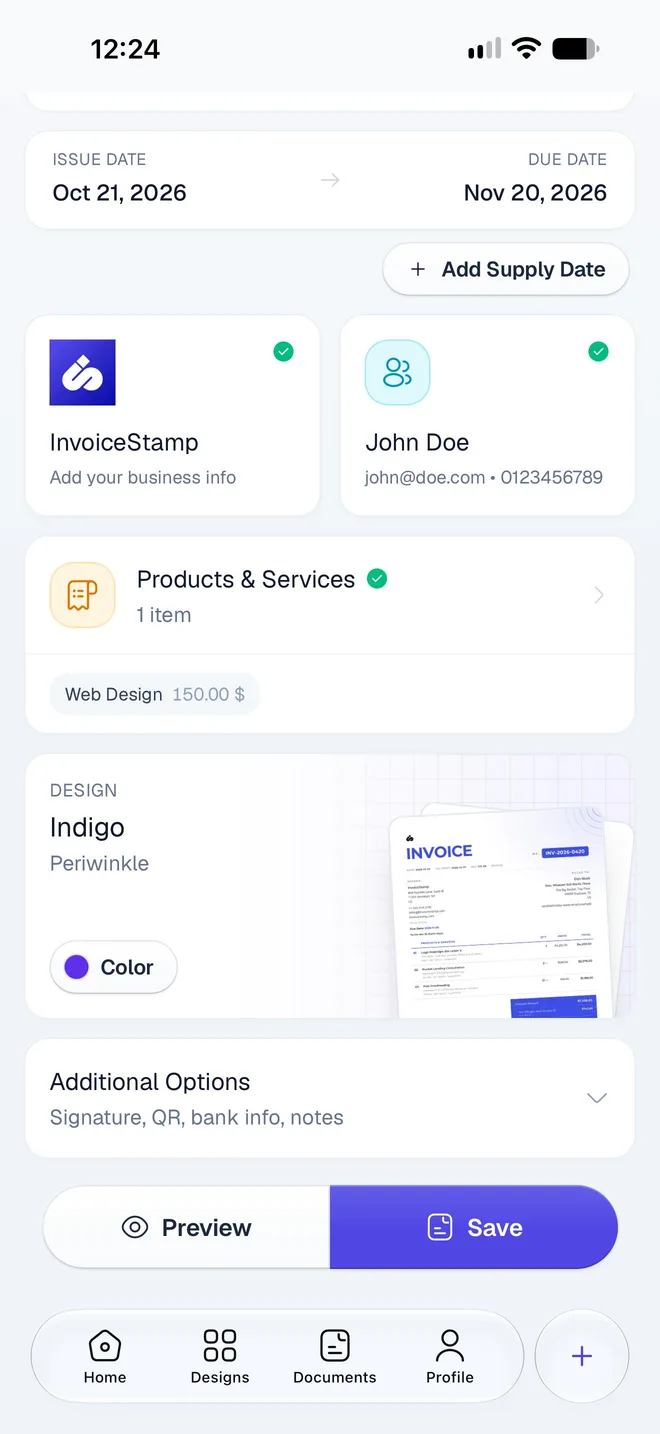
The Design card shows the design and style, such as Indigo and Periwinkle. Tap the card to change the style or , or tap Choose another design to browse them all. Tap Color to set your brand color. See Choose a design and color.
What are the Additional Options?
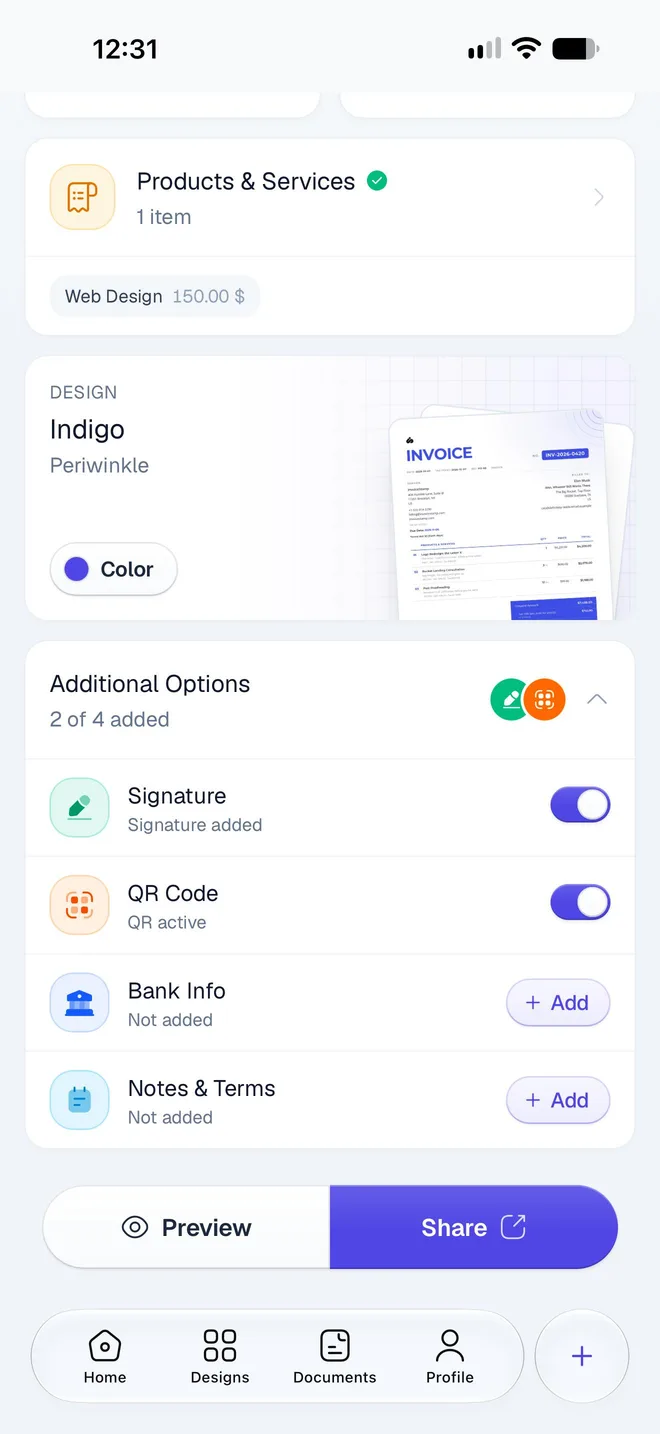
Additional Options holds four extras: Signature, QR Code, Bank Info and Notes & Terms. Each has its own switch, so you can hide it on one document without deleting it. See Add a signature, QR code, bank details and notes.
What does the editor need before I can save?
Three things: your business name, a client, and at least one item with both a name and a price above zero. Until they're there, Preview and Save are dimmed. Tap either one: the editor scrolls to what's missing, and a hint above the buttons says what to do:
| Hint | What to add |
|---|---|
| Add business info to continue | Your business name, on the first card |
| Add client details to continue | A client, on the Your Client card |
| Add a product or service to continue | At least one item |
| Give item 2 a name to continue | A name for that line |
| Give item 2 a price to continue | A price above zero for that line |
What happens when I tap Save?
The document is saved to your account, the cloud icon shows it's saved, and the button changes to Share. Make another change and it reads Save again.
A saved document stays editable: open it from Documents and tap Edit. There's no draft or final status to switch between, so save as often as you like. If saving fails, the app shows Failed to save document or a more specific message: check your connection and tap Save again.
What happens to a document I haven't saved?
Your draft is kept on your phone as you type, even if you close the app, but it isn't in your account until you tap Save. You can switch tabs and come back: while a draft is open, the + button in the tab bar shows a pen, and tapping it returns to the editor.
If you start a new document or open another one while the draft has unsaved changes, the app asks first:
- New invoice: "You have unsaved changes on your current document. Starting a new one will clear them." Tap Clear and start new or Keep editing.
- Edit a saved document from Documents: "You have unsaved changes on your current document. Opening this one will clear them." Tap Clear and open or Keep editing.
A new document starts with the same design, color, currency, notes, terms and QR code as the one before, so you don't set them up each time.
Was this page helpful?
Quotation, sale order or invoice: which to send
A quotation prices the job, a sale order confirms it and an invoice asks to be paid. How the three InvoiceStamp documents differ, and when to send each one.
Add line items to a document
Add saved products, one-off custom lines and section headings to an InvoiceStamp document, then edit, reorder, select and delete them on the items screen.