

Make your first invoice on iPhone or Android
Last updated · InvoiceStamp 1.1.0 for iPhone and Android
To make an invoice in InvoiceStamp, tap the + button and choose Invoice. Add your business details, pick or create the client, add what you're charging for, and choose a design. Tap Save: the button then turns into Share, which sends the invoice as a PDF through WhatsApp, Mail or any other app on your phone.
This guide follows one invoice from start to finish: a $150 web design job for a new client, with 4% tax.
How do I start a new invoice?
Tap the round + button at the right of the tab bar. What are we making? opens.
Tap Invoice (Get paid). The editor opens on a new invoice, showing the number it will get.
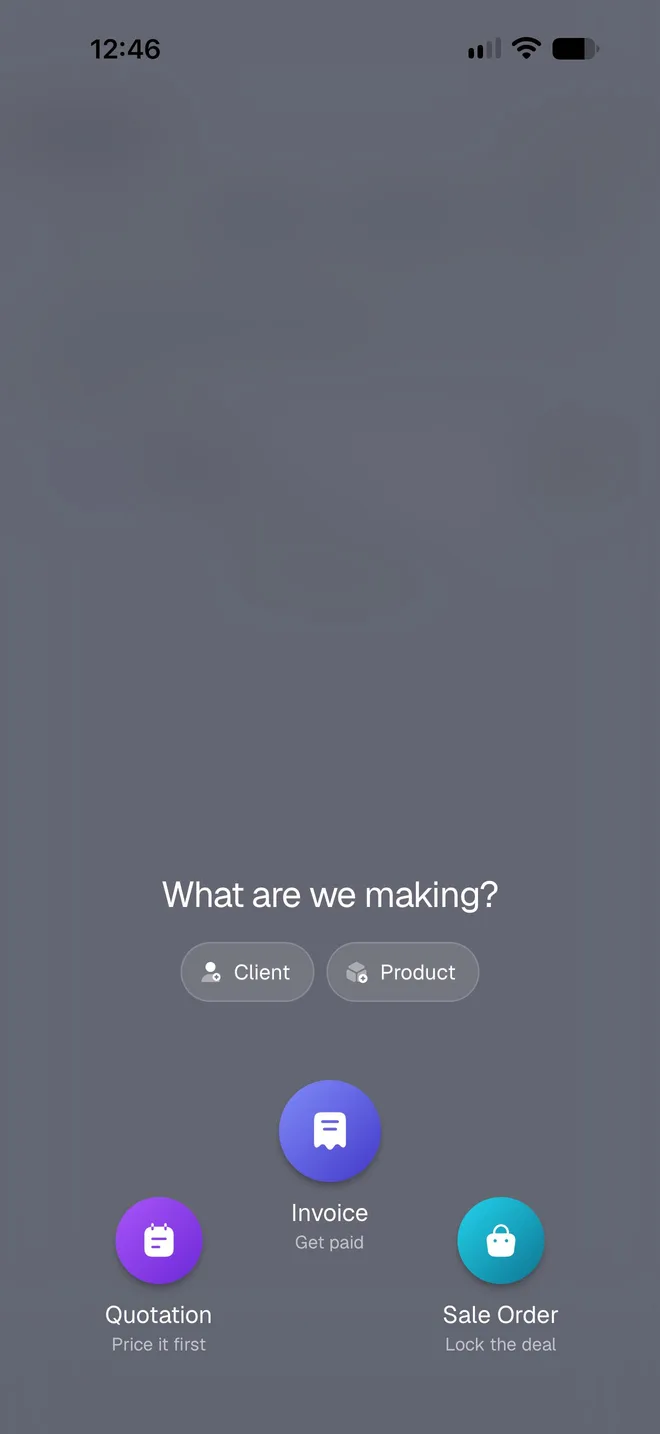
You can also tap New Invoice on the Home screen. Quotation and Sale Order open the same editor for those documents: see Quotation, sale order or invoice.
What is the tour that opens in the editor?
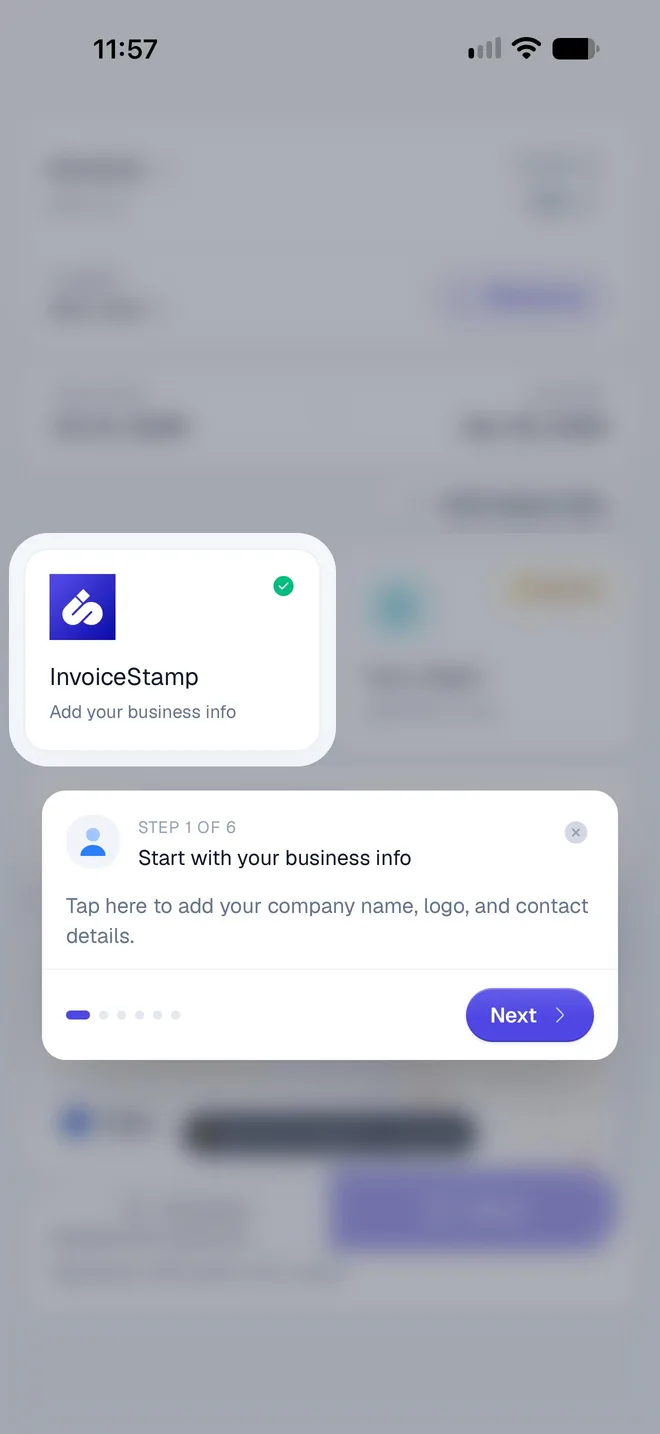
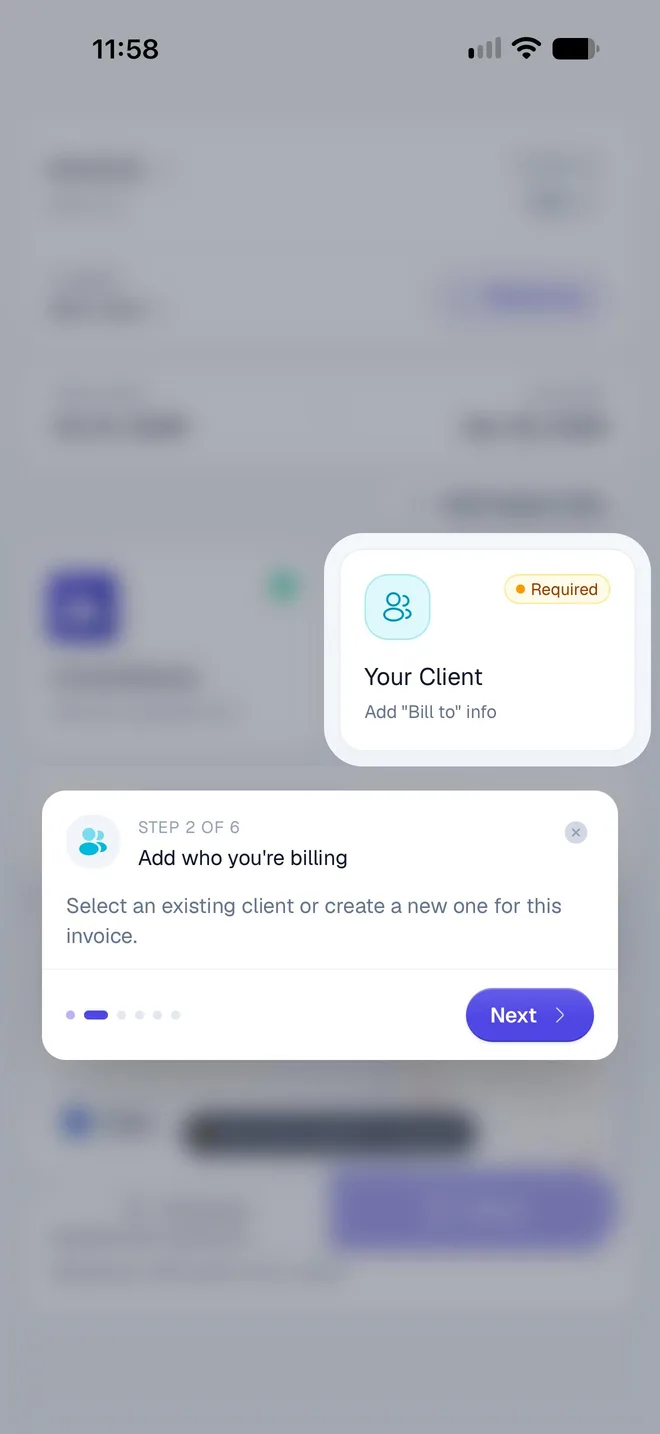
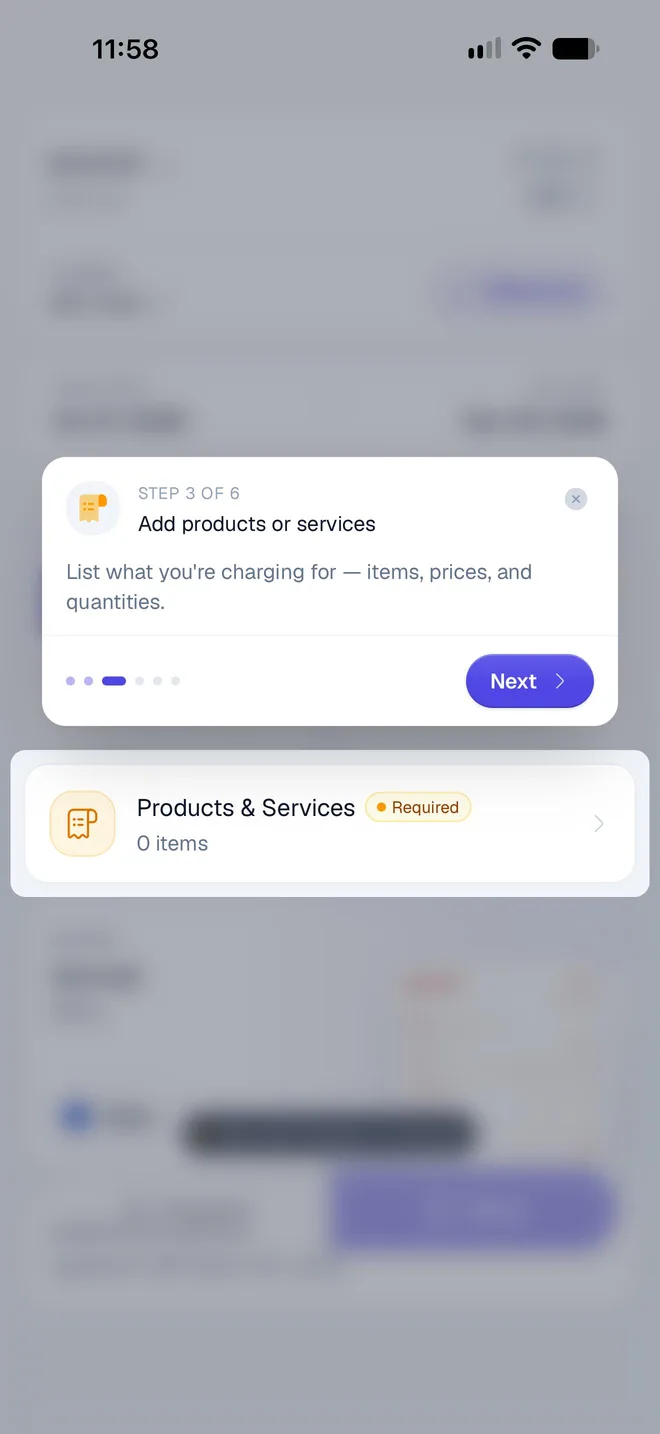
The first time you open the editor, a six-step tour points at each part of it: your business, the client, products or services, the design, Preview and Save. Tap Next to move through it and Done to close it, or tap ✕ to skip. It shows once on each phone, and the steps below cover the same ground.
How do I add my business details?
The card with your logo and business name is what the invoice is from. It shows a green check once your business name is set, which the setup already did.
Tap it to add the rest of what a client expects to see: your address, email, phone and tax IDs. They're saved to your business profile and printed on every document. See Your business profile and Show your tax IDs on invoices.
How do I add the client?
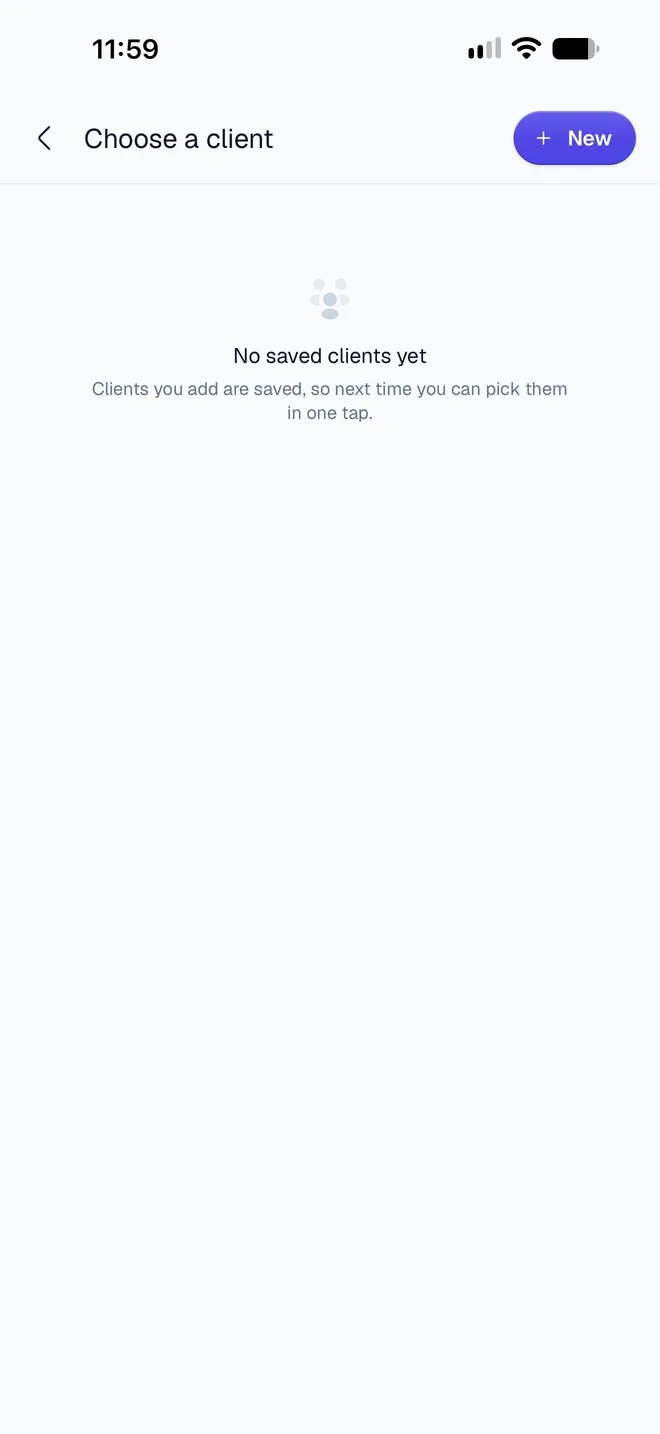
Tap Your Client (Add "Bill to" info). Choose a client lists the clients you've saved; it's empty the first time.
Tap New. Fill in the client's Name (the only required field), and their Email, Phone, Address, Country and if you want them on the invoice. Load from Contacts fills the form from your phone's contacts.
Tap Save client. The client is selected for this invoice and saved for the next one.
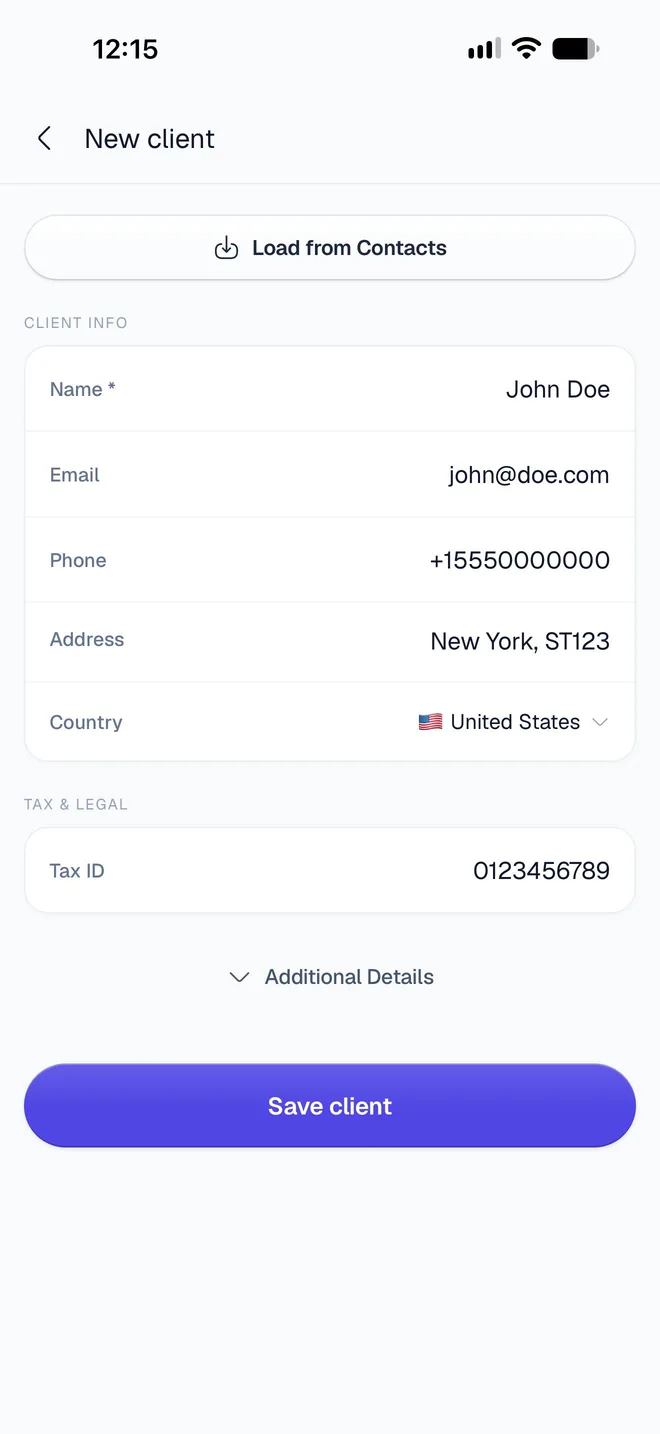
Additional Details at the bottom of the form adds , a website and a fax number. See Save and manage clients.
How do I add what I'm charging for?
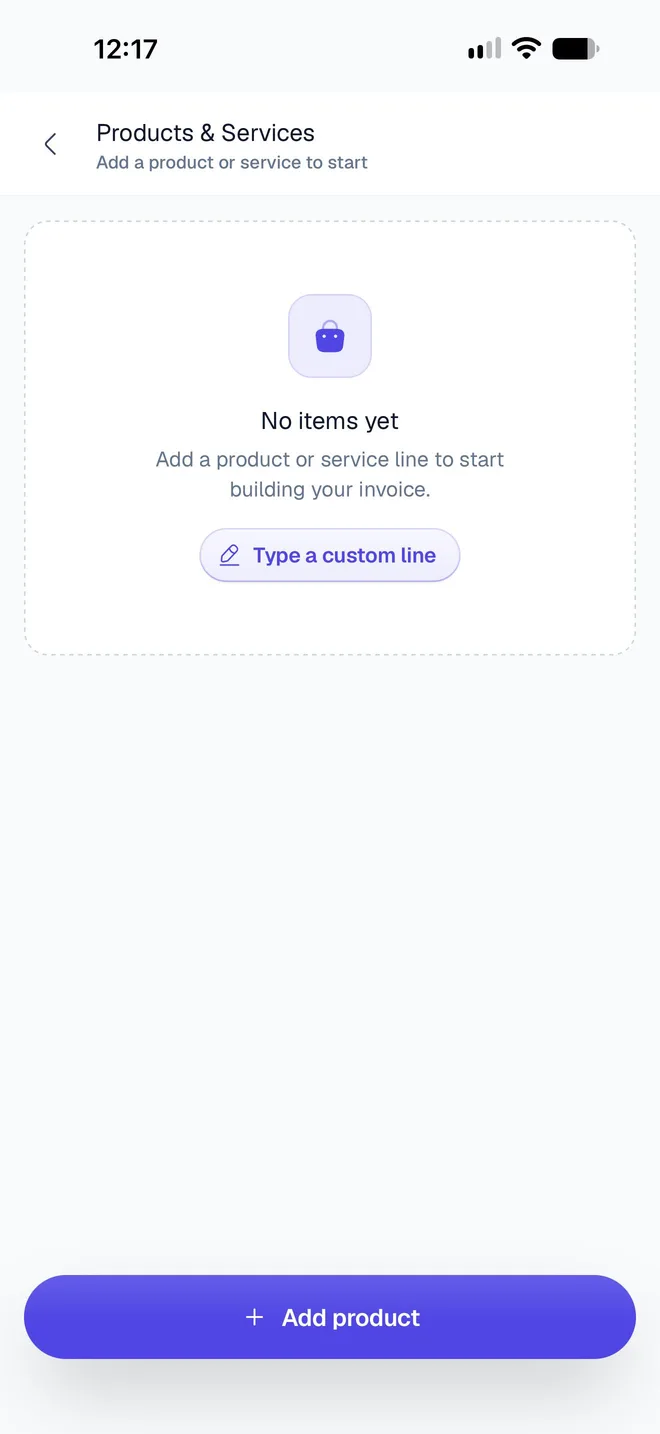
Tap Products & Services. With no items yet, you can Type a custom line for a one-off charge, or tap Add product to use a saved product.
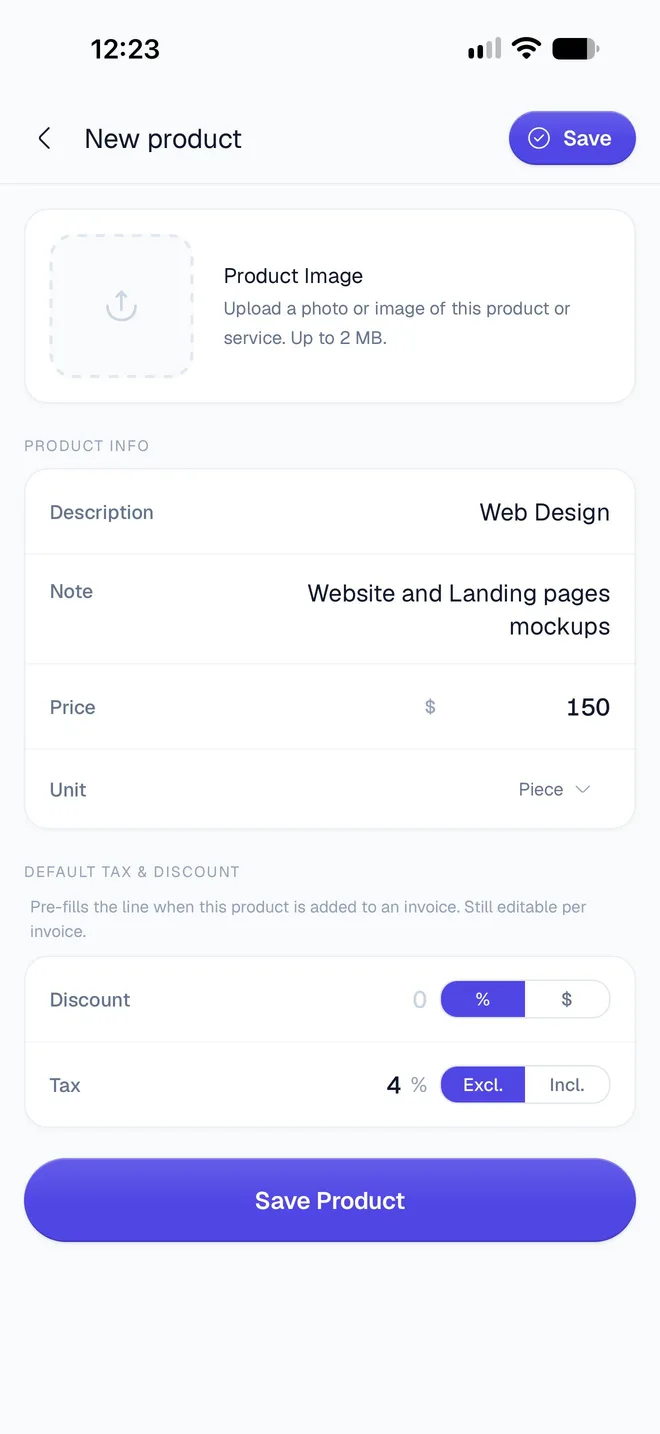
The first time, Add products is empty: tap Add your first product. Enter the Description (here, Web Design), an optional Note, the Price and the . Under Default tax & discount, set the tax this product usually carries: 4 %, (added on top of the price).
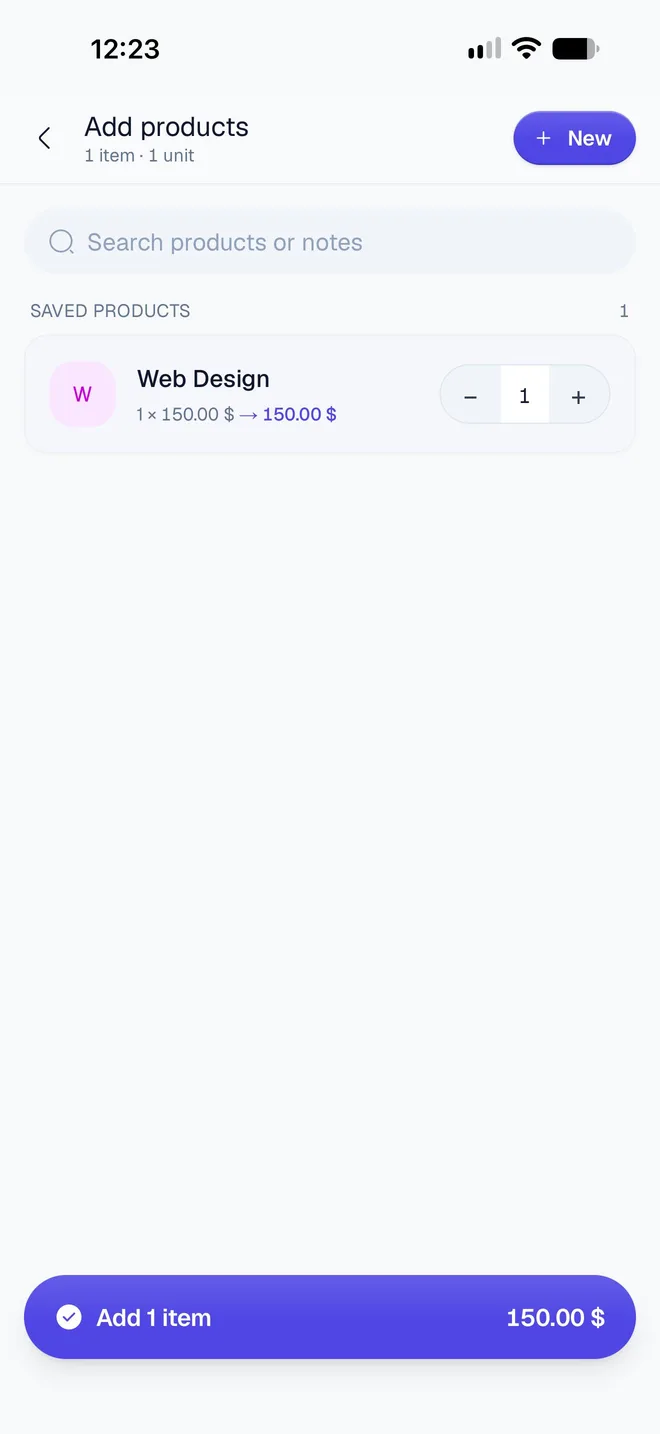
Tap Save Product. Back in Add products, set the quantity with − and +, then tap Add 1 item.
The list of now shows Web Design, 1 × $150.00, +$6.00 tax, and the of $156.00 with "tax added on top". From here you can add more products, a Custom line or a heading, and a discount. Tap Back to return to the invoice.
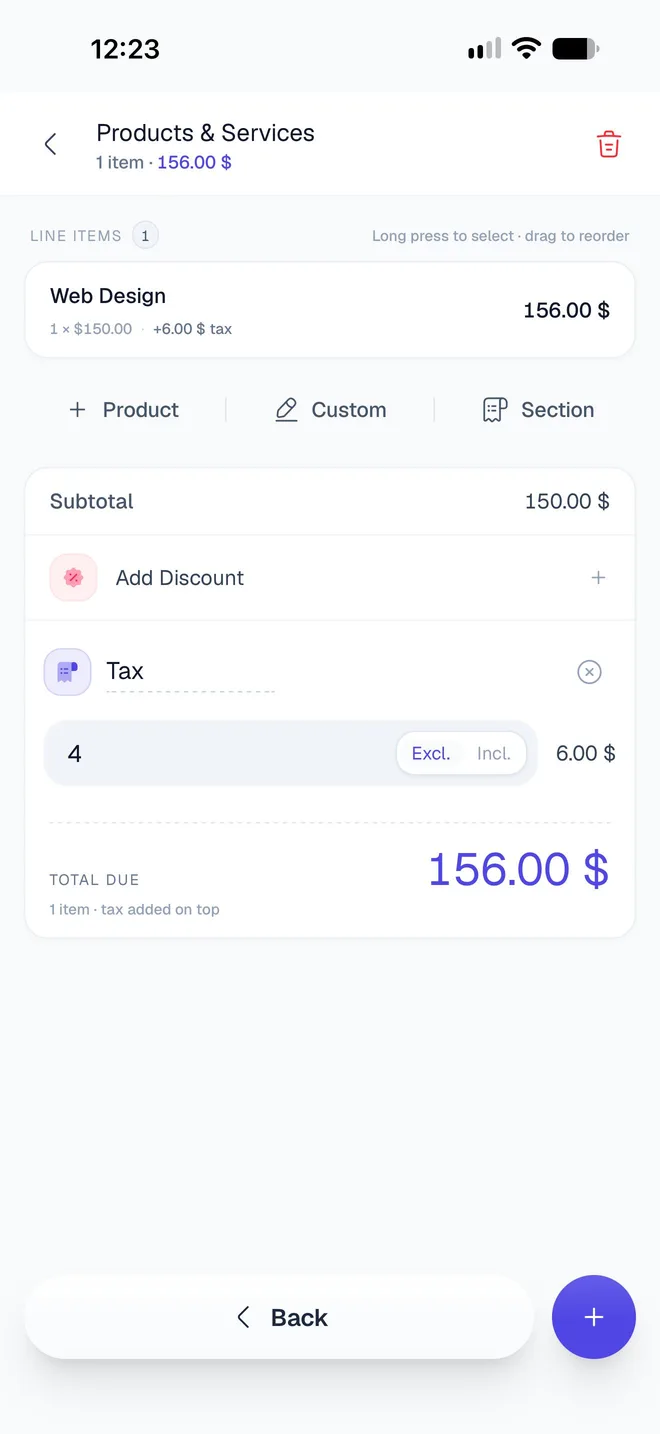
See Add line items and Add tax and discounts for everything this screen does.
How do I check the number, dates and currency?
The top of the editor shows the invoice's total and its basics:
- Number: InvoiceStamp numbers each invoice in turn (INV-0001 here) and confirms the number when you save. Tap the pencil to change the prefix, the next number or the length: see Change how documents are numbered.
- Reference: tap to add the client's purchase order or a contract number.
- and : today and 30 days later to start with. Tap either one to pick another day, or use a shortcut such as Net 14.
- Add Supply Date: the date the work was done or the goods were delivered, when it differs from the issue date.
- Currency: the pill under the total (USD here). Tap it to bill this invoice in another currency.
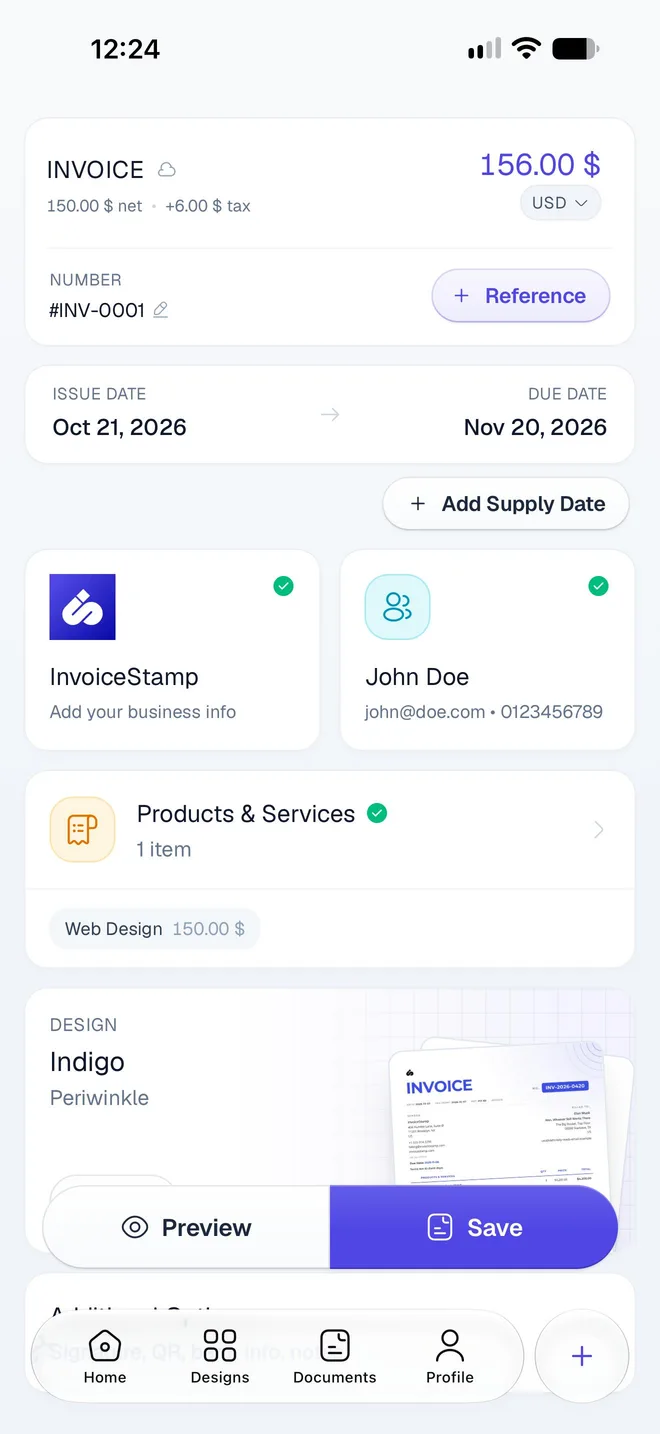
See Fill in a document and Invoice a client in another currency.
How do I choose how it looks?
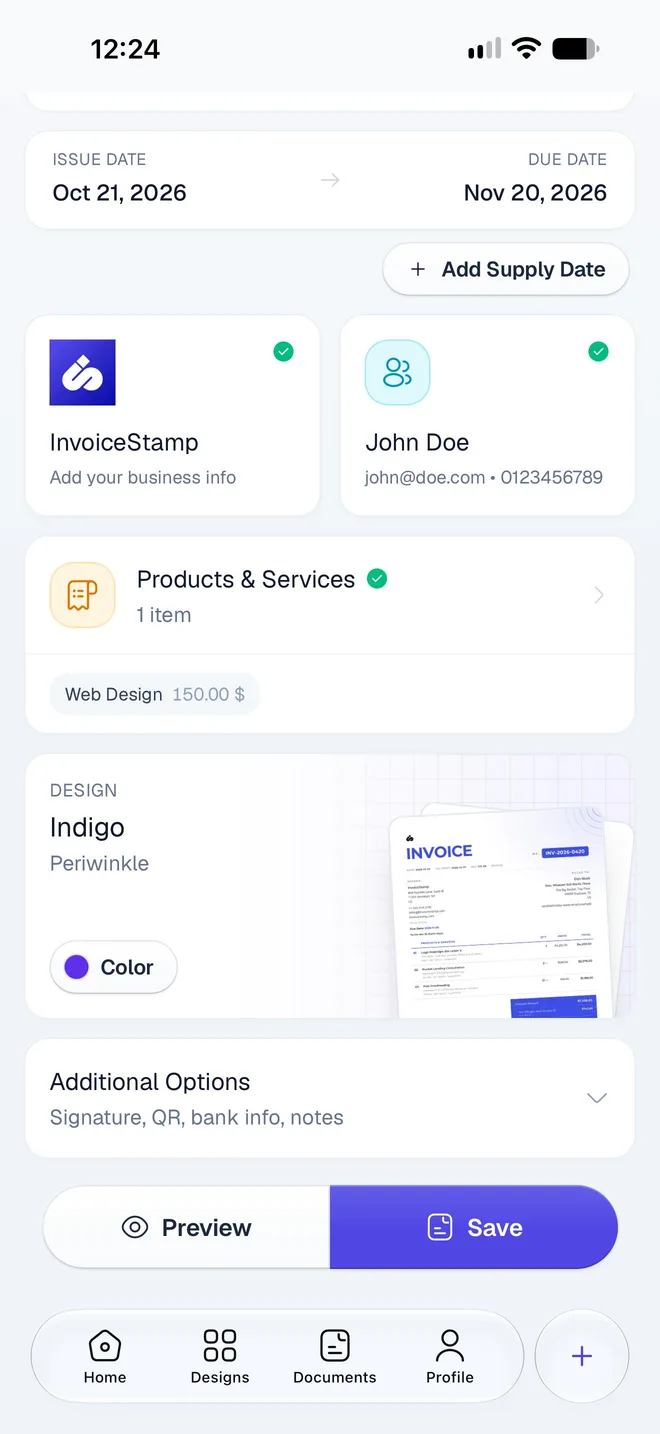
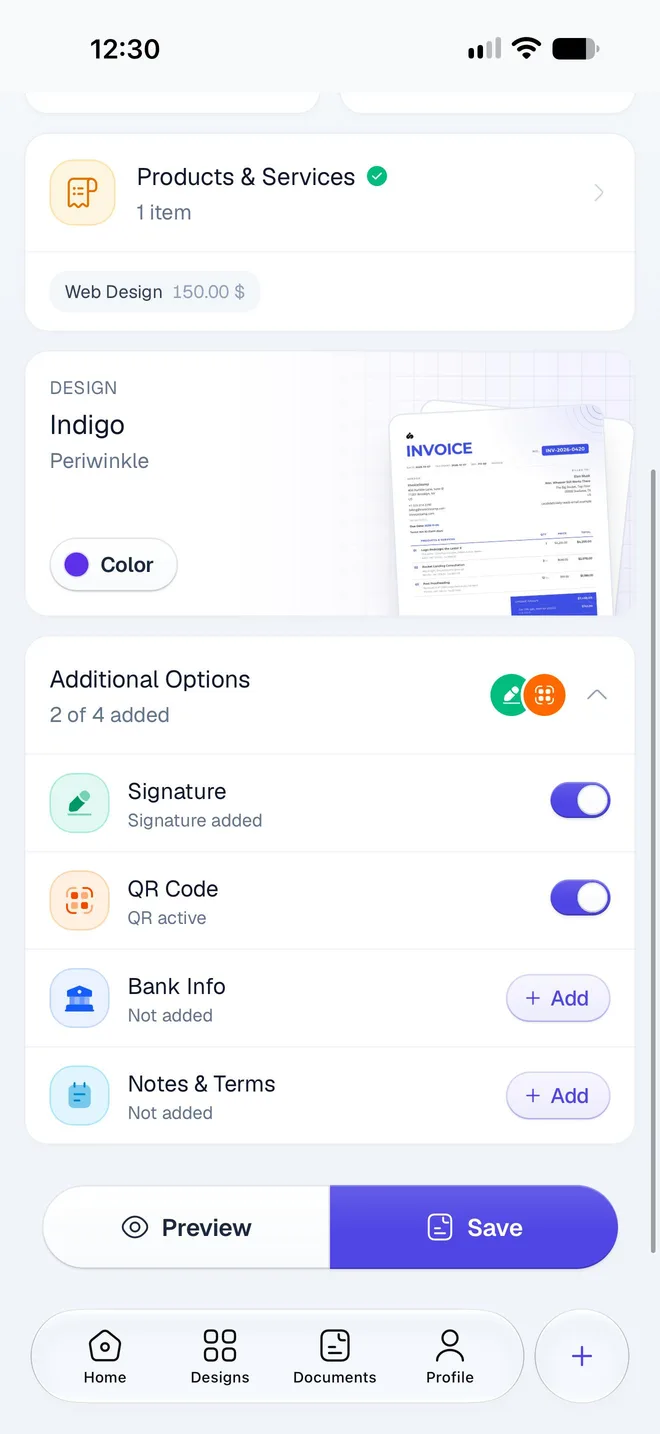
The Design card shows the invoice's design and its style, here Indigo in Periwinkle. Tap the card to change the style or , or Choose another design. Tap Color to set your brand color. See Choose a design.
Under it, Additional Options adds a Signature, a payment QR Code, Bank Info and Notes & Terms. They're optional: see Add a signature, QR code, bank details and notes.
How do I preview and save the invoice?
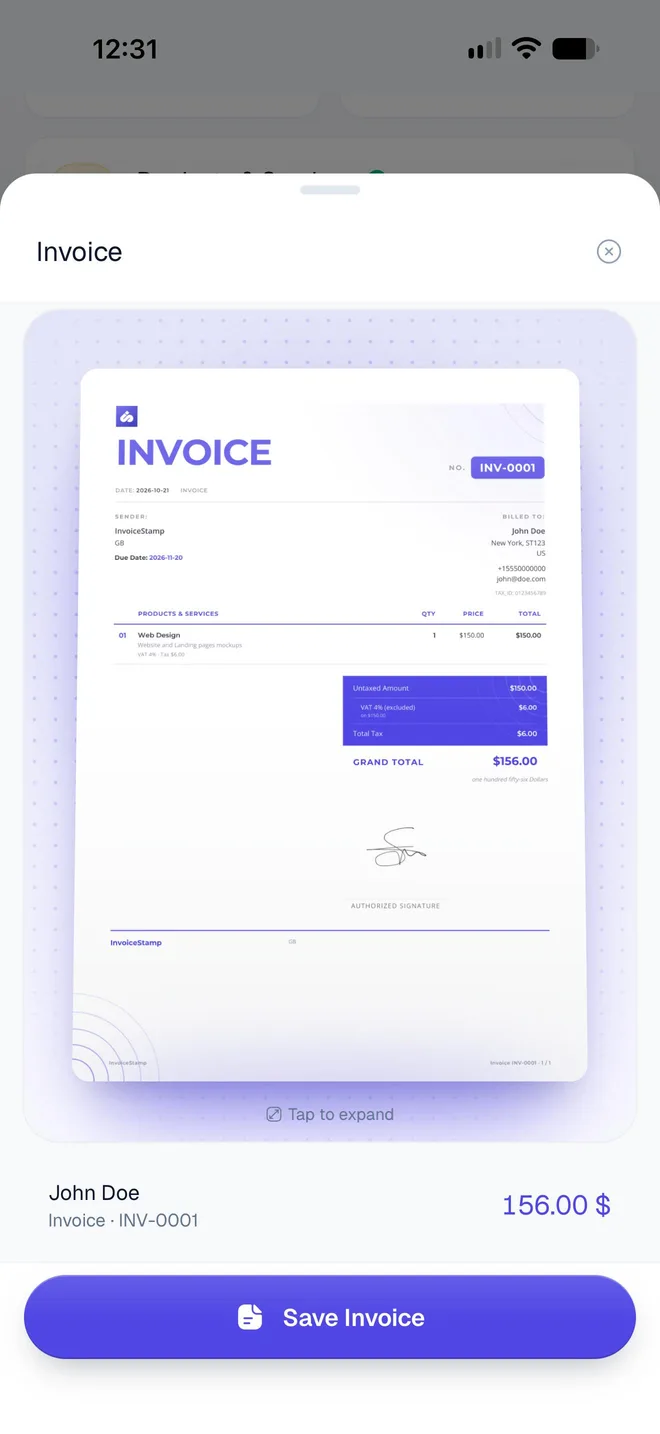
Tap Preview to see the invoice exactly as your client will. Tap the page to see it full size.
Tap Save Invoice in the preview, or Save in the editor.
Until the invoice has everything it needs, the buttons are dimmed and a hint above them says what's missing, such as Add client details to continue or Give item 1 a price to continue. Tap the button and the editor scrolls to that part. An invoice needs your business name, a client and at least one line with a name and a price.
How do I send the invoice to my client?
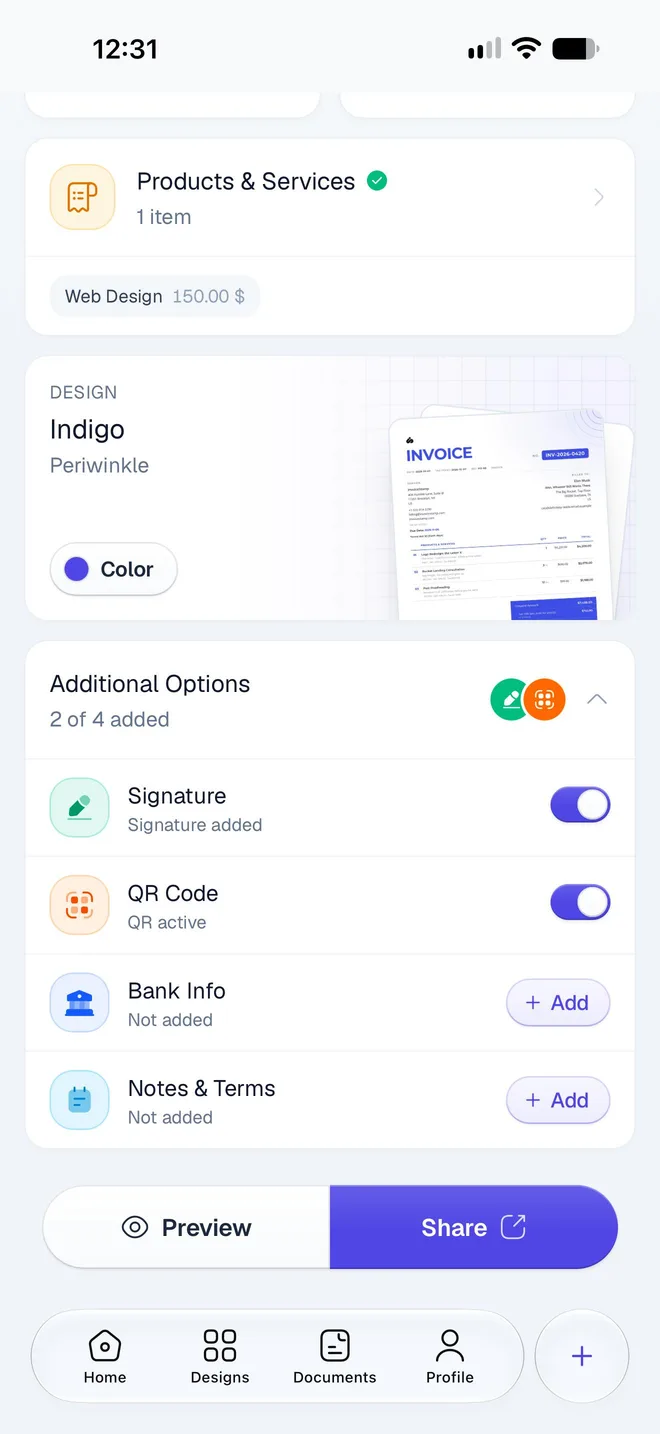
Once the invoice is saved, the Save button reads Share. (If you change anything, it reads Save again until you save the change.) Tap Share.
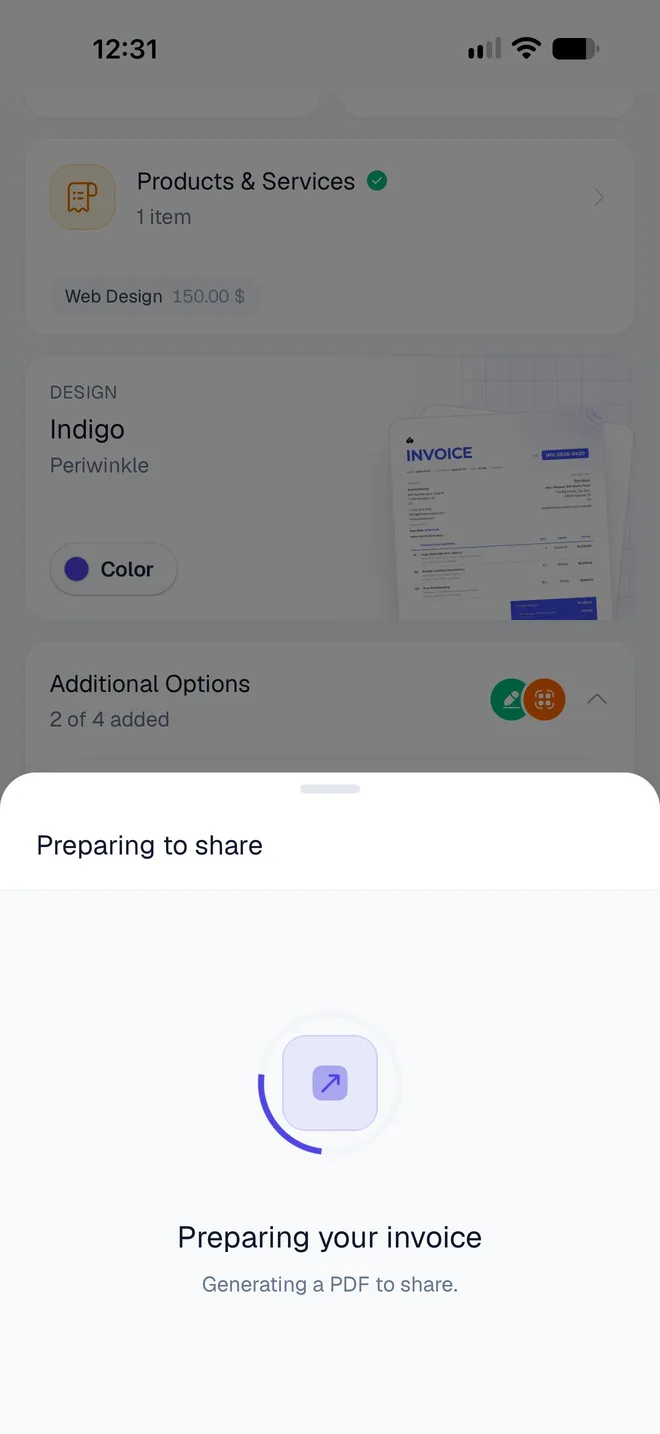
Preparing to share shows while InvoiceStamp makes the PDF, usually for a few seconds. Then your phone's share sheet opens with InvoiceStamp-INV-0001.pdf.
Choose how to send it: WhatsApp, Mail, Messages, AirDrop, or Save to Files to keep a copy.
InvoiceStamp doesn't email your client for you
The invoice goes out from the app you choose in the share sheet, from your own account. See Share an invoice PDF.
What should I do when the client pays?
Open the invoice in Documents and tap Payment to mark it paid, in full or in part. See Record a payment.
Was this page helpful?
Getting started
New to InvoiceStamp? Set the app up on your phone, learn the four tabs and the + button, and make and share your first invoice in a few minutes.
Set up InvoiceStamp on your phone
The first time you open InvoiceStamp, a short setup asks your business name, logo and currency, shows your first design, then takes you to the plans.