

Find your way around InvoiceStamp
Last updated · InvoiceStamp 1.1.0 for iPhone and Android
InvoiceStamp has four tabs along the bottom of the screen: Home for your totals and recent documents, Designs for the template gallery, Documents for everything you've saved, and Profile for your business, clients, products and settings. The round + button beside them starts a new quotation, invoice or sale order.
What's on the Home tab?
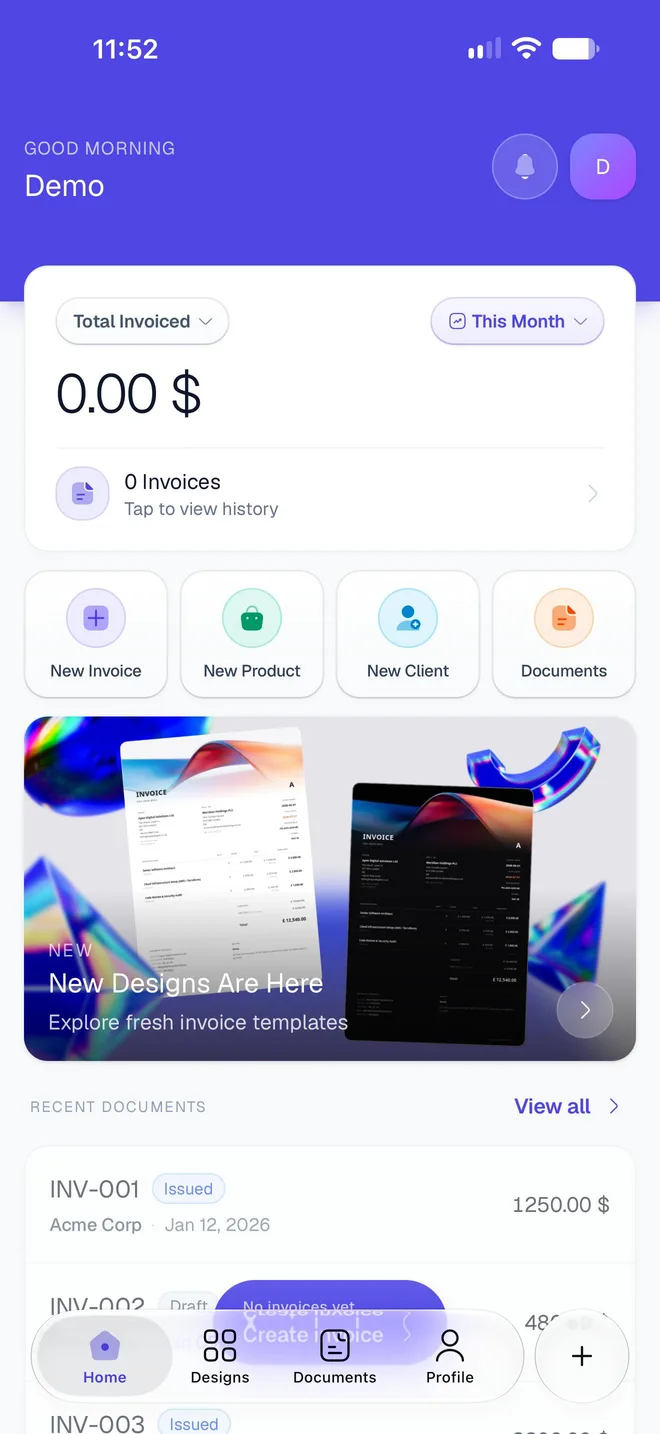
- The greeting and the bell. The bell opens your Notifications, with a red badge counting unread ones.
- The totals card. What you've billed over a period: Total Invoiced for This Month to start with. Tap either pill to see quotations, sale orders or all documents, for a week, a month, a quarter, a year or all time. Tap the lower half of the card to open Documents. See Read your totals on the Home screen.
- Quick actions. New Invoice, New Product, New Client and Documents.
- A banner about what's new in the app.
- Recent Documents. Your five latest documents; tap one to open it, or View all.
Those first documents aren't yours
Before you save anything, Recent Documents shows three faded examples (INV-001, Acme Corp…) behind a Create invoice button. They're only there to show what the list will look like.
What's in the Designs tab?
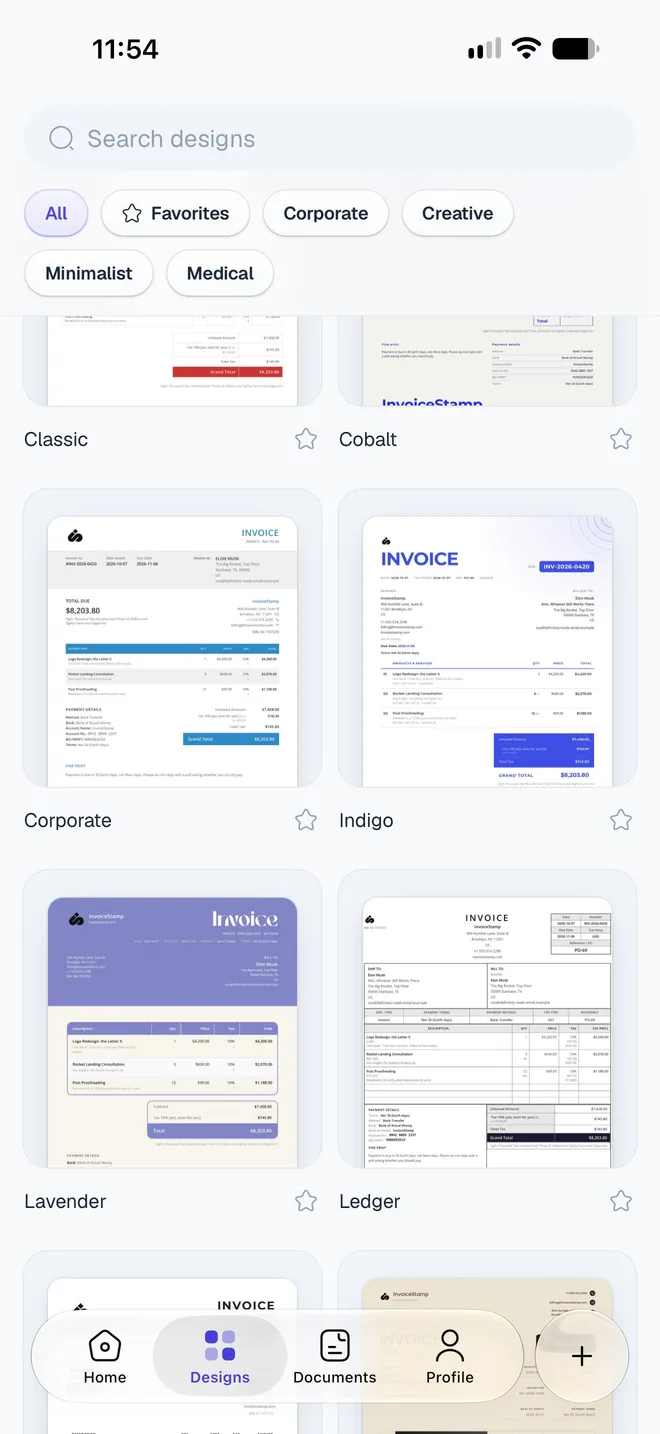
Every invoice design, with a search box and filters: All, Favorites, Corporate, Creative, Minimalist and Medical. Tap a design to page through samples and try its colors, then Use Template to apply it. See Choose a design.
What's in the Documents tab?
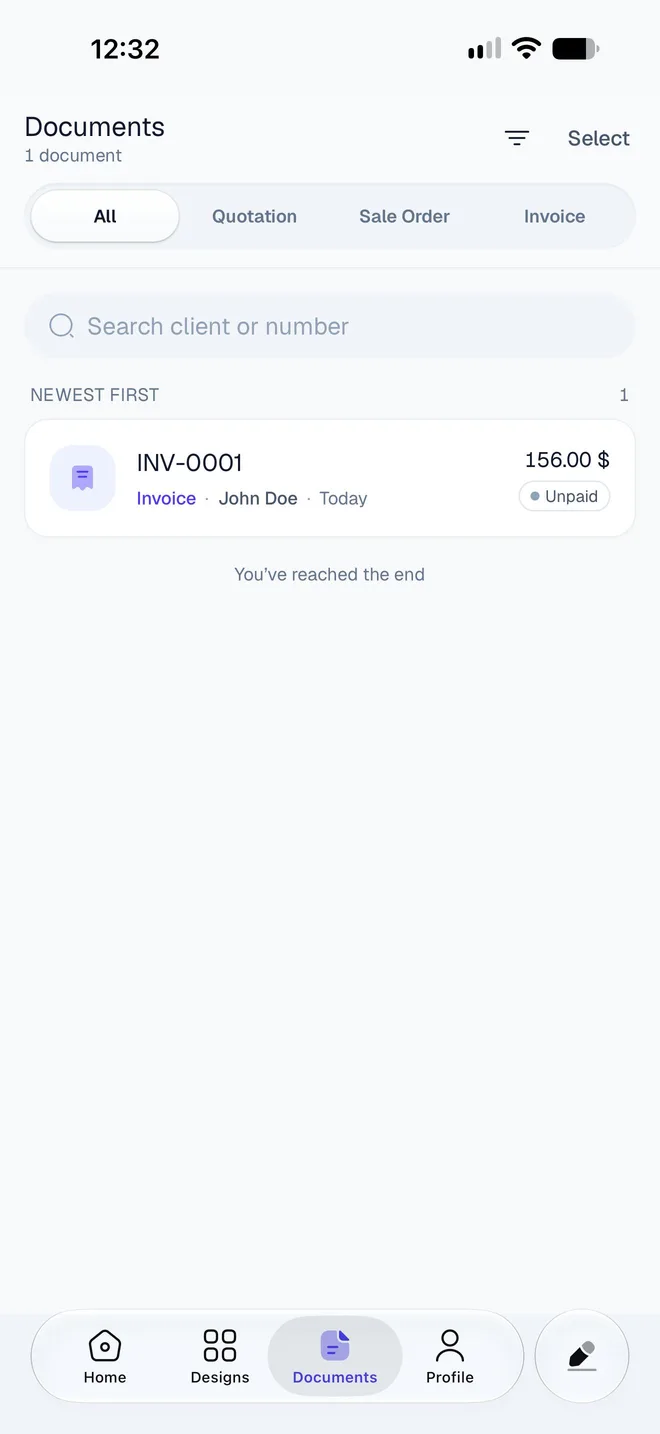
Every quotation, sale order and invoice you've saved, newest first. Switch between All, Quotation, Sale Order and Invoice, or search by client or number. Invoices show whether they're Unpaid, Partial or Paid. Tap a document to edit, share, download or delete it, or to record a payment. See Find and manage your documents.
What's in the Profile tab?
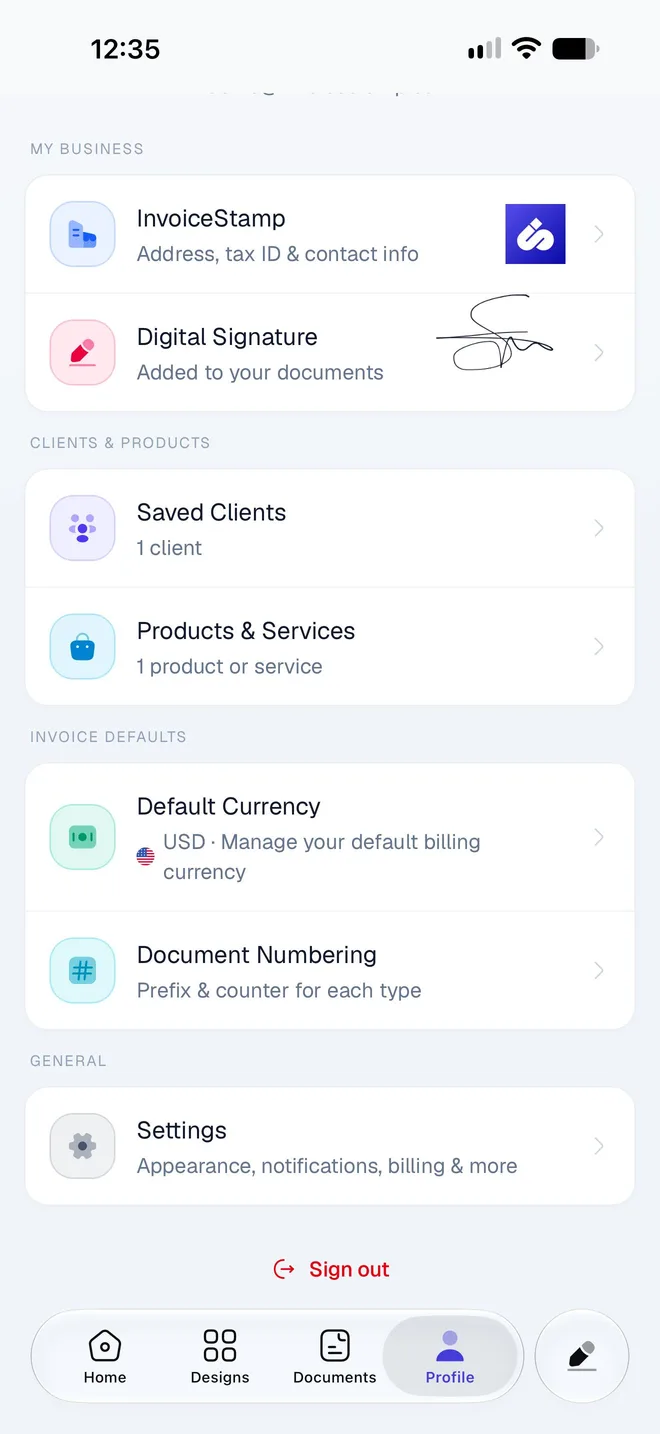
| Section | What you'll find |
|---|---|
| My Business | Your business details and your Digital Signature |
| Clients & Products | Saved Clients and Products & Services |
| Invoice Defaults | Default Currency and Document Numbering |
| General | Settings: appearance, notifications, save location, your subscription and account deletion |
Sign out is at the bottom.
What does the + button do?
Tap + to open What are we making?
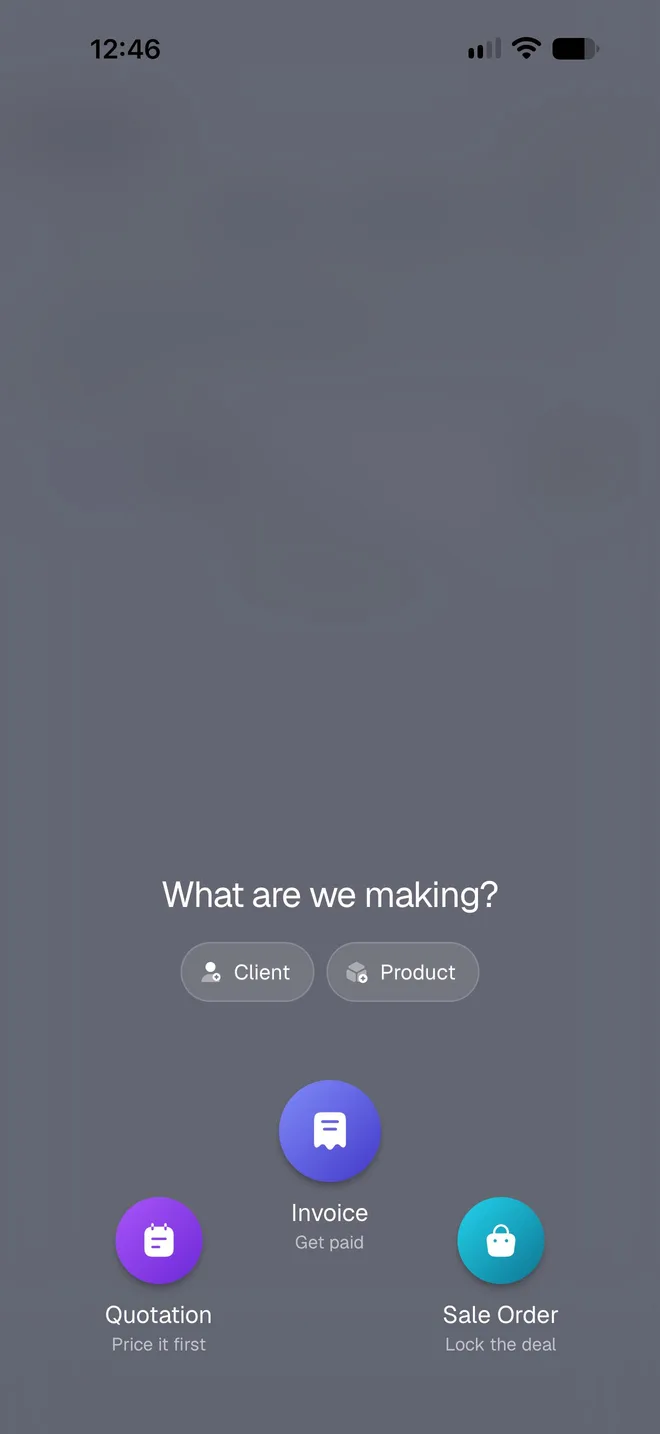
- Quotation, Invoice or Sale Order opens the editor on a new document of that type. Not sure which one you need? See Quotation, sale order or invoice.
- Client and Product add a client or a product to your saved lists, without starting a document.
Tap the dimmed background or ✕ to close the menu.
On iPhones with iOS 26 or later, the tab bar is Apple's Liquid Glass bar and + sits in its own round button at the right. On Android, and on earlier iOS versions, + is the raised button in the middle of the tab bar.
Why does the + button show a pen?
When the editor is holding a document you've worked on, the button turns into a pen on the other tabs. Tap it to go straight back to that document. To start a new one instead, open the editor (the button is + there) or tap New Invoice on Home.
If the document in the editor has changes you haven't saved, starting a new one asks first: Clear and start new discards them, Keep editing takes you back.
Was this page helpful?
Set up InvoiceStamp on your phone
The first time you open InvoiceStamp, a short setup asks your business name, logo and currency, shows your first design, then takes you to the plans.
Sign in, verify your email and reset a password
Sign in to InvoiceStamp with Apple, Google or email. How to verify a new email account, reset a forgotten password and get back in after a sign-out.